
Create a custom race with AI traffic
Create a custom race on your Assetto Corsa traffic server: track and layout, cars, entry list with AI modes, weather and time of day.
A race is everything your server runs: the track, the cars, the entry list (which car is in each slot, and whether the AI drives it) and the weather. You build it in Races › Create New, the same form as in AssettoHosting's previous Traffic panel.
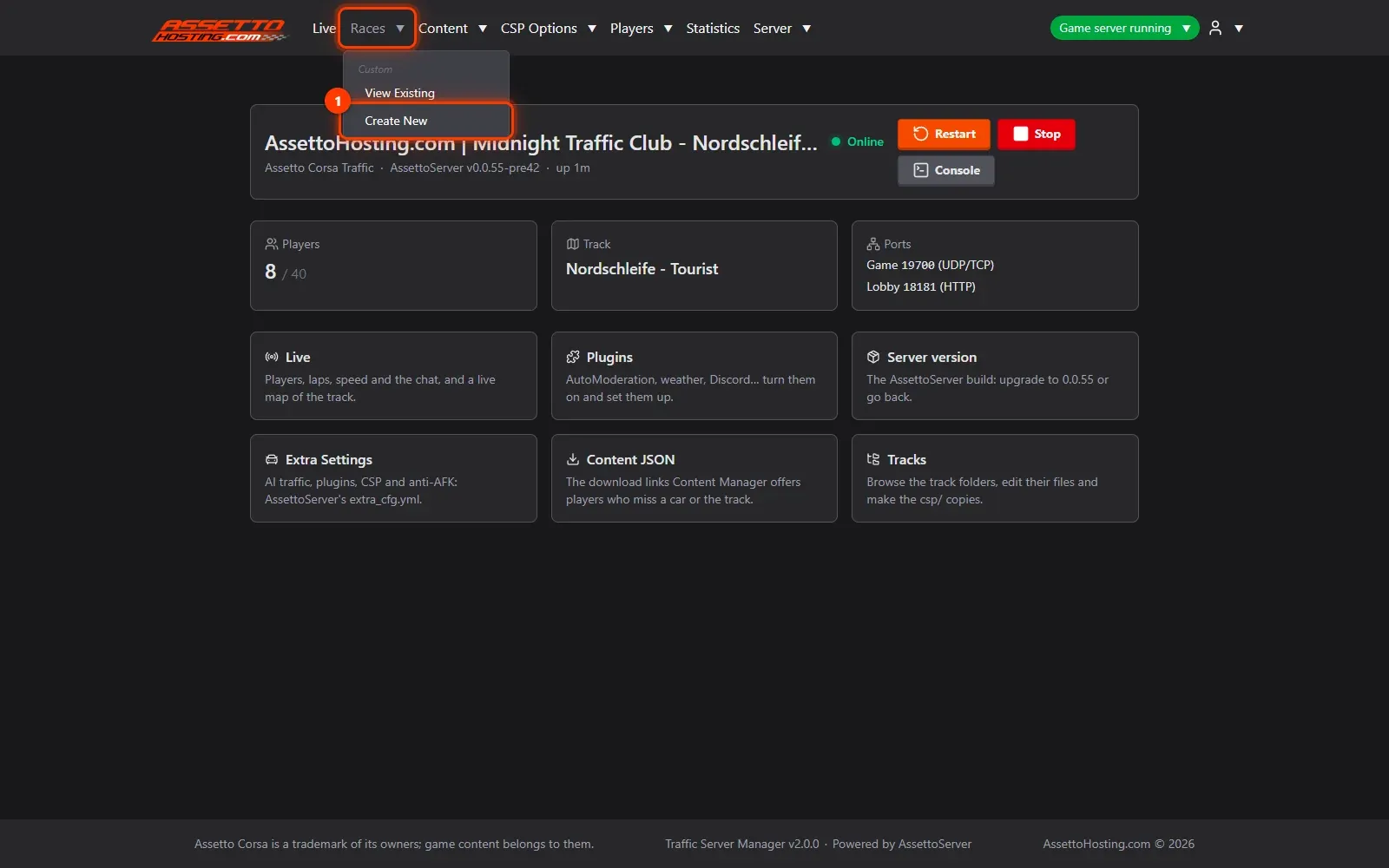
- Open Races › Create New. In the top menu, open Races and pick Create New (or press Create a new Custom Race in the races list).
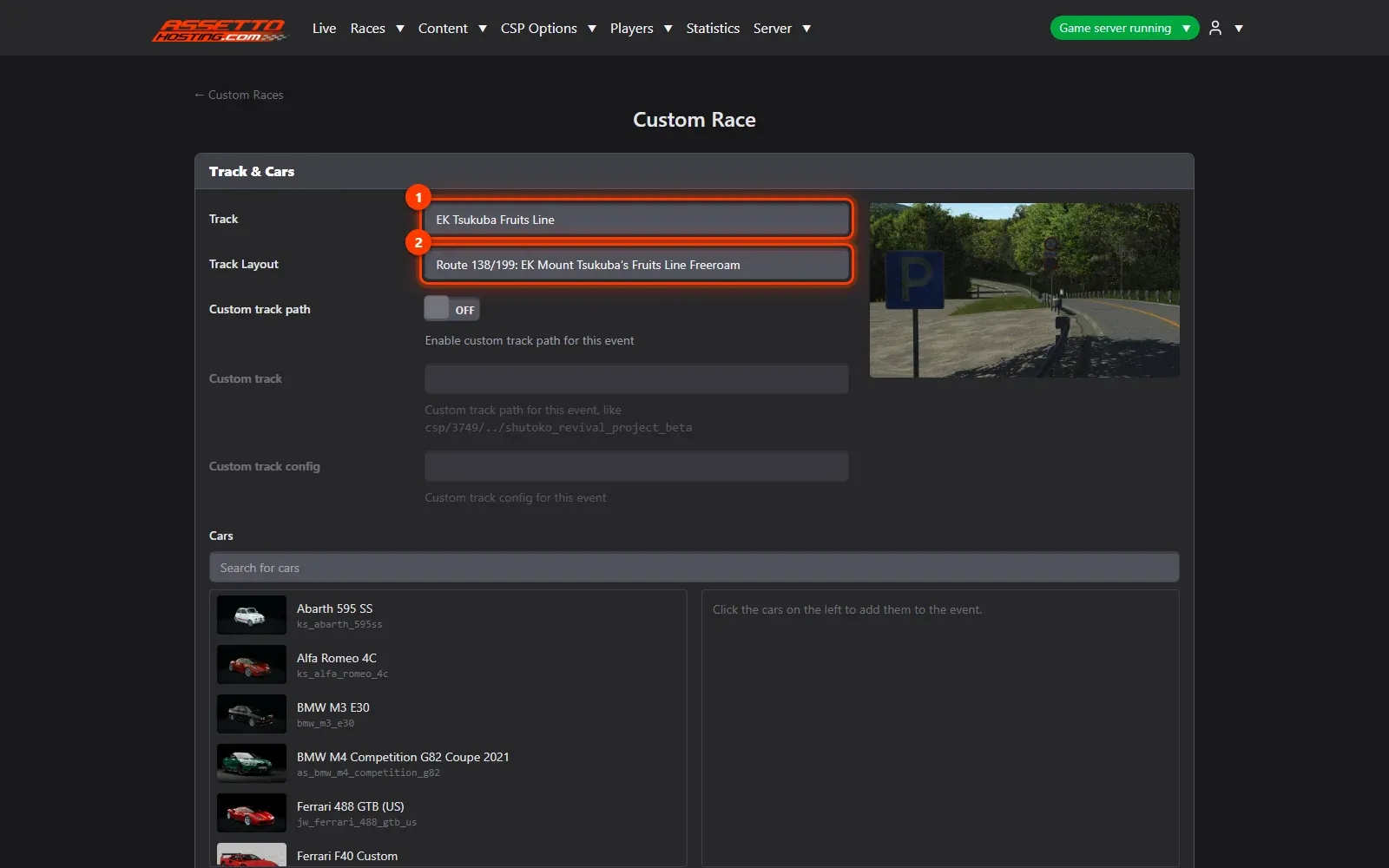
- Pick the track and its layout. In Track & Cars, choose the Track and, when it has several, its Layout.
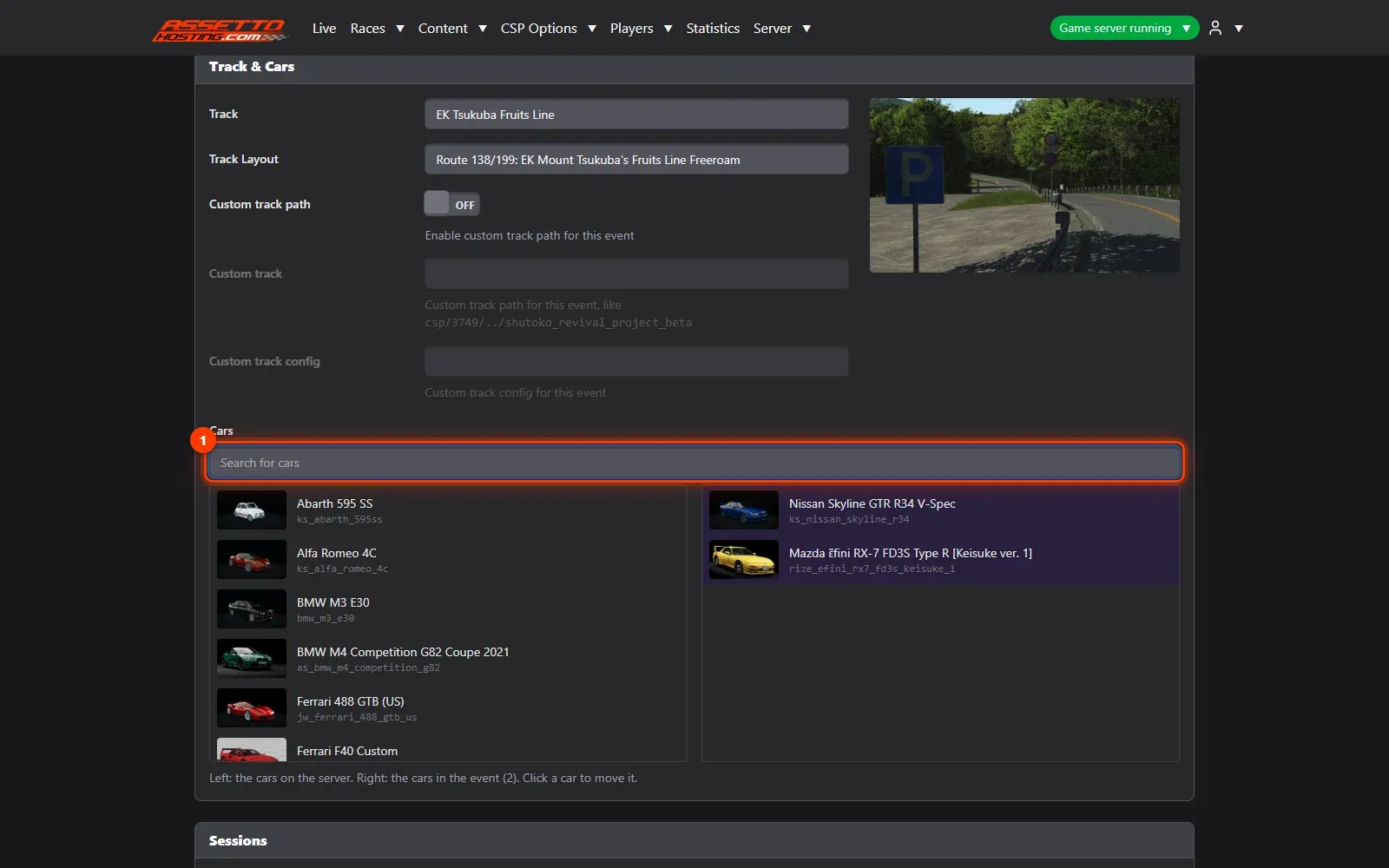
- Add the cars. Search the cars and click each one to allow it in the race: the cars players can drive and the ones the AI traffic uses.
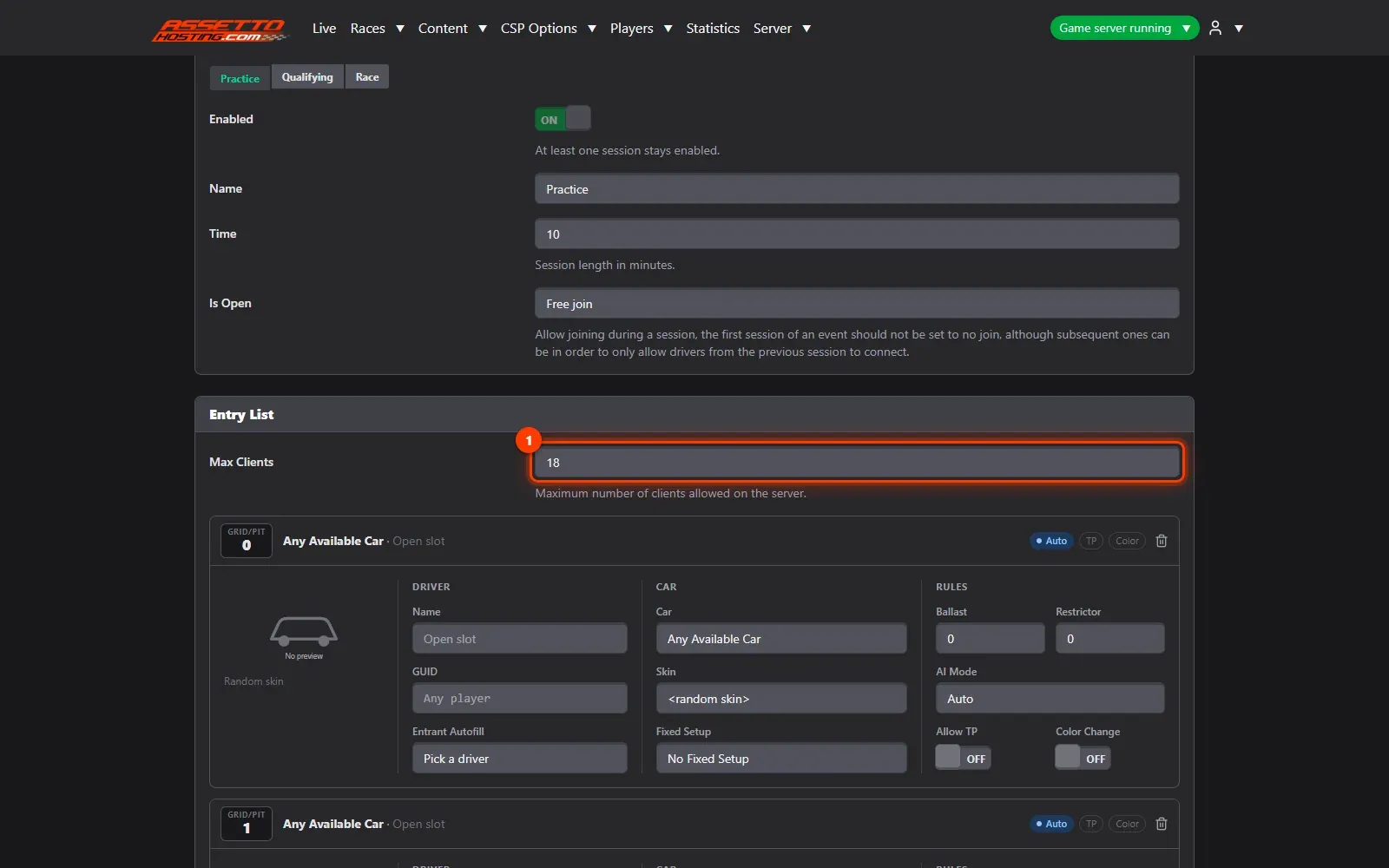
- Fill the entry list. The entry list is the server's cars, one per slot, AI included.
- Choose who drives each car.
- Set the weather and the time of day. In Weather, set the time of day and add one or more weathers.
- Save the race, or save and start it. Save Custom Race keeps it in your races list; Start Race saves it and restarts the server with it (players on the server are disconnected and join again).
What you need
- The track (with AI lanes) and the cars uploaded to your server.
- An Assetto Corsa Traffic server with Traffic Server Manager: every AssettoHosting.com Traffic server comes with it.
Step by step
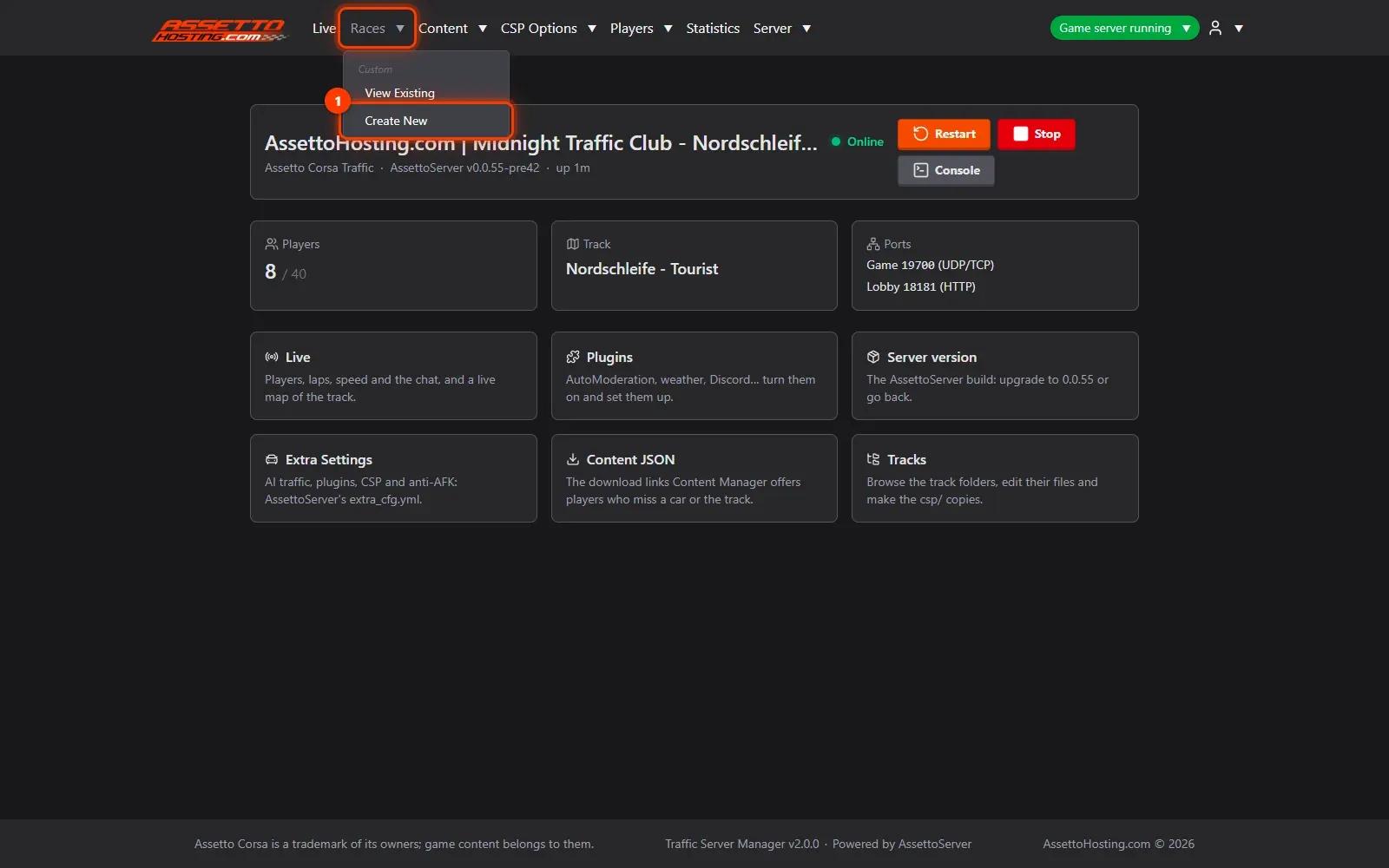
- Open Races › Create New
In the top menu, open Races and pick Create New (or press Create a new Custom Race in the races list).
- Pick the track and its layout
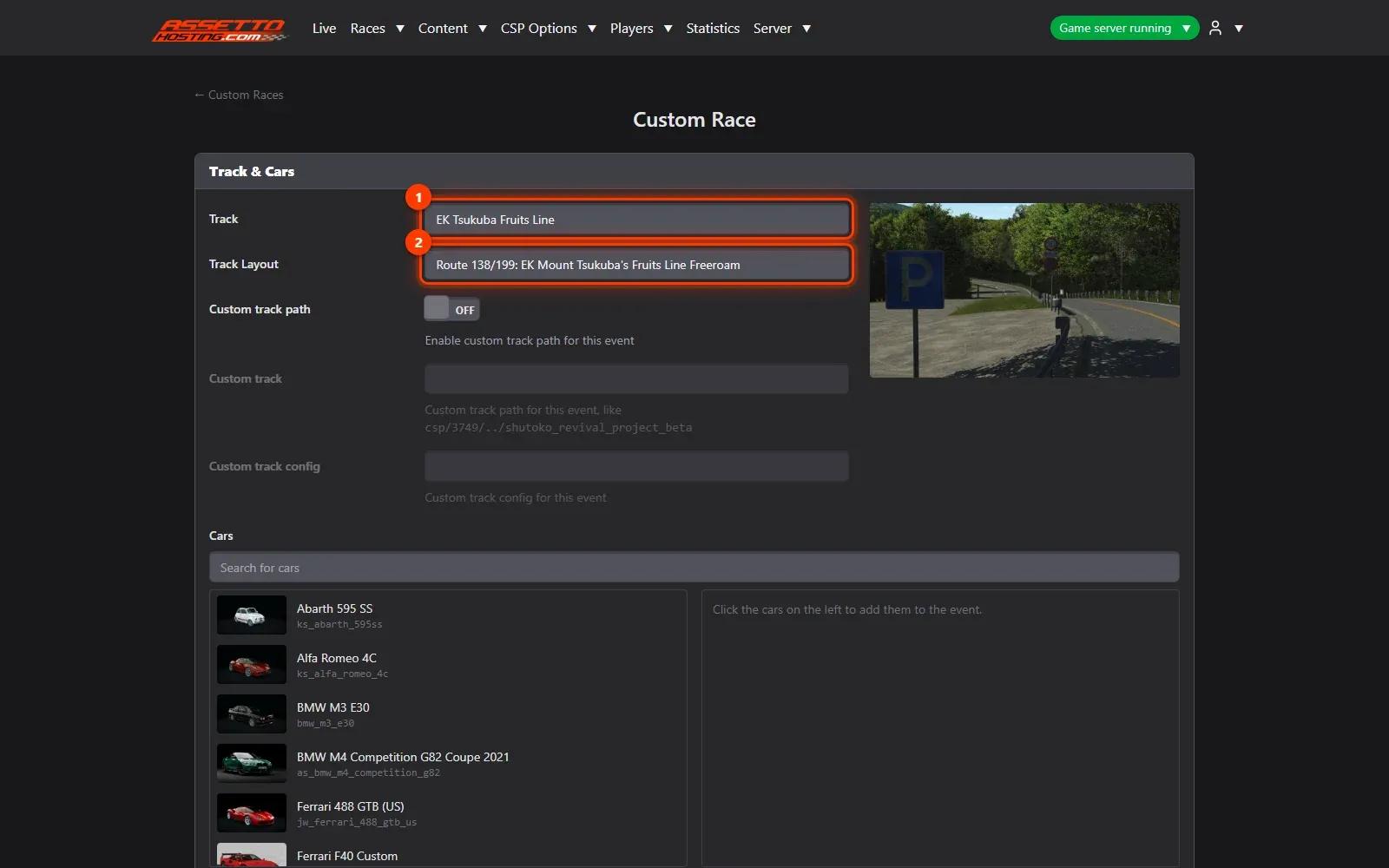
In Track & Cars, choose the Track (1) and, when it has several, its Layout (2). Its preview picture shows below. Only tracks you've uploaded are listed.
- Add the cars
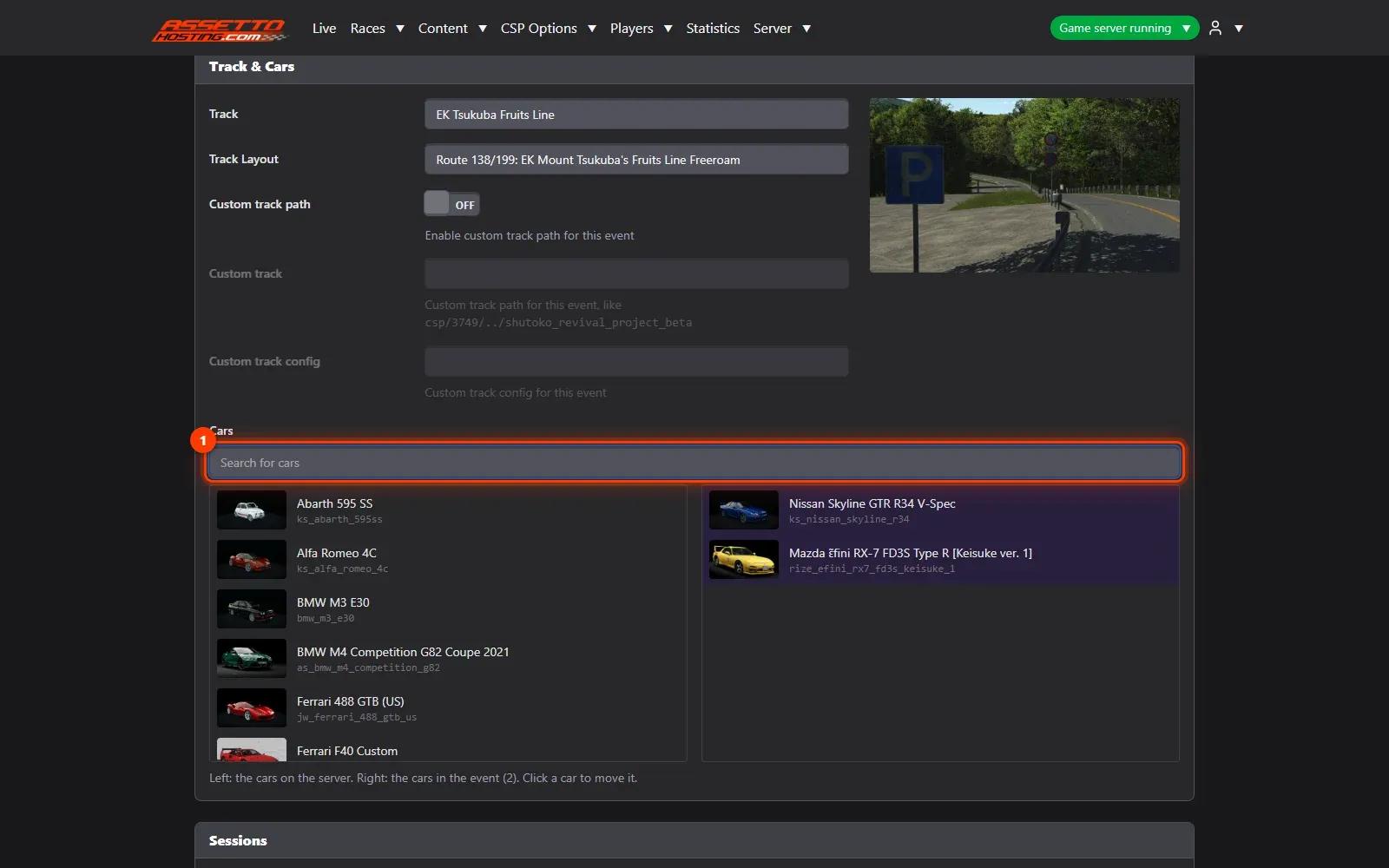
Search the cars (1) and click each one to allow it in the race: the cars players can drive and the ones the AI traffic uses.
- Fill the entry list
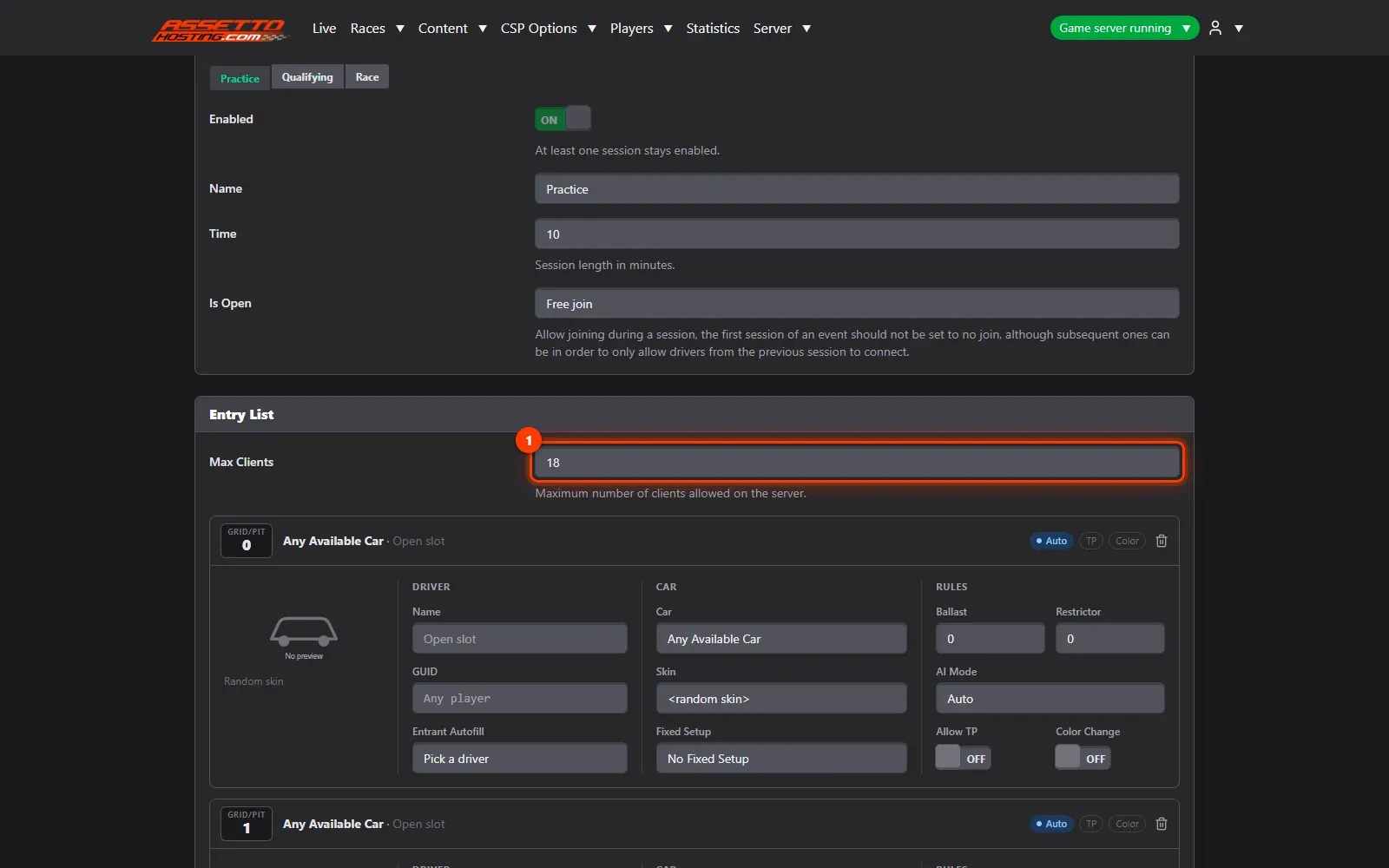
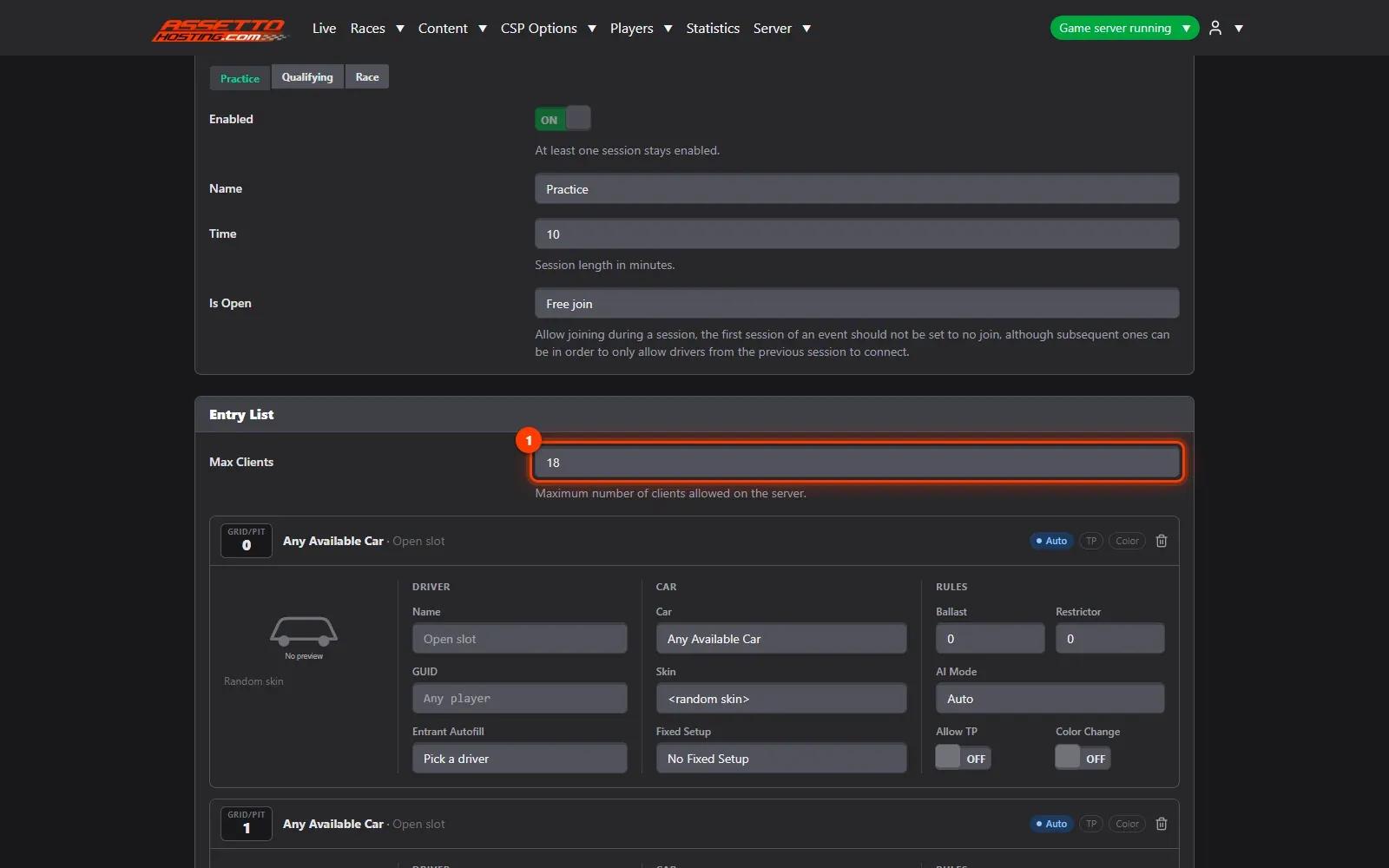
The entry list is the server's cars, one per slot, AI included. Max Clients (1) is limited to your plan's slots. Type how many entrants to add (2) and press Add Entrant(s) (3): they're added with the race's cars, in turn.
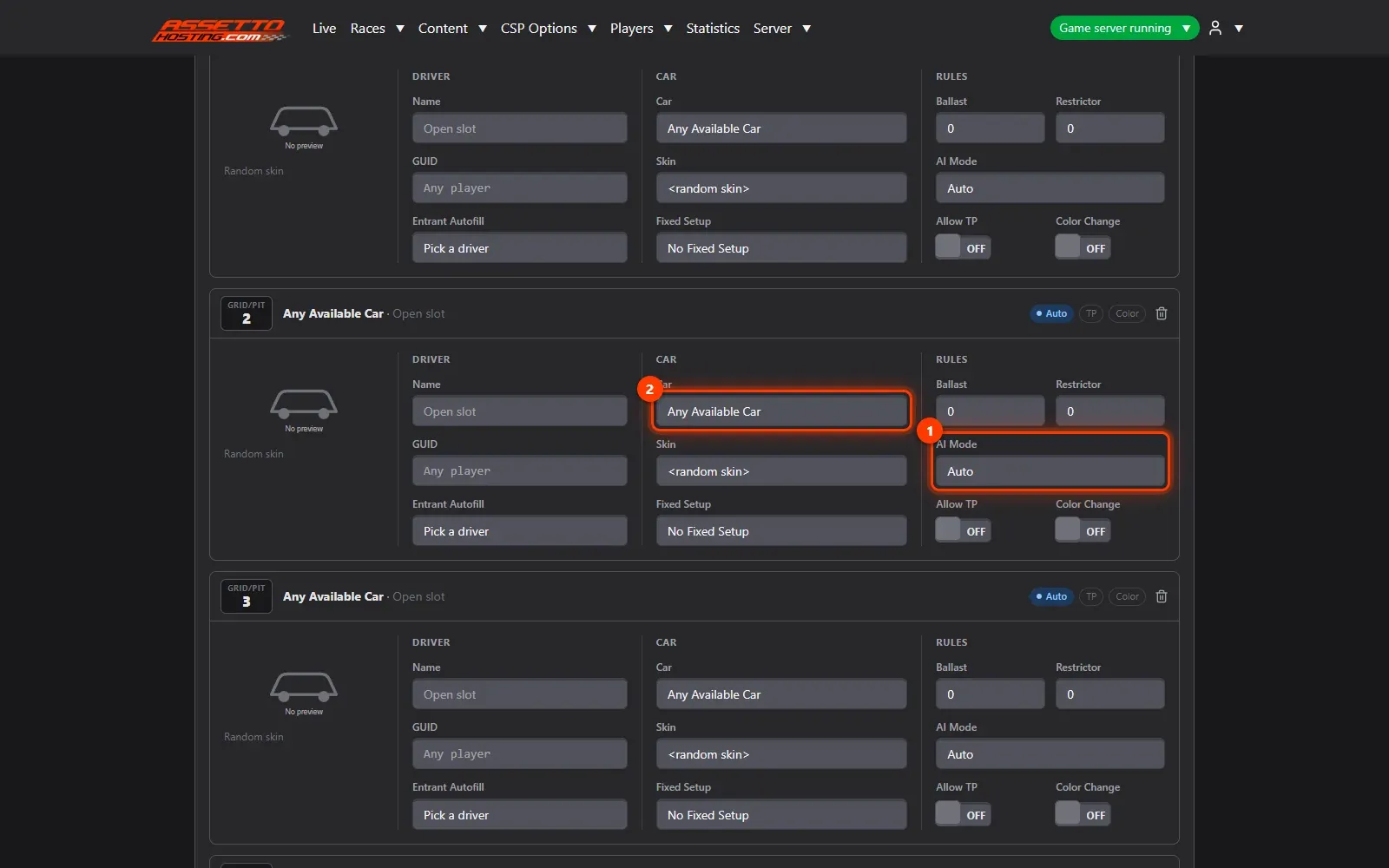
- Choose who drives each car
Each entrant has an AI Mode (1): Auto — the AI drives it while no player takes it (the usual choice on a traffic server); Fixed — always the AI (traffic cars); None — players only. Its Car (2) and skin (
<random skin>picks one when you save) can be changed per entrant.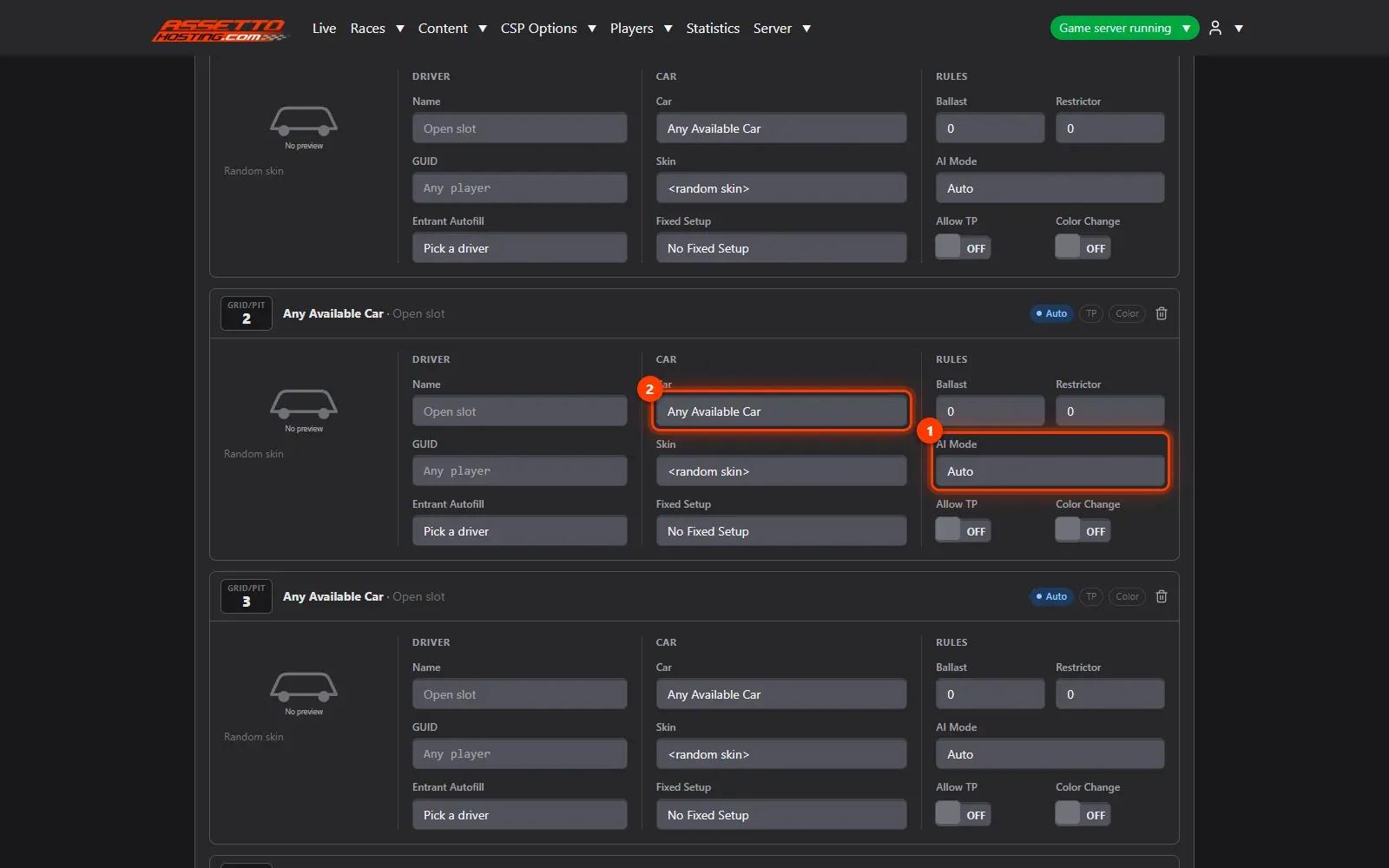
- Set the weather and the time of day
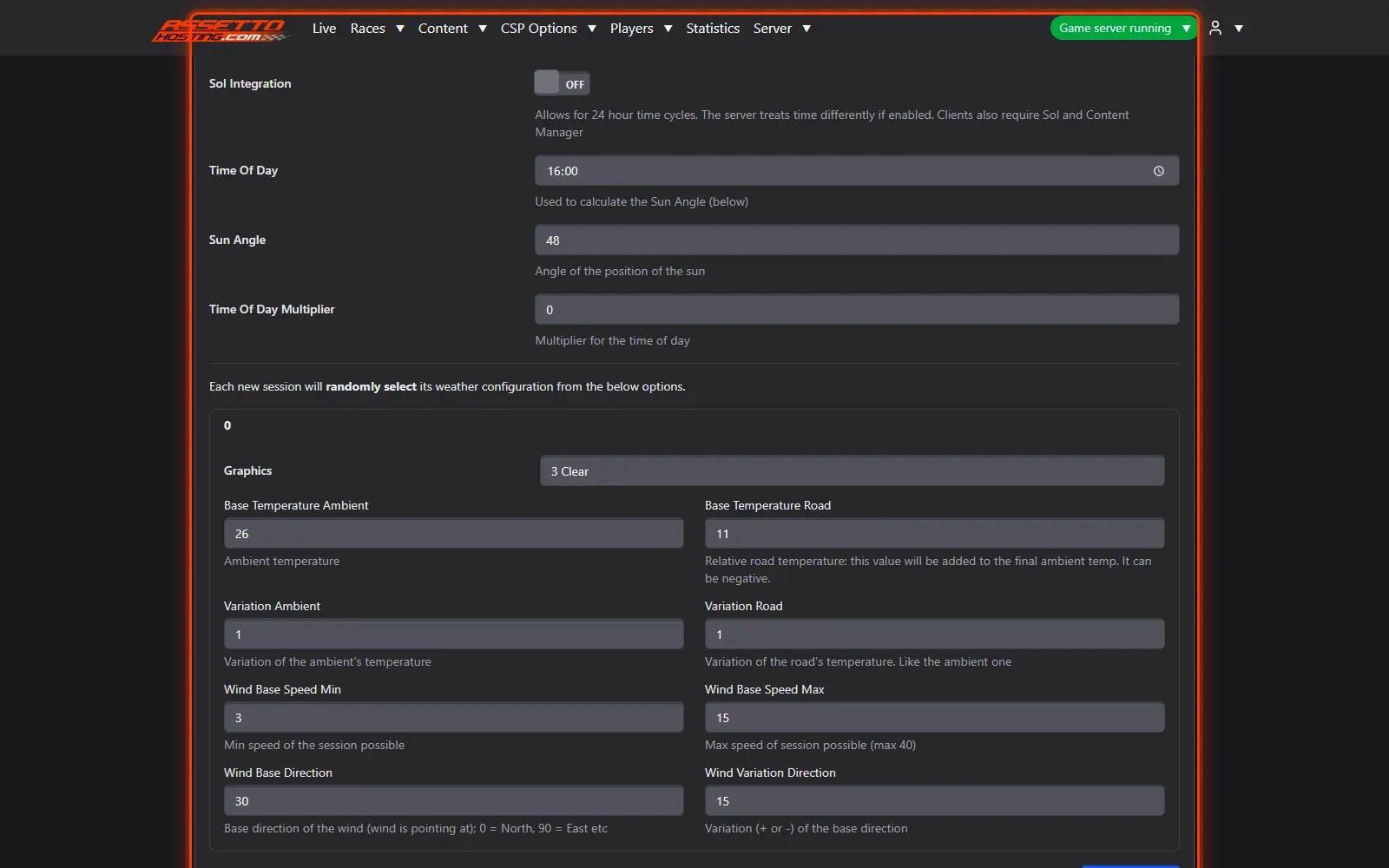
In Weather, set the time of day and add one or more weathers. Sol weathers are offered when your server has them. Realism, Assists and Rules below keep the usual Assetto Corsa options (fuel, damage, tyre wear, legal tyres…).
- Save the race, or save and start it
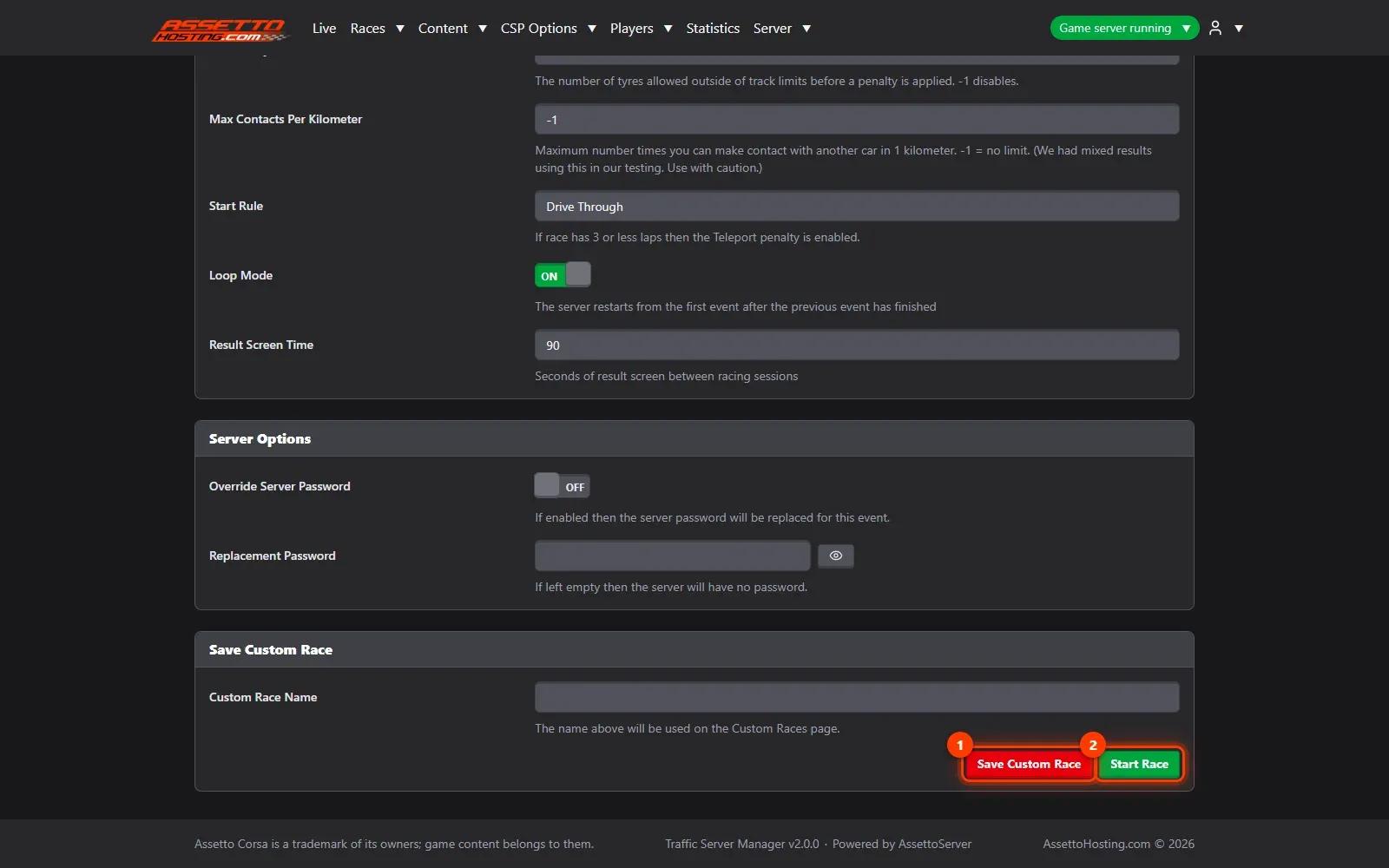
Save Custom Race (1) keeps it in your races list; Start Race (2) saves it and restarts the server with it (players on the server are disconnected and join again).


On AssettoHosting.com
AI traffic, set up from your browser
On an AssettoHosting.com Traffic server, AI lanes, races, schedules and every AssettoServer traffic setting are in Traffic Server Manager. It checks every value before it saves, so a typo can’t stop your server from starting.
- AI lanes per track and layout
- Custom races and weekly schedules
- Every value checked before it is saved
Good to know
- Use "Use as Template" in the races list to copy a race and change only what differs.
- Entrant Autofill fills a driver saved from earlier races in one click.
Traffic Server Manager
Frequently asked questions
Auto: the AI drives the car while no player takes it. Fixed: always the AI. None: players only.
As many as your hosting plan's slots, AI cars included.
Keep reading: Start a race on your traffic server now, or schedule it every week · Add AI traffic lanes (fast_lane.ai) to a track · Upload cars and tracks to your Assetto Corsa traffic server · How to make a No Hesi style Assetto Corsa server · All 18 Traffic Server Manager tutorials