
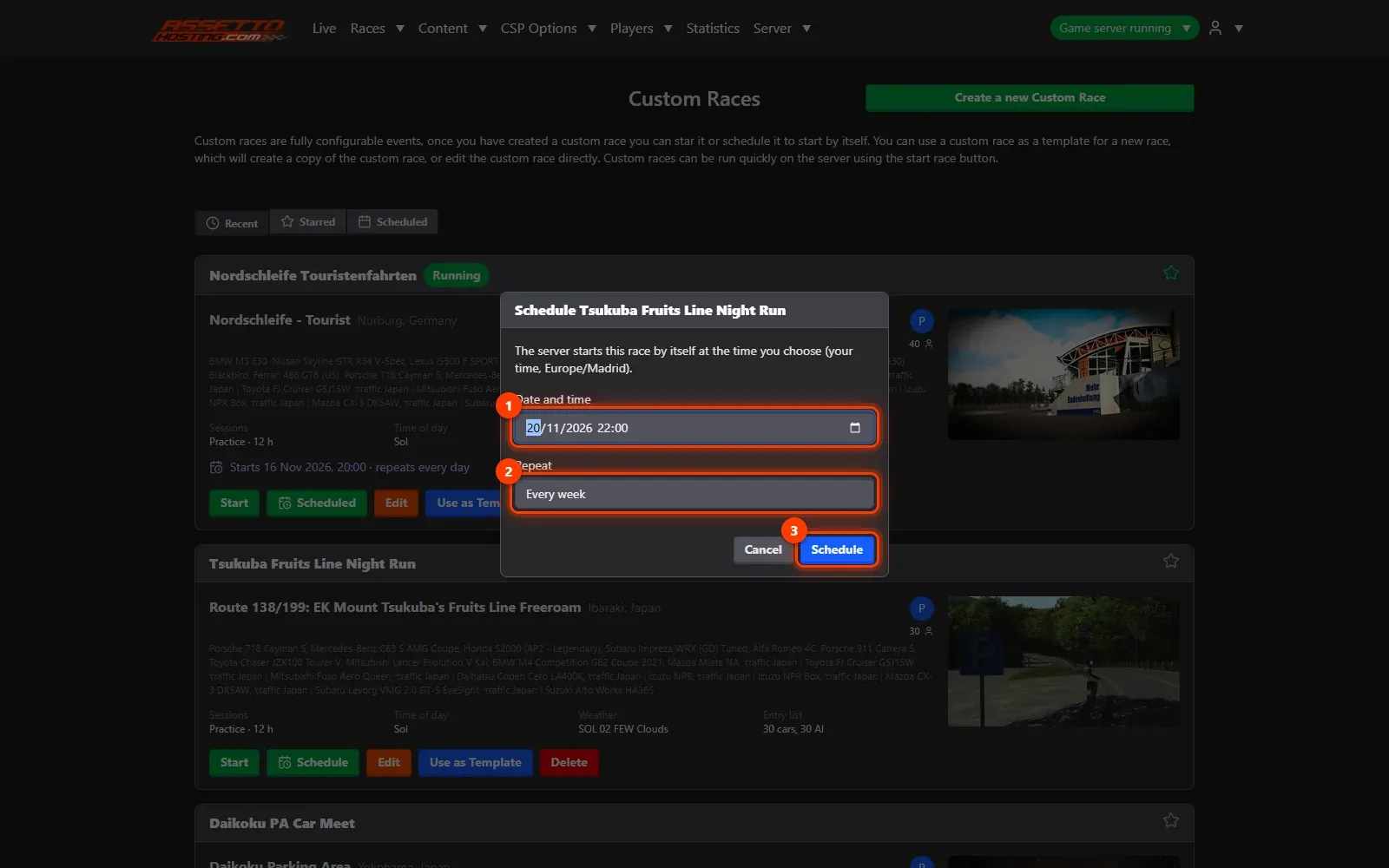
Start a race on your traffic server now, or schedule it every week
Start a race on your Assetto Corsa traffic server in one click, or schedule it once, every day or every week in your own time zone.
Once a race is saved, you can start it right away or let the panel start it by itself, once or on a repeating schedule: a weekly event night, a daily track rotation.
- Your races. Races › View Existing lists your races: Recent, Starred and Scheduled.
- Schedule a race.
- Check the schedules. The Scheduled tab lists the races that start by themselves and when.
- Start a race now. Press Start on a race: the panel writes it into the server's files and restarts the server with it (players on the server are disconnected and can join again).
What you need
- A saved race (see Create a custom race with AI traffic).
- An Assetto Corsa Traffic server with Traffic Server Manager: every AssettoHosting.com Traffic server comes with it.
Step by step
- Your races
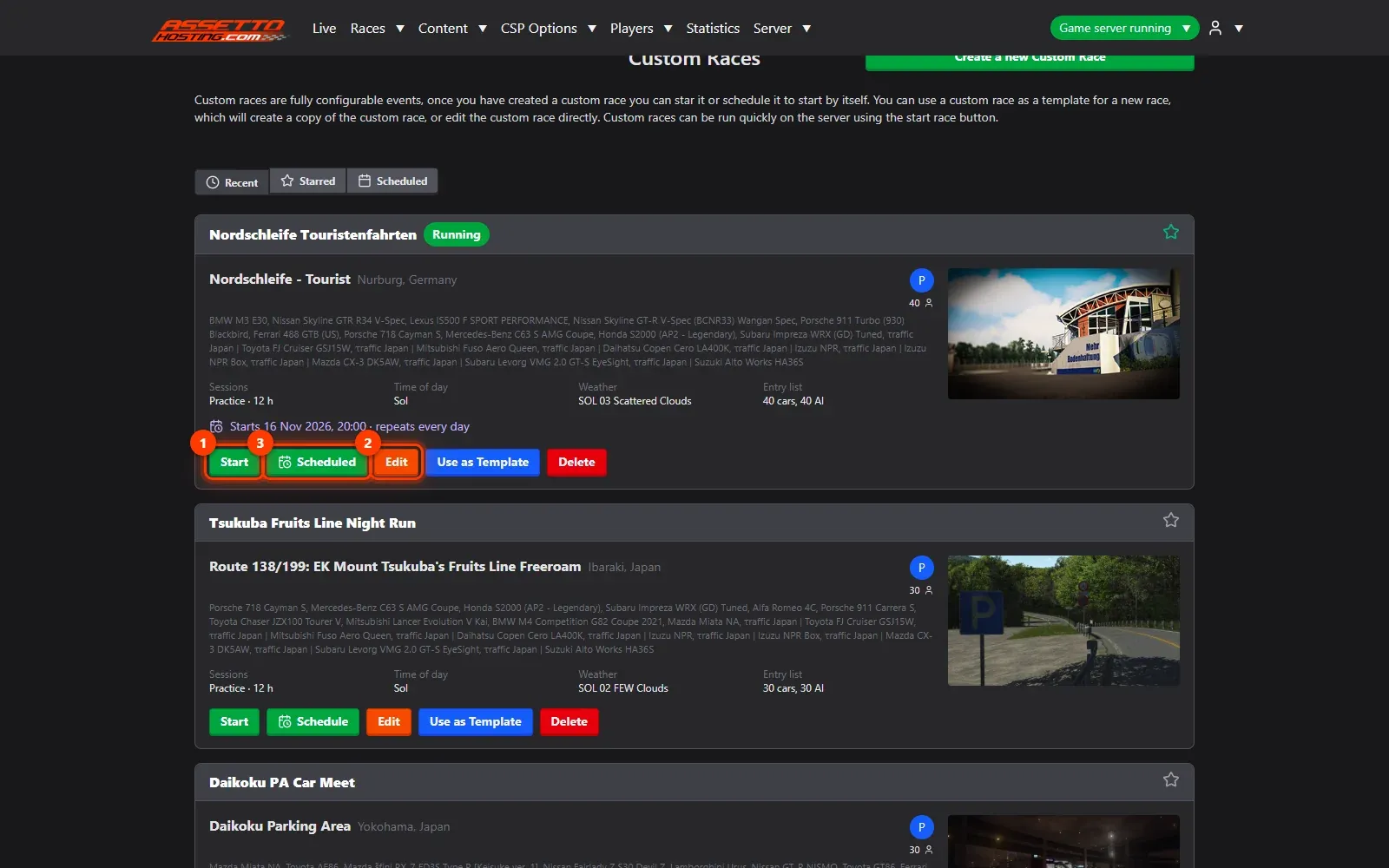
Races › View Existing lists your races: Recent, Starred and Scheduled. The one running is marked. Each race has Start (1), Edit (2), Schedule (3), Use as Template and Delete.
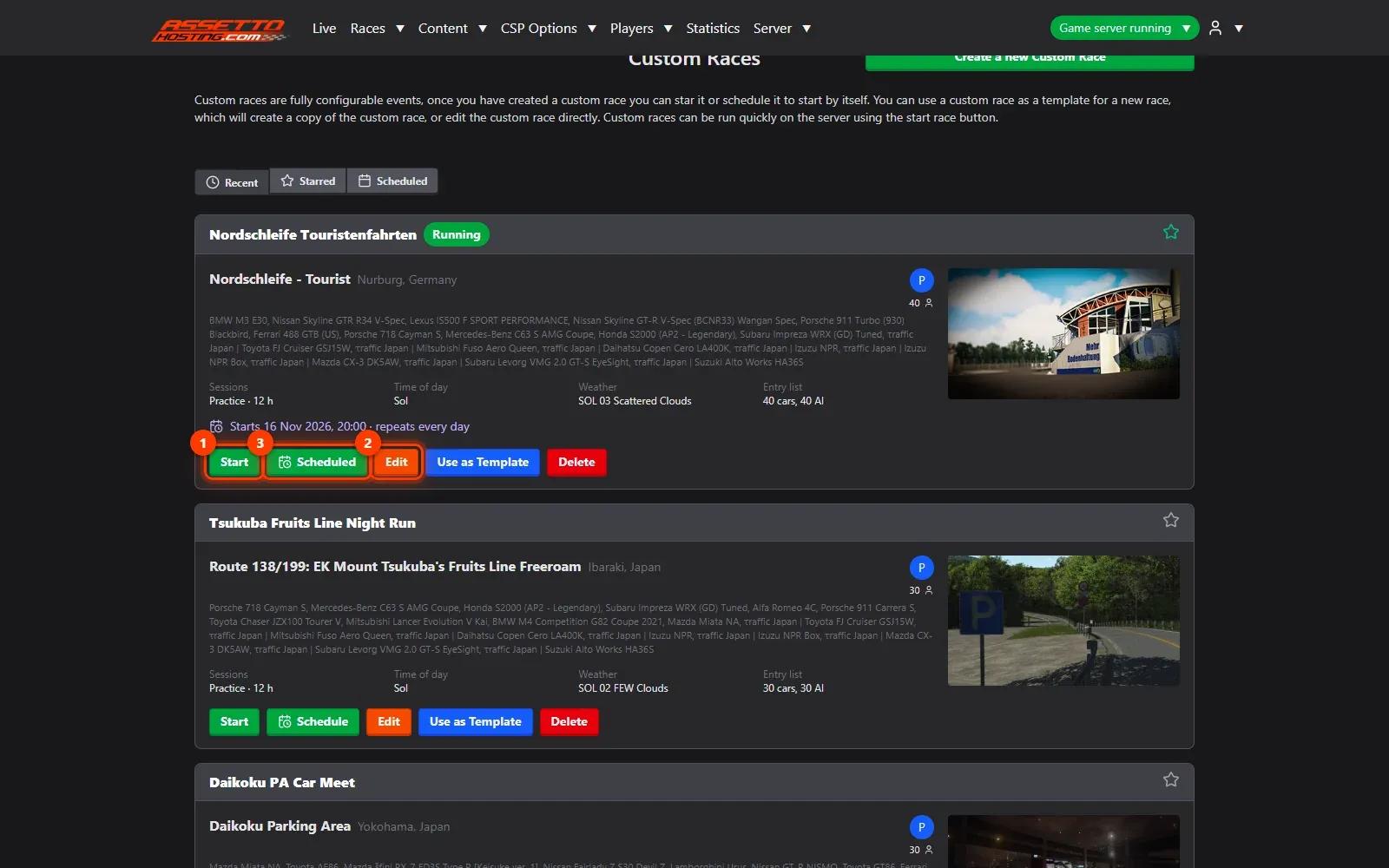
- Schedule a race
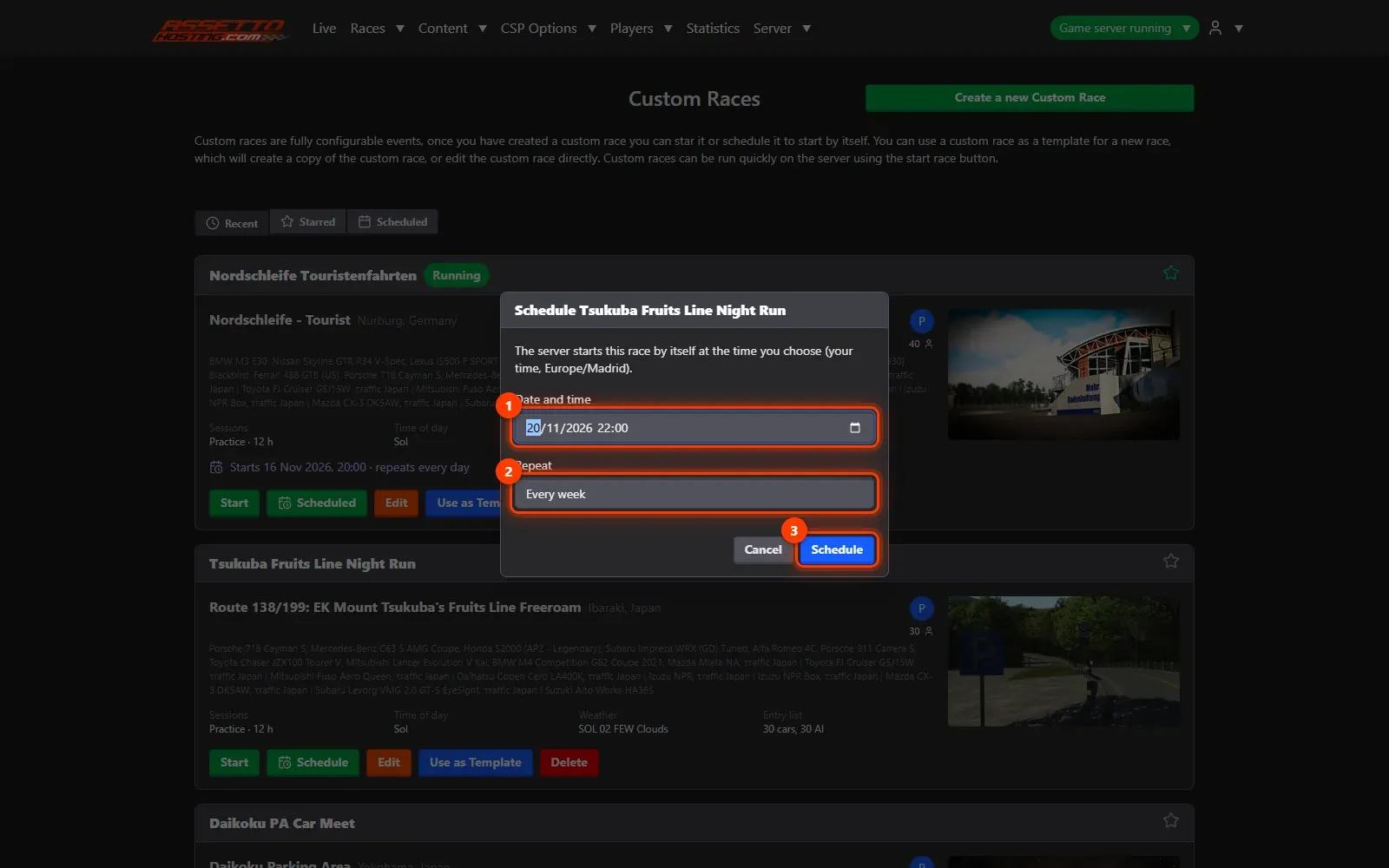
Press Schedule on a race, pick the date and time (1) — in your own time zone, taken from your browser — and whether it repeats (2): once, every day, every week, or a custom calendar rule. Press Schedule (3).
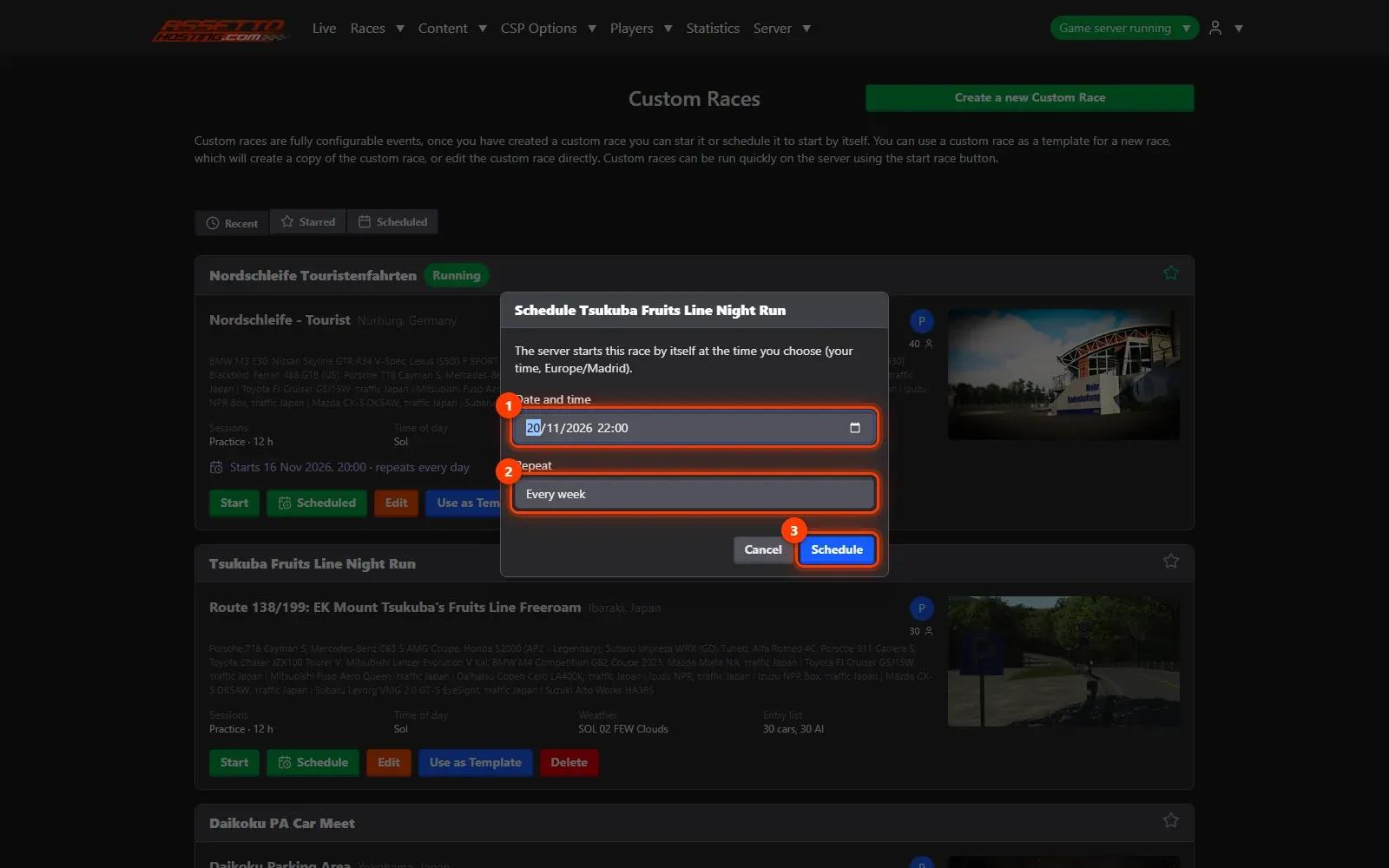
- Check the schedules
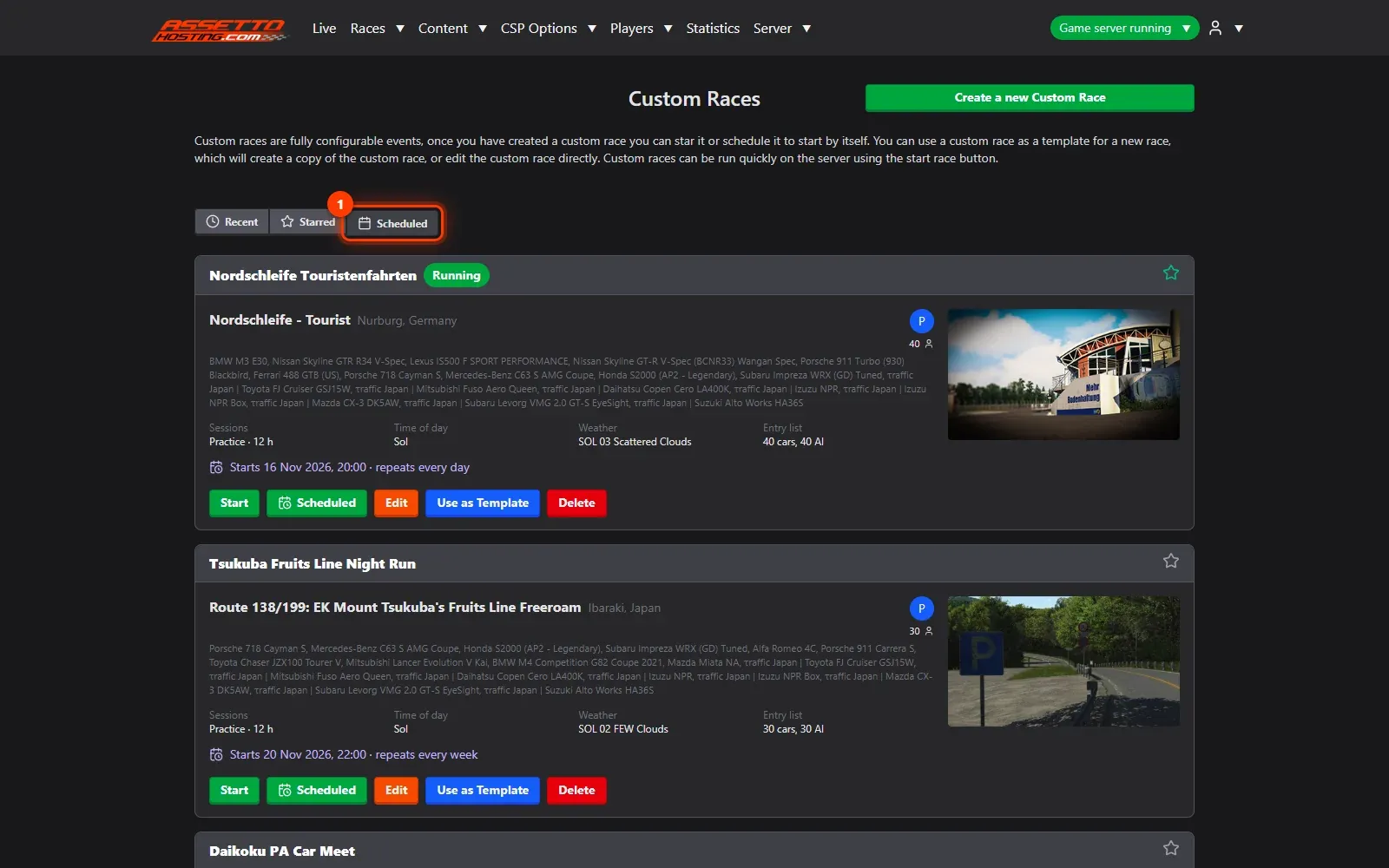
The Scheduled tab (1) lists the races that start by themselves and when. Remove a schedule there any time. The panel starts a scheduled race even if it's a few minutes late (after a restart of the host).
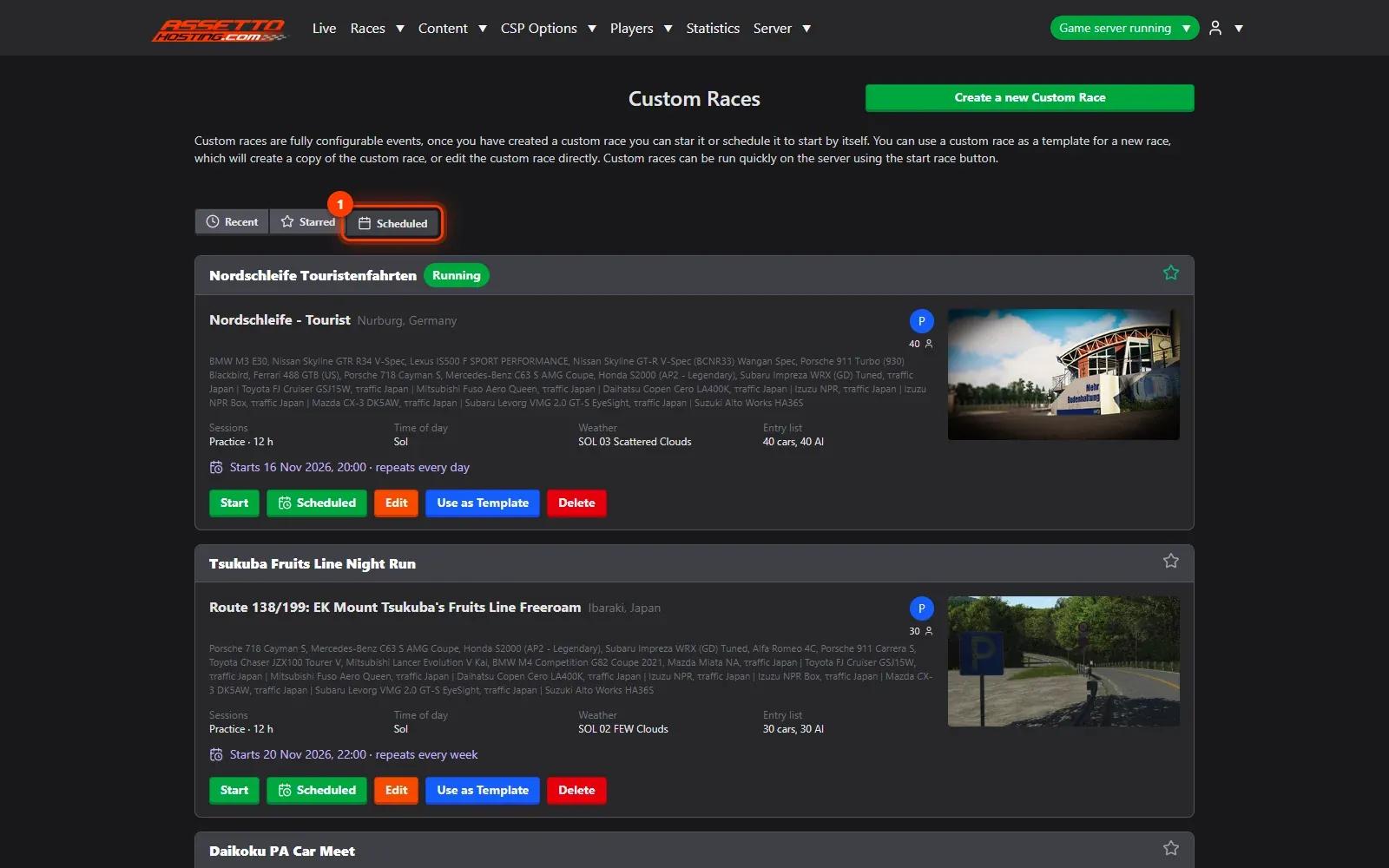
- Start a race now
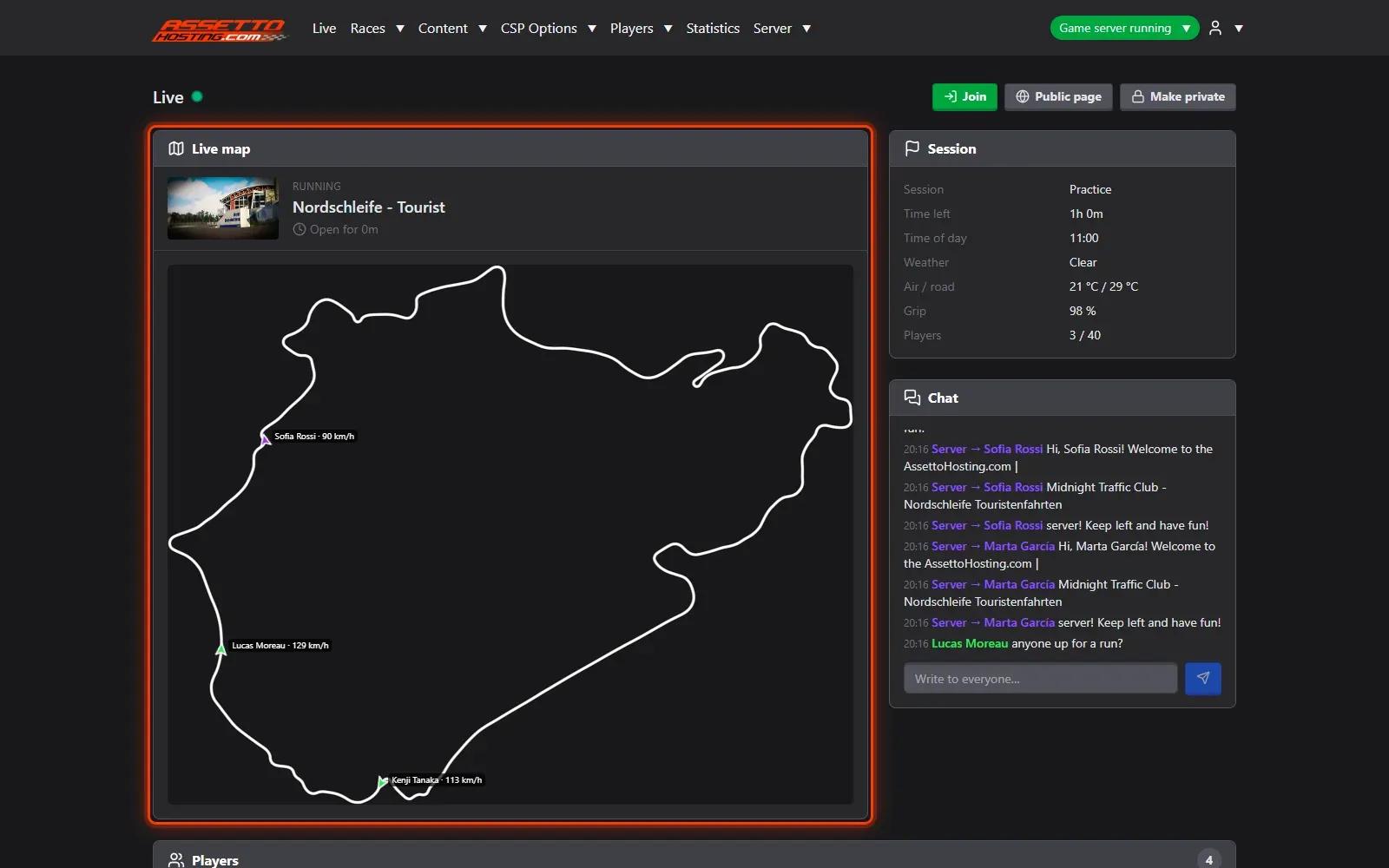
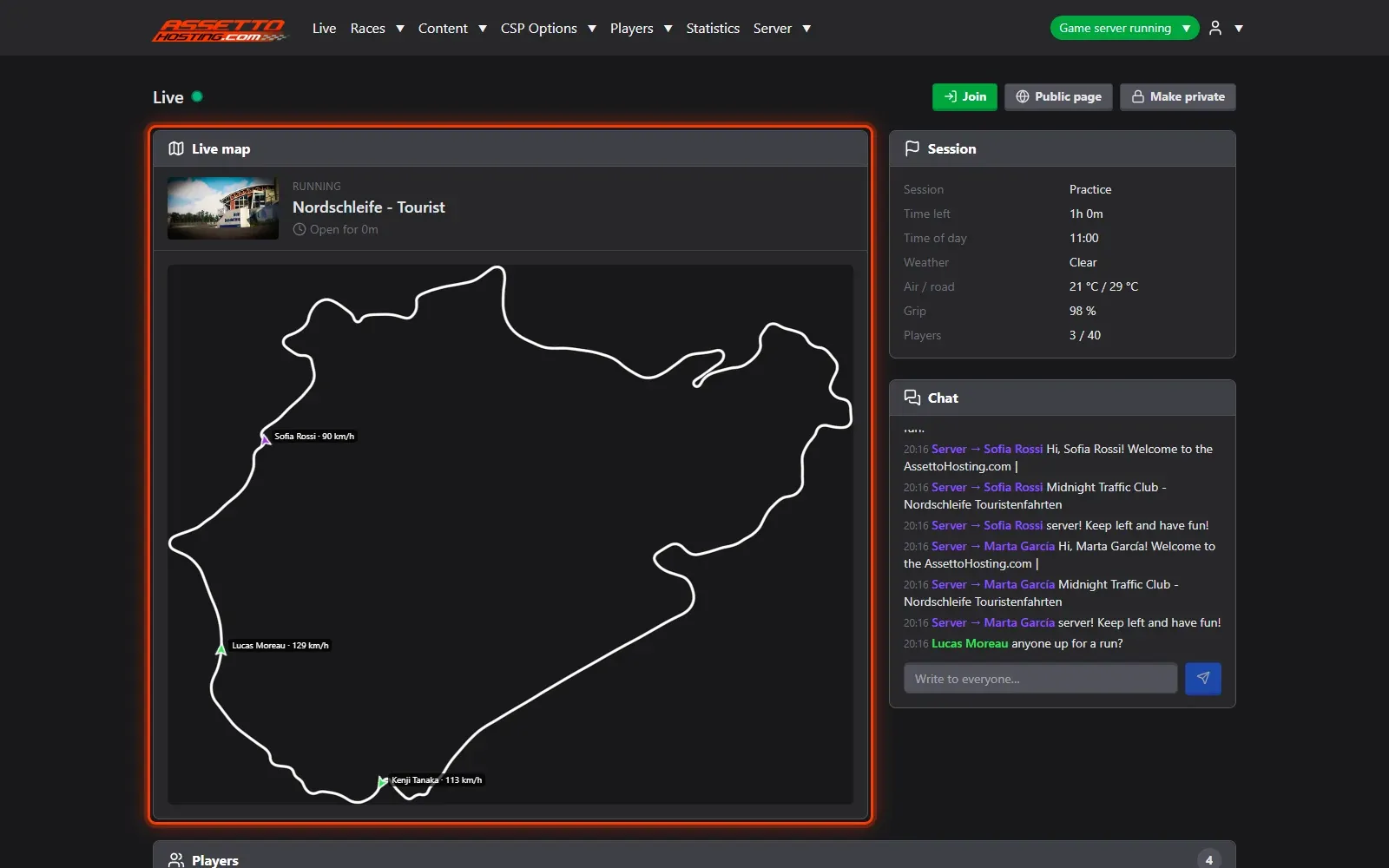
Press Start on a race: the panel writes it into the server's files and restarts the server with it (players on the server are disconnected and can join again). The Live page then shows the server loading and the players arriving on the map.
On AssettoHosting.com
AI traffic, set up from your browser
On an AssettoHosting.com Traffic server, AI lanes, races, schedules and every AssettoServer traffic setting are in Traffic Server Manager. It checks every value before it saves, so a typo can’t stop your server from starting.
- AI lanes per track and layout
- Custom races and weekly schedules
- Every value checked before it is saved
Good to know
- Star the races you use most: they get their own tab.
Traffic Server Manager
Frequently asked questions
Yes: starting a race restarts the server with it. They can join again right away.
Yours: the panel takes it from your browser, and keeps it for repeating schedules.
Keep reading: Create a custom race with AI traffic · Live map, chat and a public Live page for your community · All 18 Traffic Server Manager tutorials