
Turn on and set up AssettoServer plugins
Turn on AssettoServer plugins — AutoModeration, CustomCommand, Discord audit, live weather, word filter… — and set them up from forms that check every value.
AssettoServer comes with plugins for moderation, weather, Discord, chat commands and more. In Server › Plugins you turn them on in one click and set them up with forms.
- Open Server › Plugins.
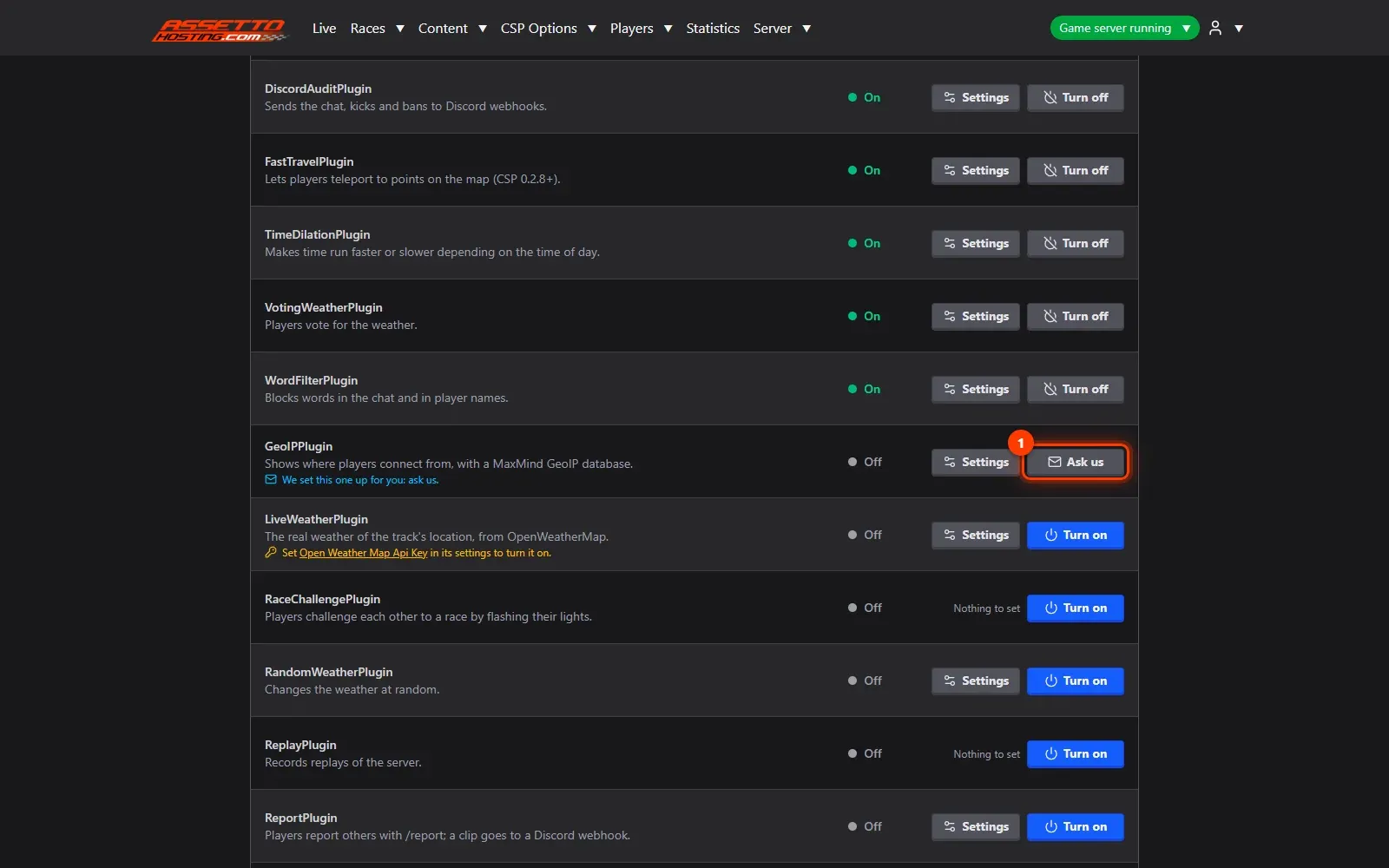
- Plugins only the hosting can set up. A few plugins need something only AssettoHosting can install (the GeoIP database, VotingPreset's presets): they show Ask us.
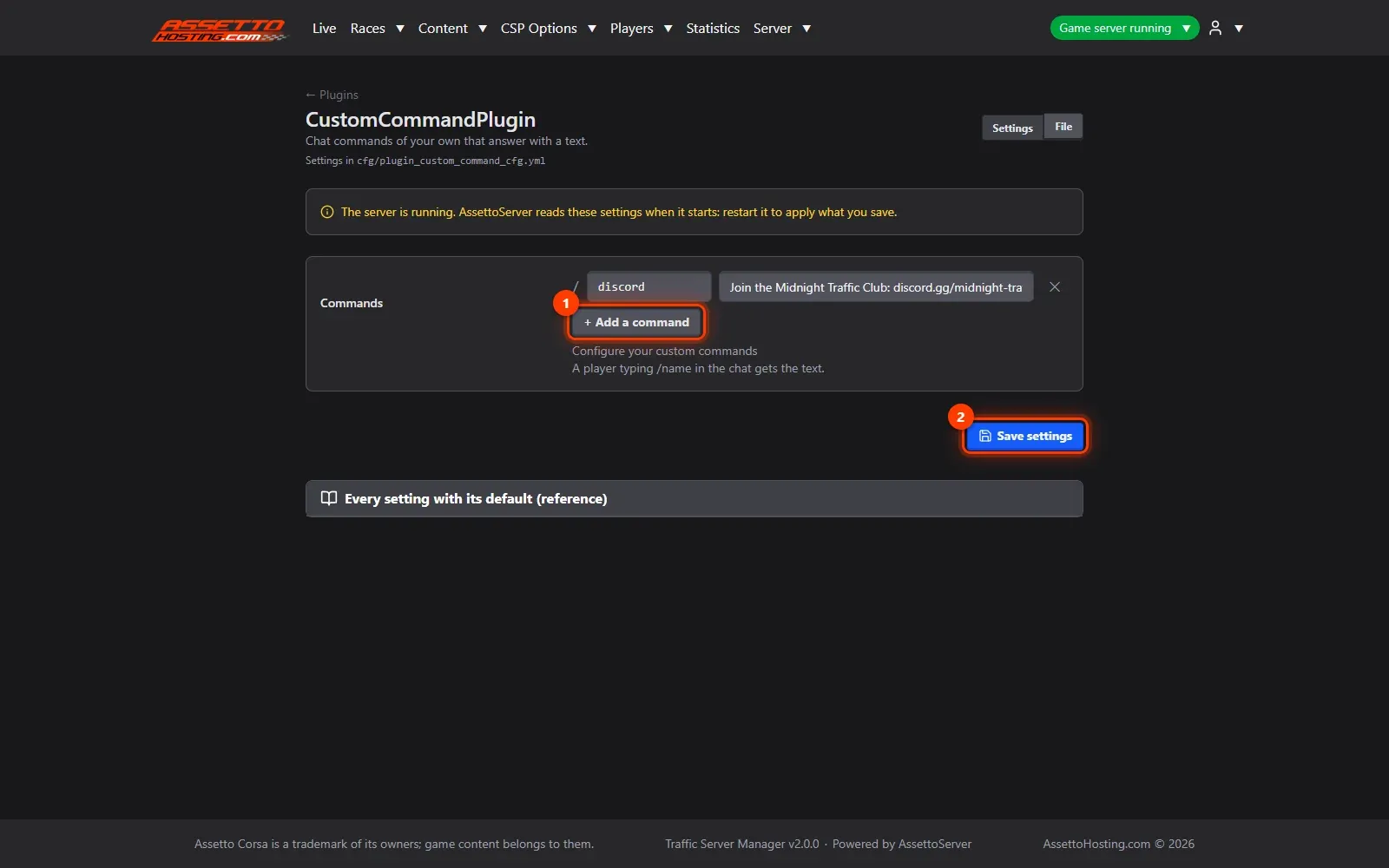
- Set a plugin up.
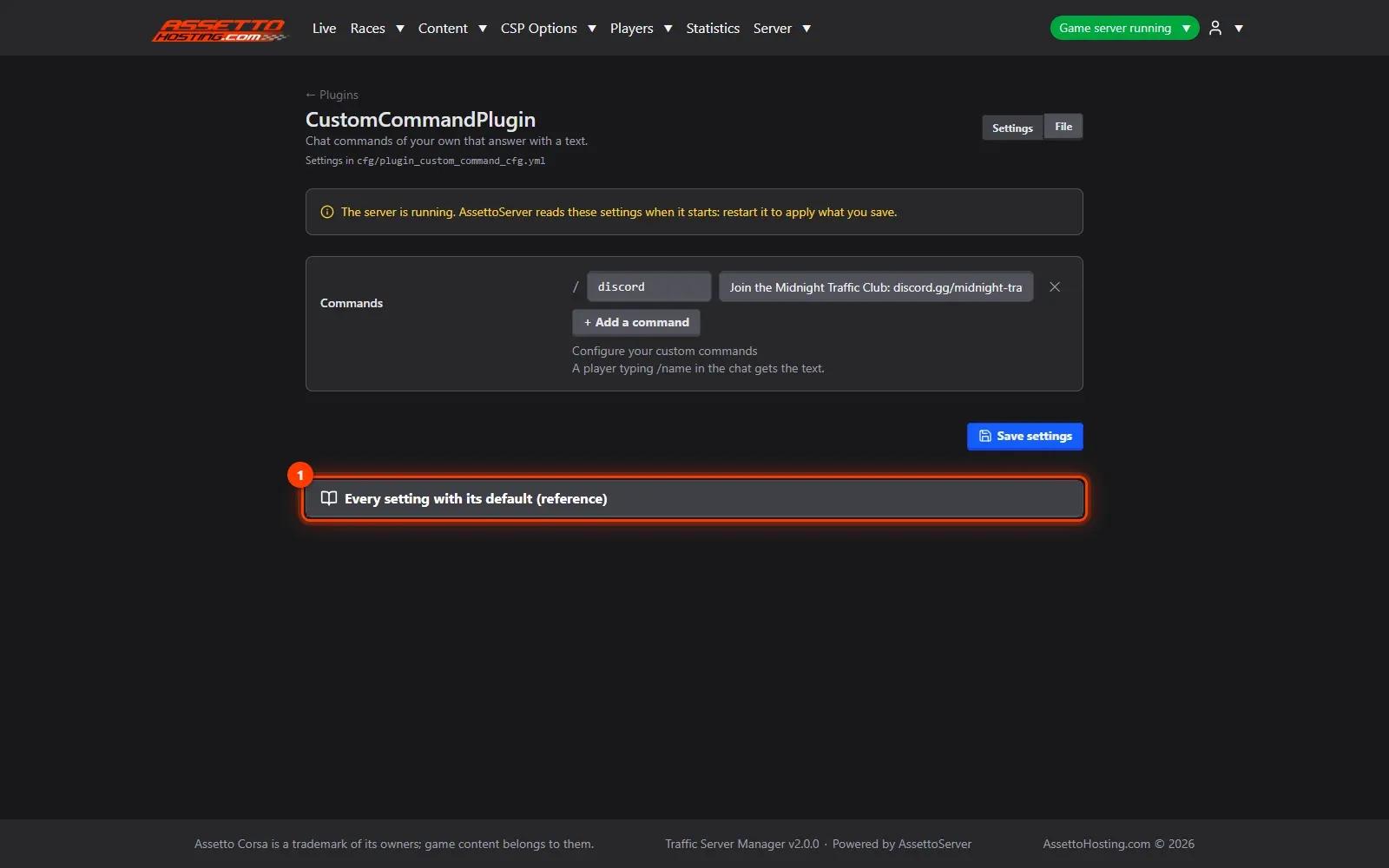
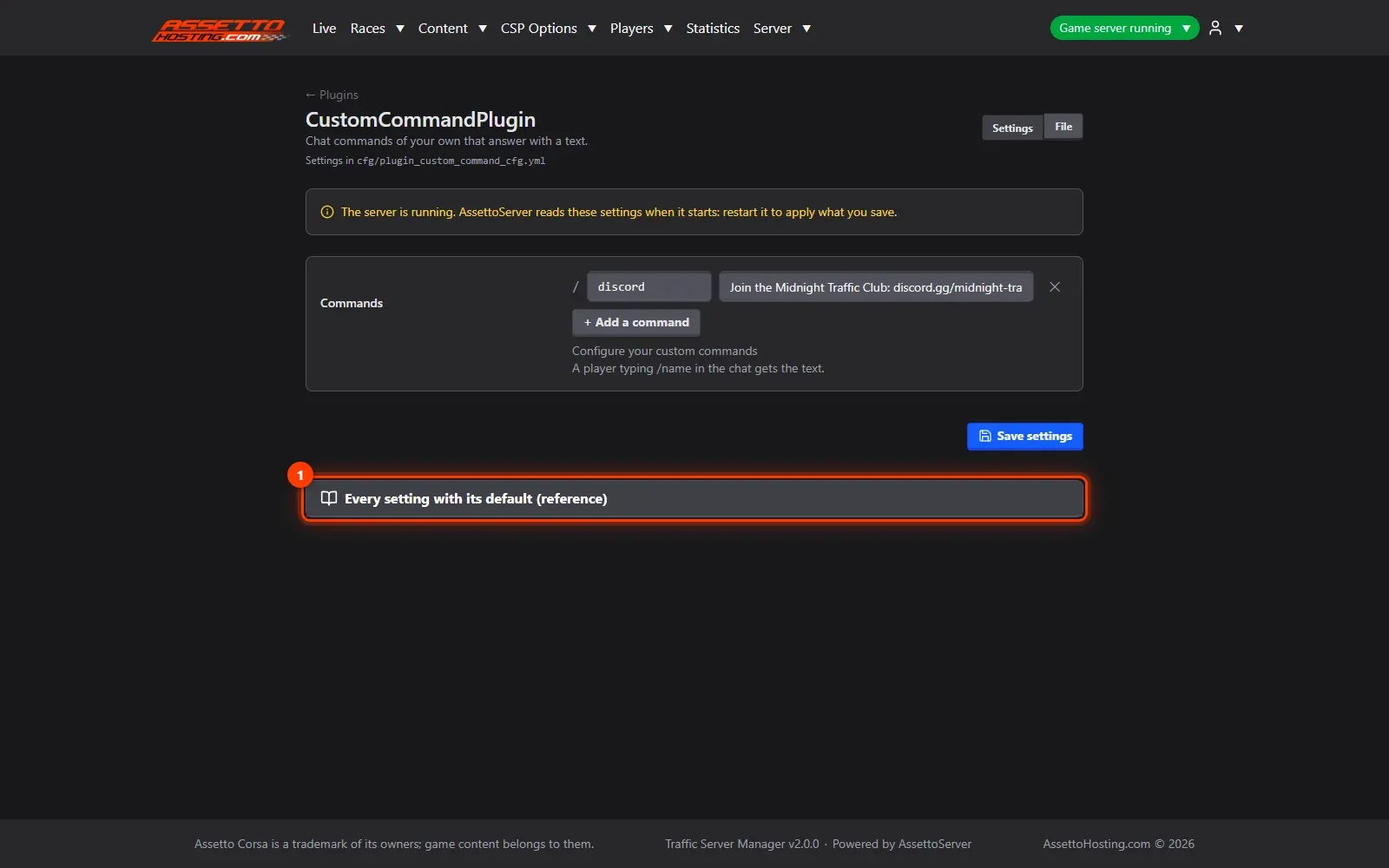
- Every setting and its default. Every setting with its default shows the plugin's reference: what each setting does and the value it takes when left out.
What you need
- An admin or write account.
- An Assetto Corsa Traffic server with Traffic Server Manager: every AssettoHosting.com Traffic server comes with it.
Step by step
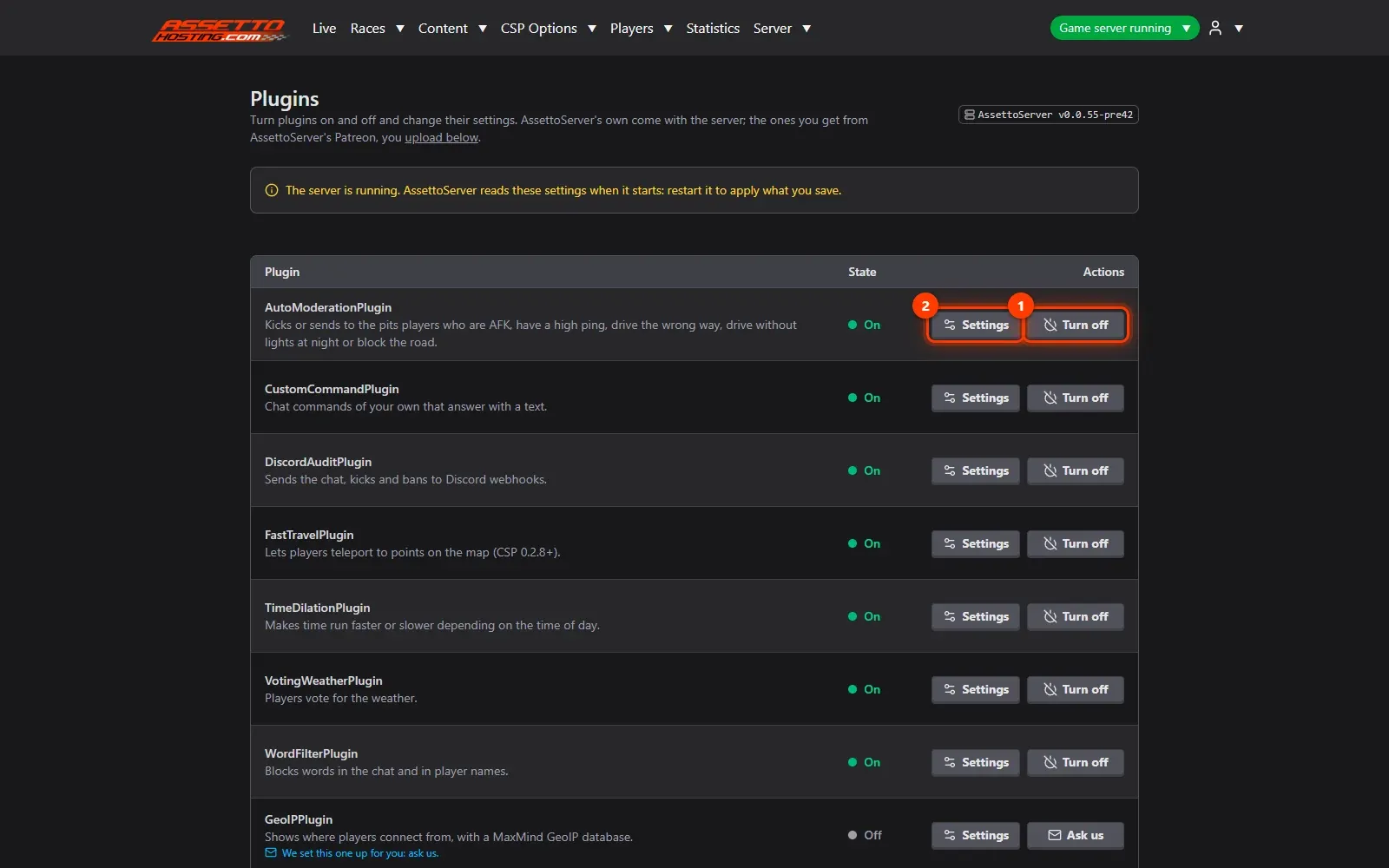
- Open Server › Plugins
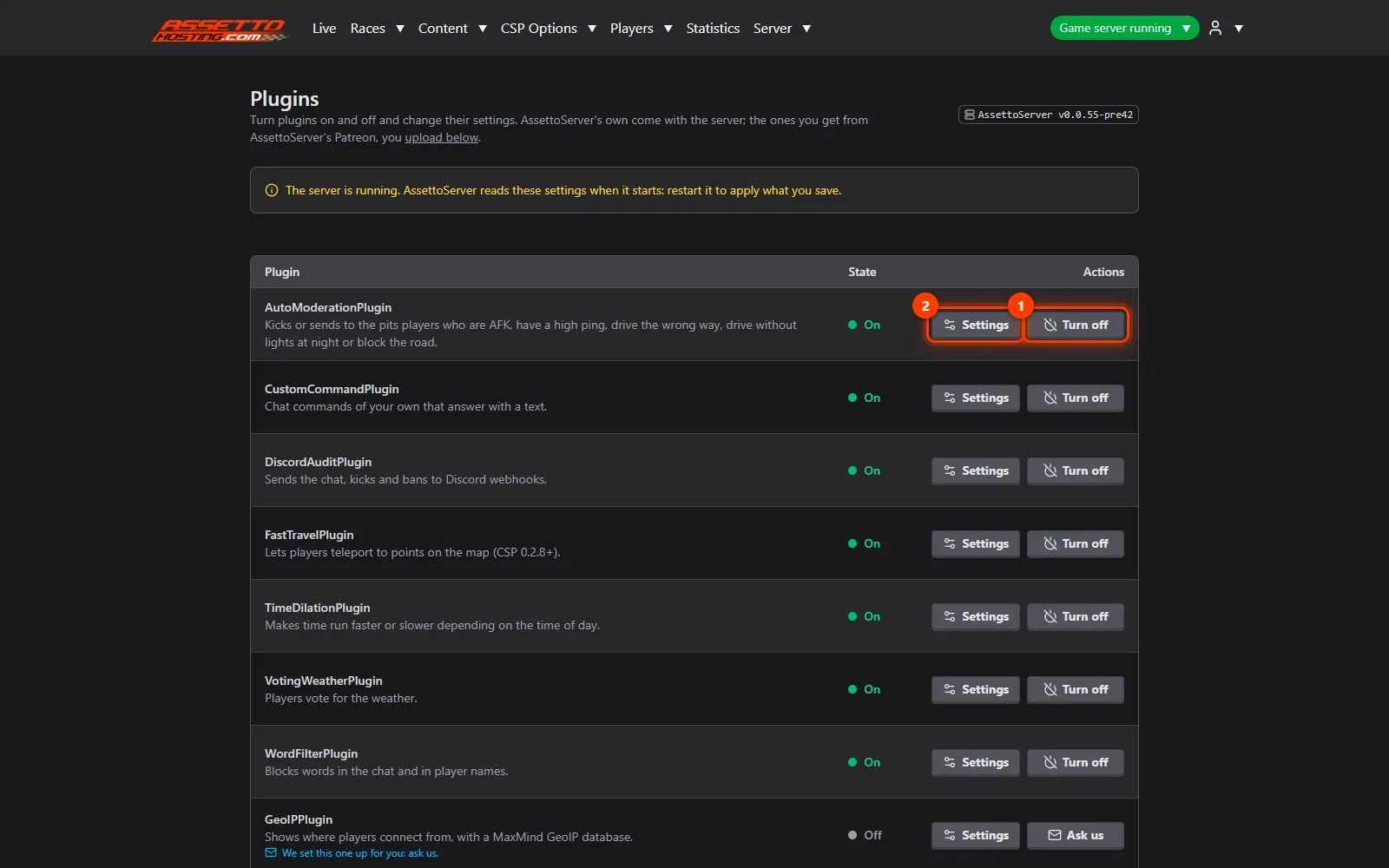
Every plugin of your AssettoServer version is listed with what it does: AutoModeration (AFK, high ping, wrong way, no lights), CustomCommand, DiscordAudit, FastTravel, LiveWeather, RandomWeather, Report, TagMode, TimeDilation, VotingWeather, WordFilter… Turn one on or off in one click (1); Settings (2) opens its form.
- Plugins only the hosting can set up
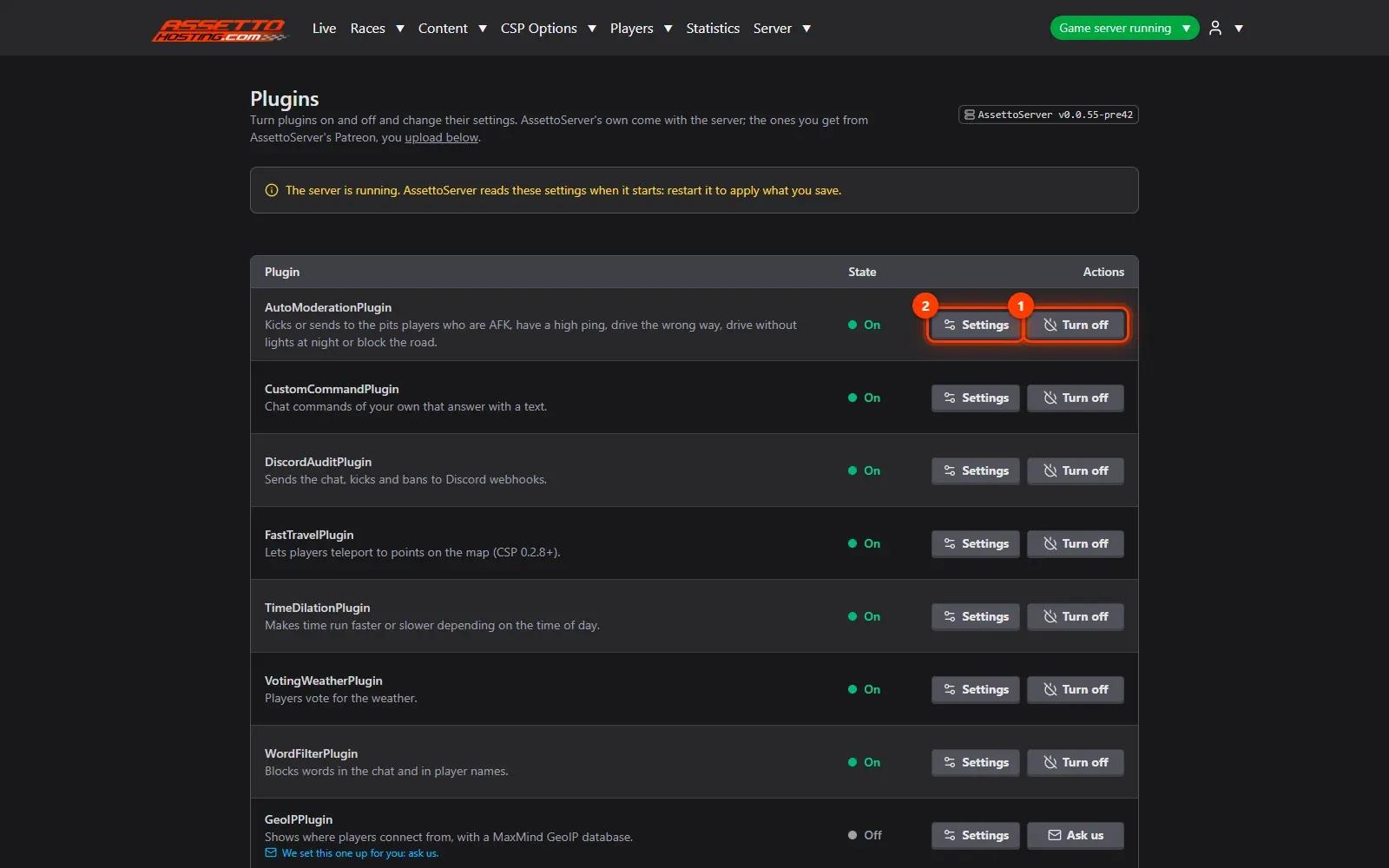
A few plugins need something only AssettoHosting can install (the GeoIP database, VotingPreset's presets): they show Ask us (1). Want a plugin that isn't listed? Send it to sergi@assettohosting.com from the email linked to your server.
- Set a plugin up
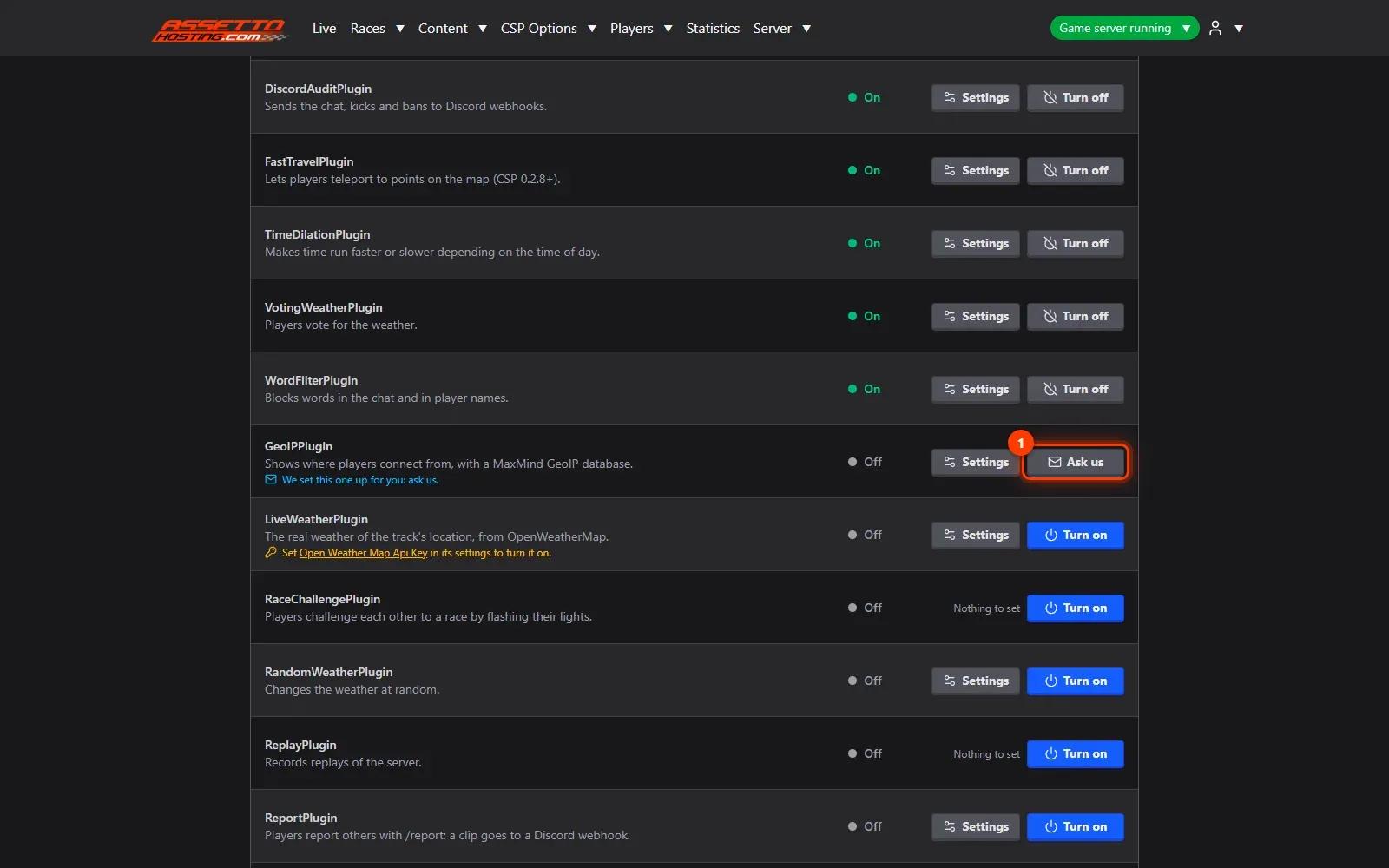
Each plugin has a form in AssettoServer's own order, with its descriptions: switches, numbers, choices, rows for chat commands… Here, CustomCommand: Add a command (1), type the command and the text it answers with, and Save settings (2). Every value is checked against the plugin's own limits before it's saved, so a plugin never stops the server from starting.
- Every setting and its default
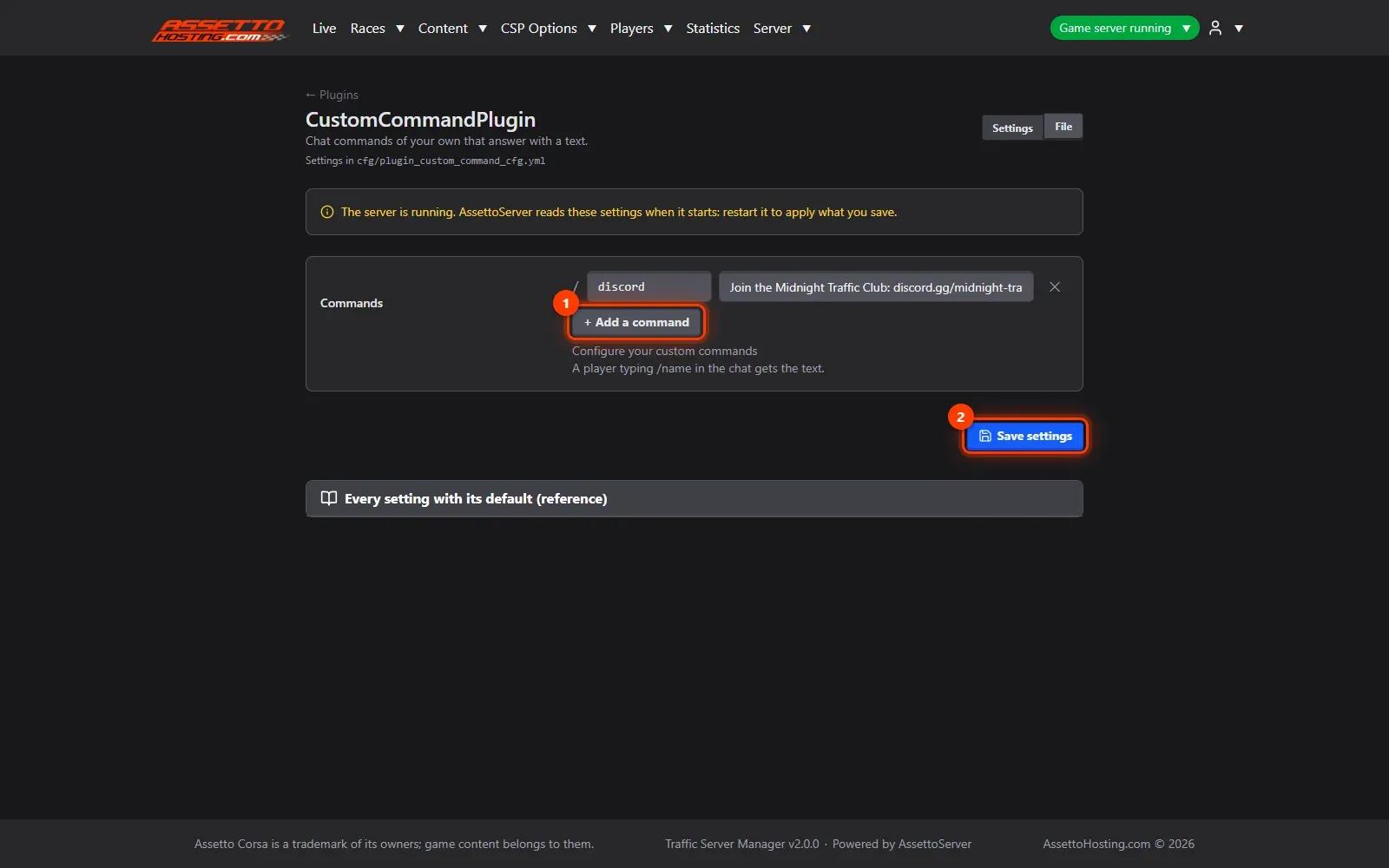
Every setting with its default (1) shows the plugin's reference: what each setting does and the value it takes when left out. Plugins start, or pick up their new settings, when the server starts next.
On AssettoHosting.com
AssettoServer, upgraded and set up for you
Traffic Server Manager turns AssettoServer’s plugins on from forms, takes your Patreon plugins and upgrades AssettoServer in one click, moving your settings and keeping a backup to go back. It comes with every Assetto Corsa Traffic server at AssettoHosting.com.
- Plugins set up from forms
- One-click upgrade, one-click way back
- Immediate deployment, cancel anytime
Good to know
- AutoModeration kicks AFK and high-ping players, and can punish driving the wrong way or without lights.
- Discord webhooks must be Discord's own addresses: the form checks them.
Traffic Server Manager
Frequently asked questions
Send it to sergi@assettohosting.com from the email linked to your server and AssettoHosting adds it.
When the server starts next: restart it from the dashboard.
Keep reading: Upload AssettoServer's Patreon plugins · Tune the AI traffic and AssettoServer's settings (extra_cfg.yml) · Welcome message, MOTD and timed chat messages on your traffic server · All 18 Traffic Server Manager tutorials