
Getting started with your Assetto Corsa traffic server panel
Log in, read the dashboard, start, stop and restart your AssettoServer traffic server and follow its live console, in Traffic Server Manager.
Traffic Server Manager is the web panel of every Assetto Corsa Traffic server at AssettoHosting.com. It runs AssettoServer, the community server that adds AI traffic, so players drive among cars on highways and mountain roads. This first tutorial shows where everything is and how to start, stop and restart your server.
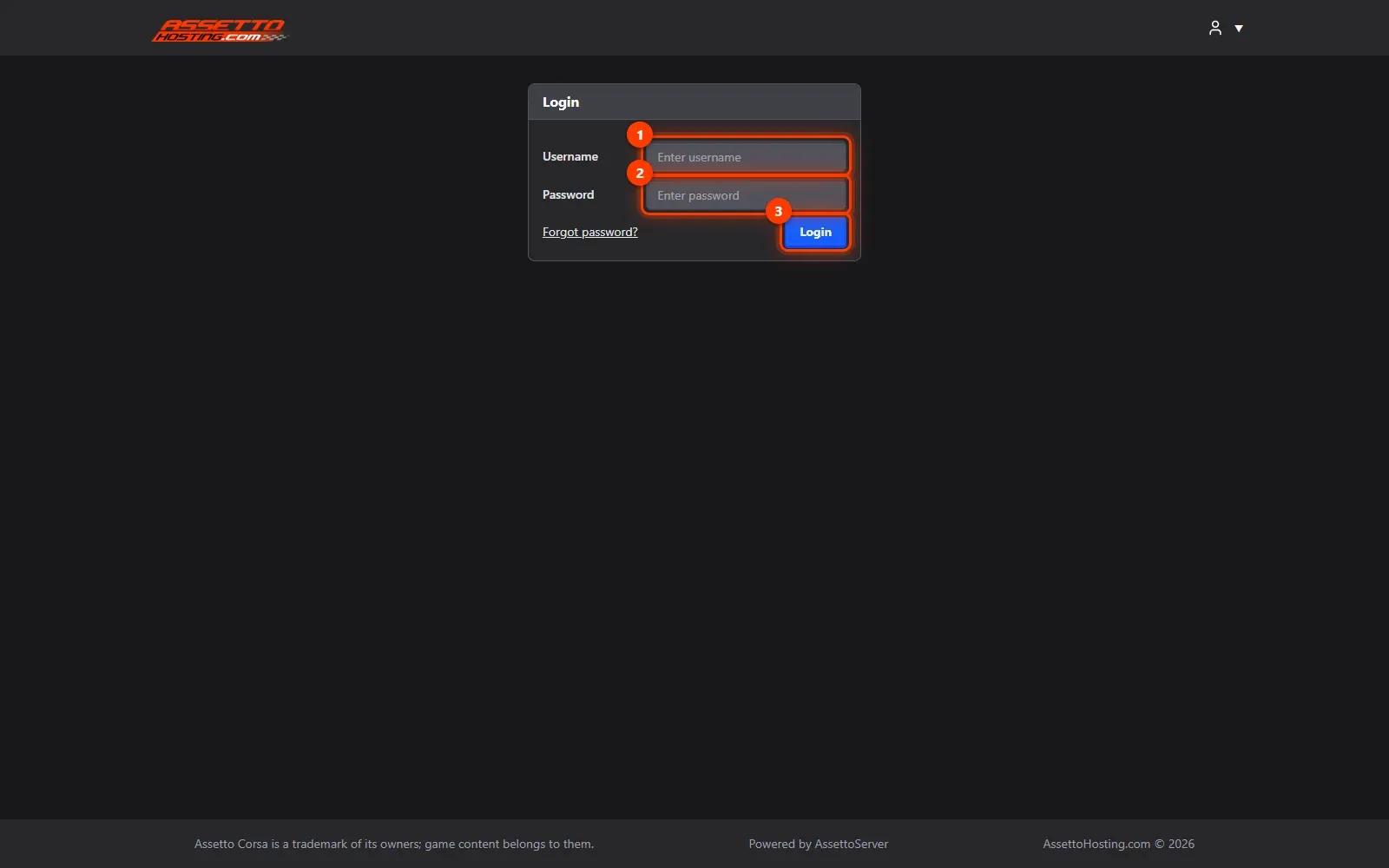
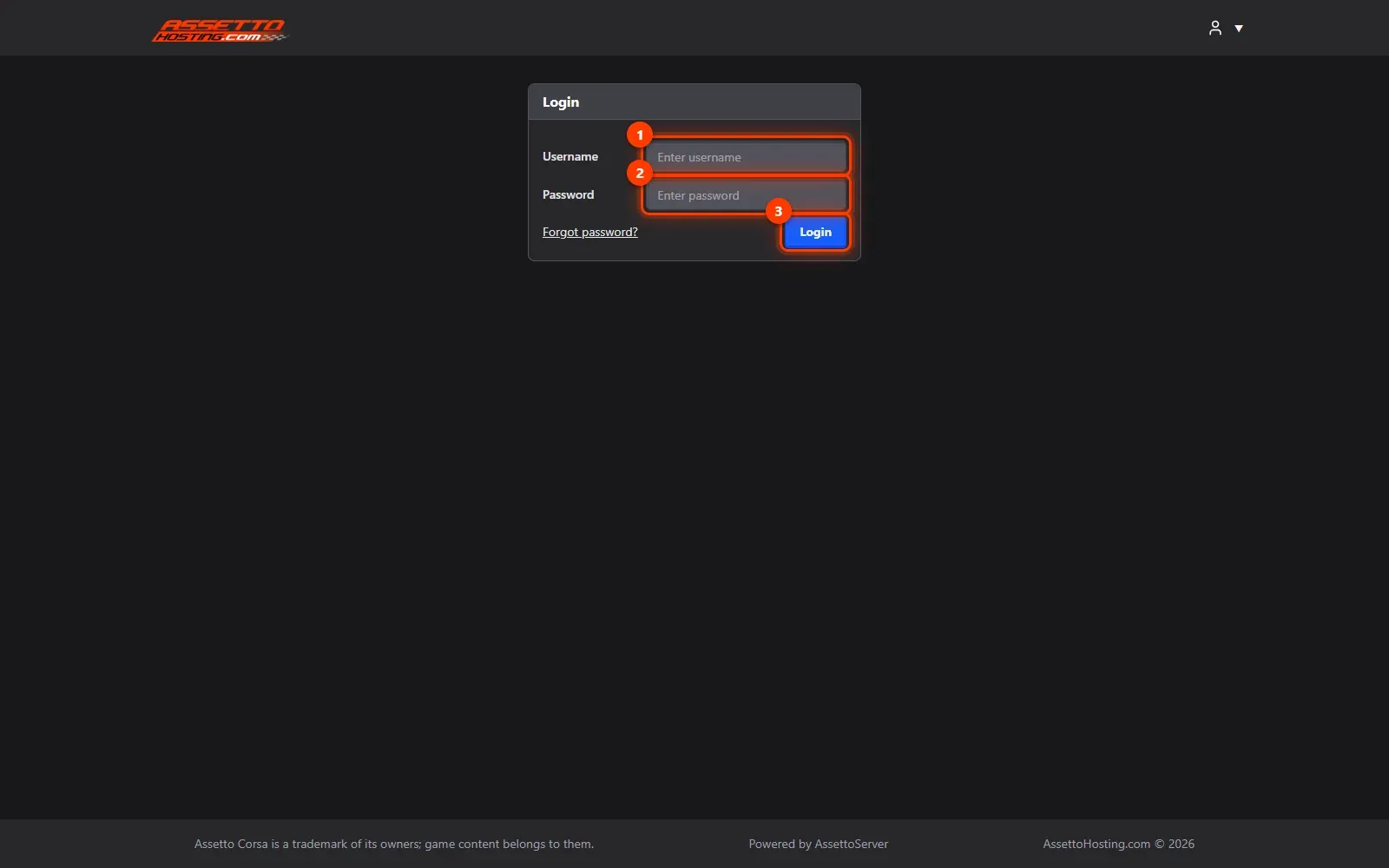
- Log in to your panel. Open your panel's address (AssettoHosting.com sends it with your server) and log in with the username and password you were given.
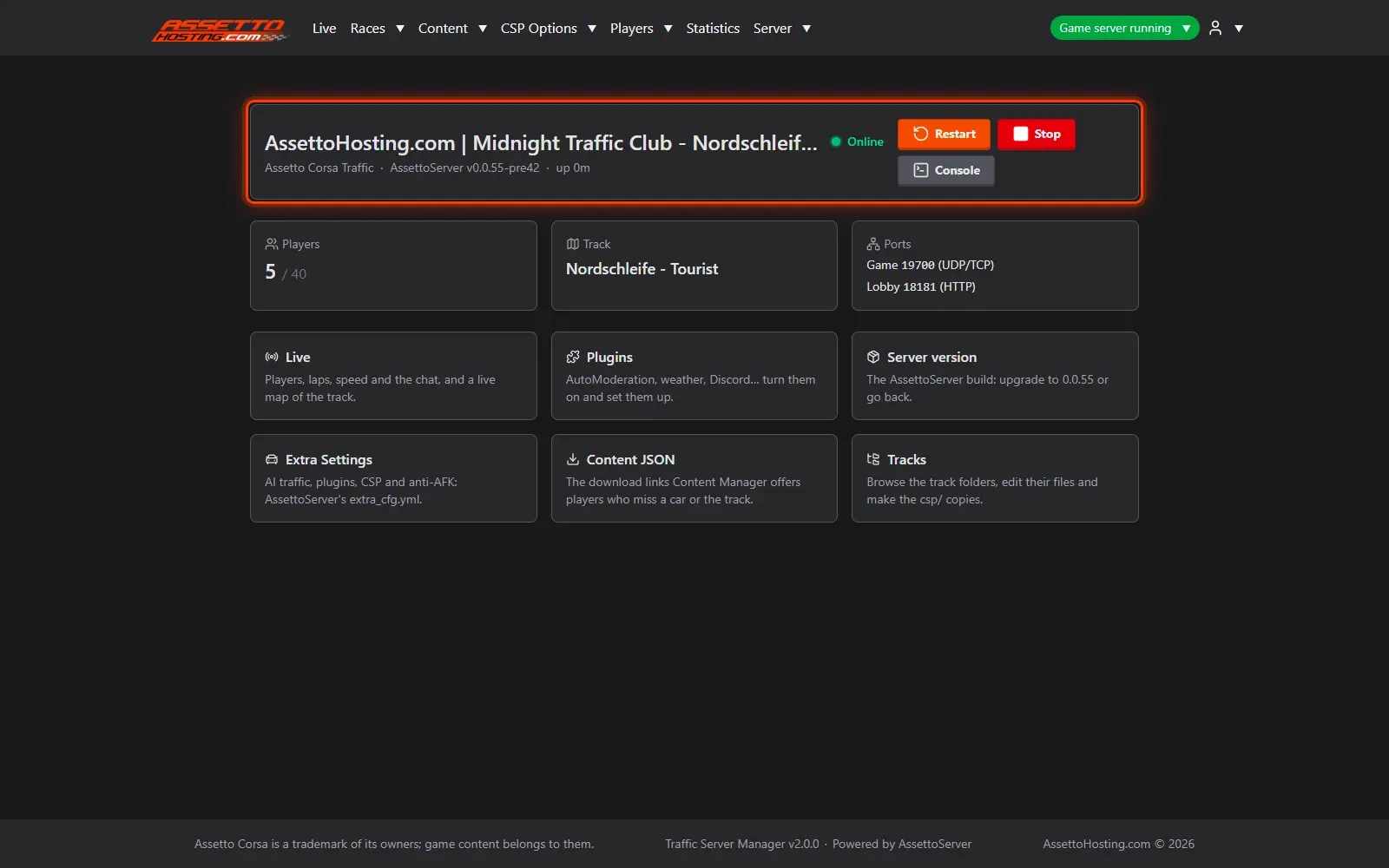
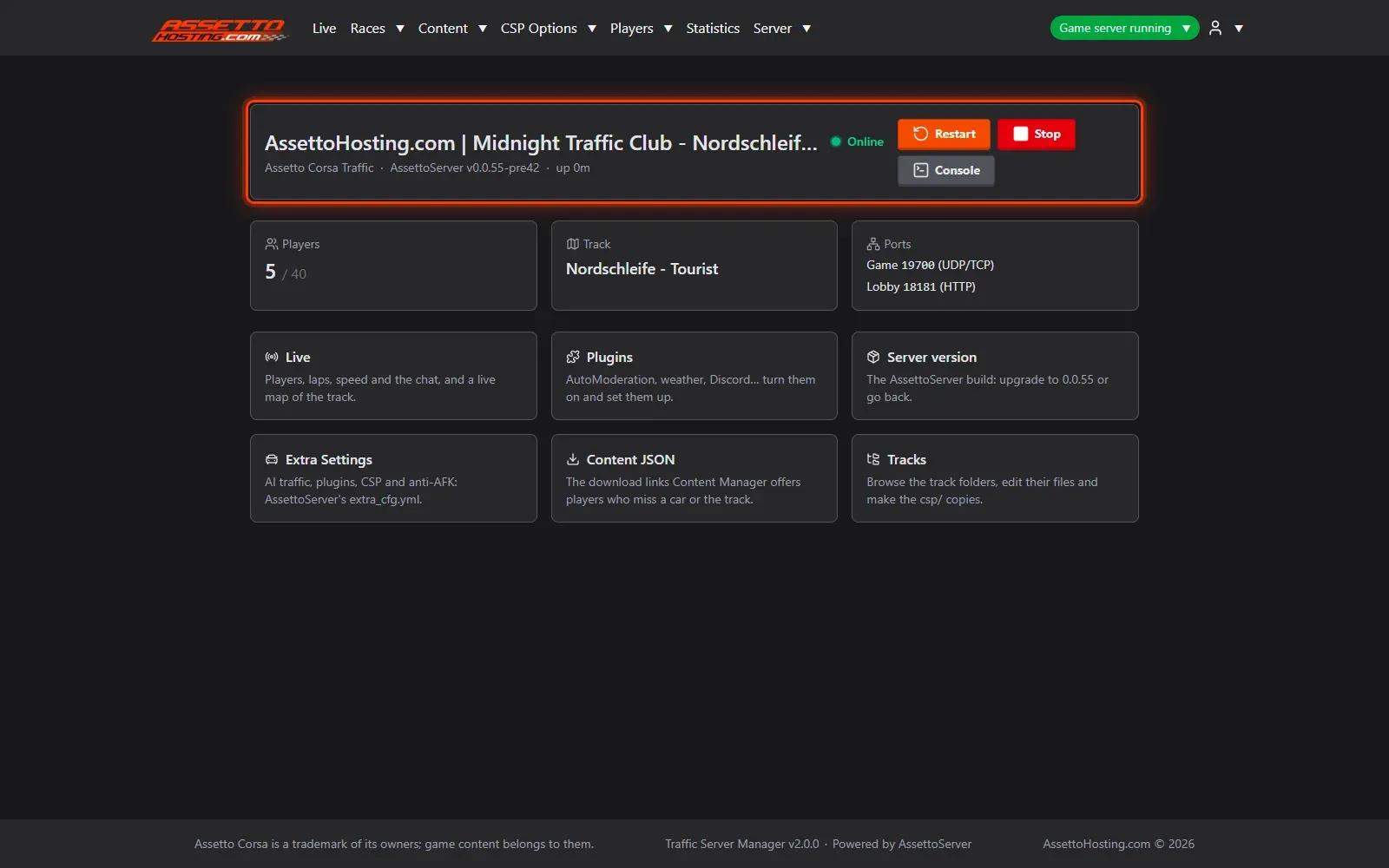
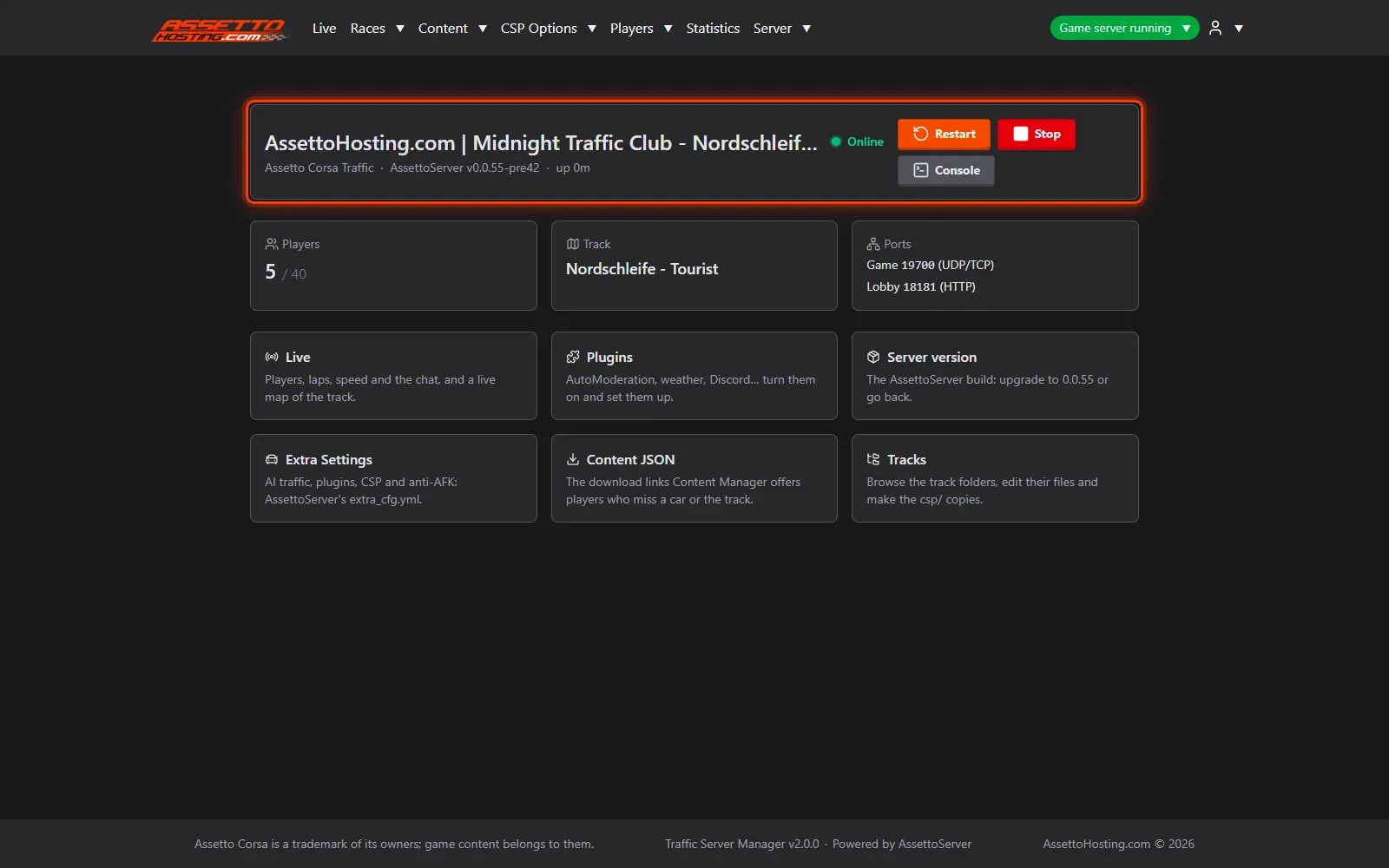
- The dashboard: your server at a glance. After logging in you land on the dashboard.
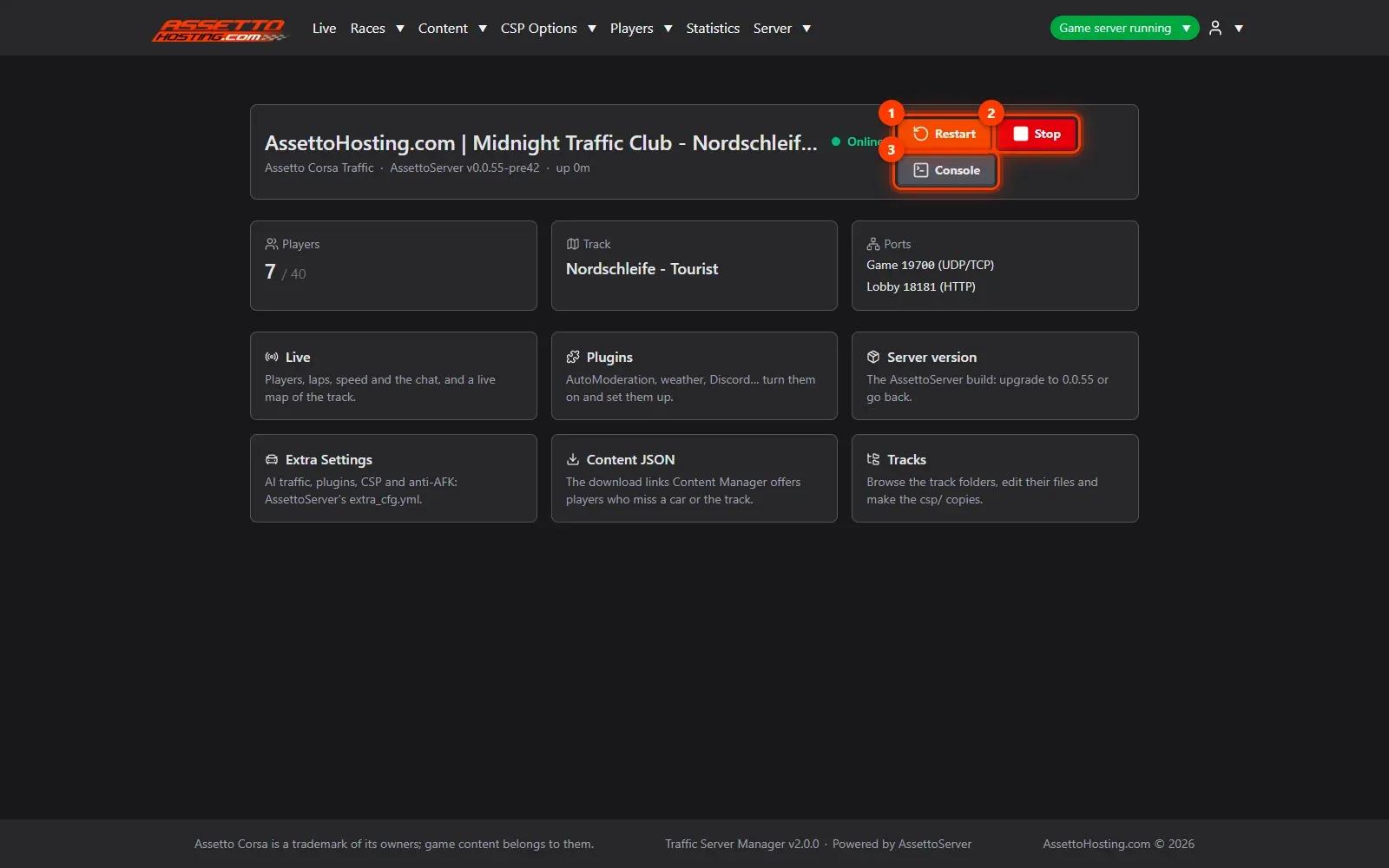
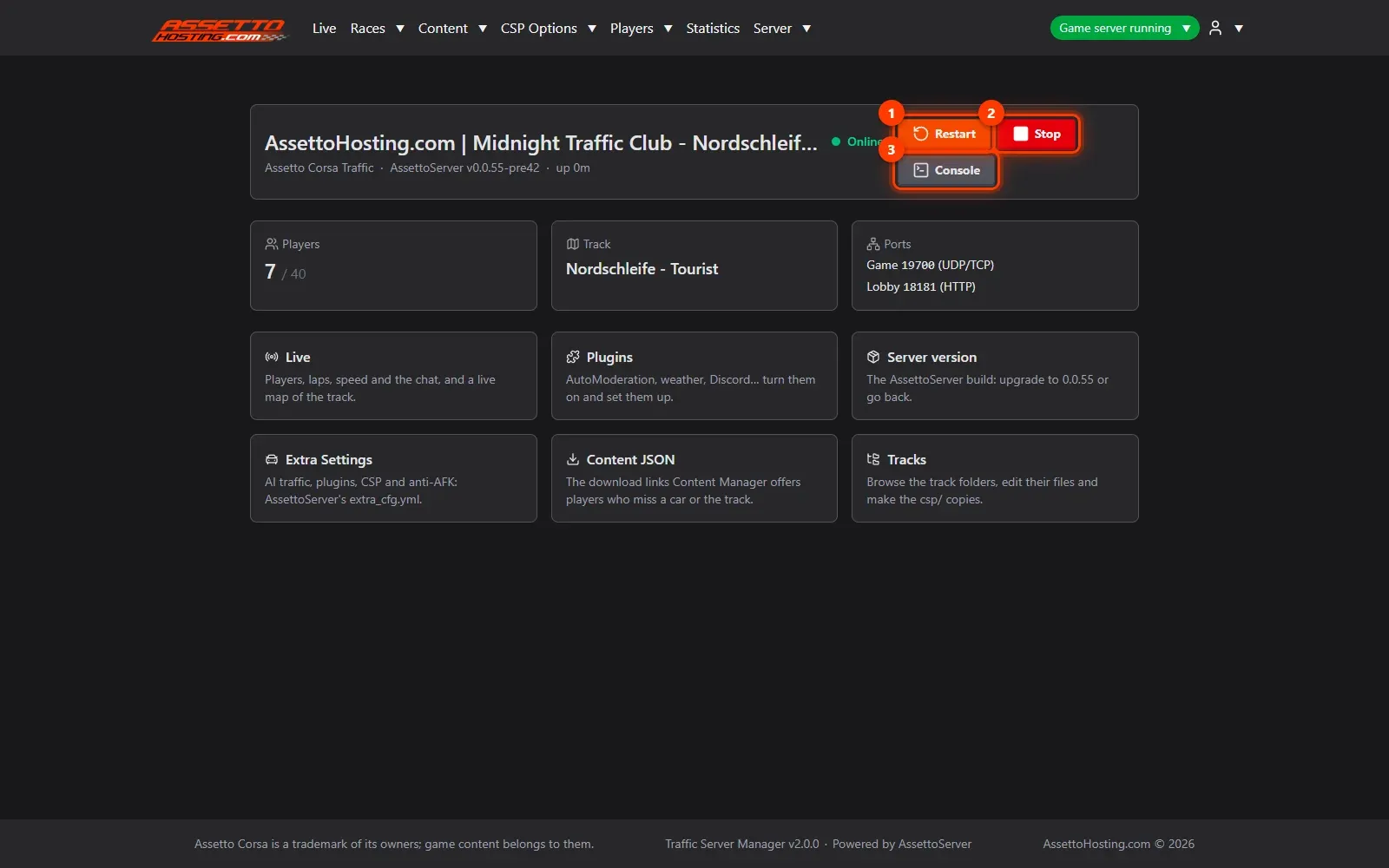
- Start, stop and restart the server. Use Start (when it's stopped), Restart and Stop: one click each.
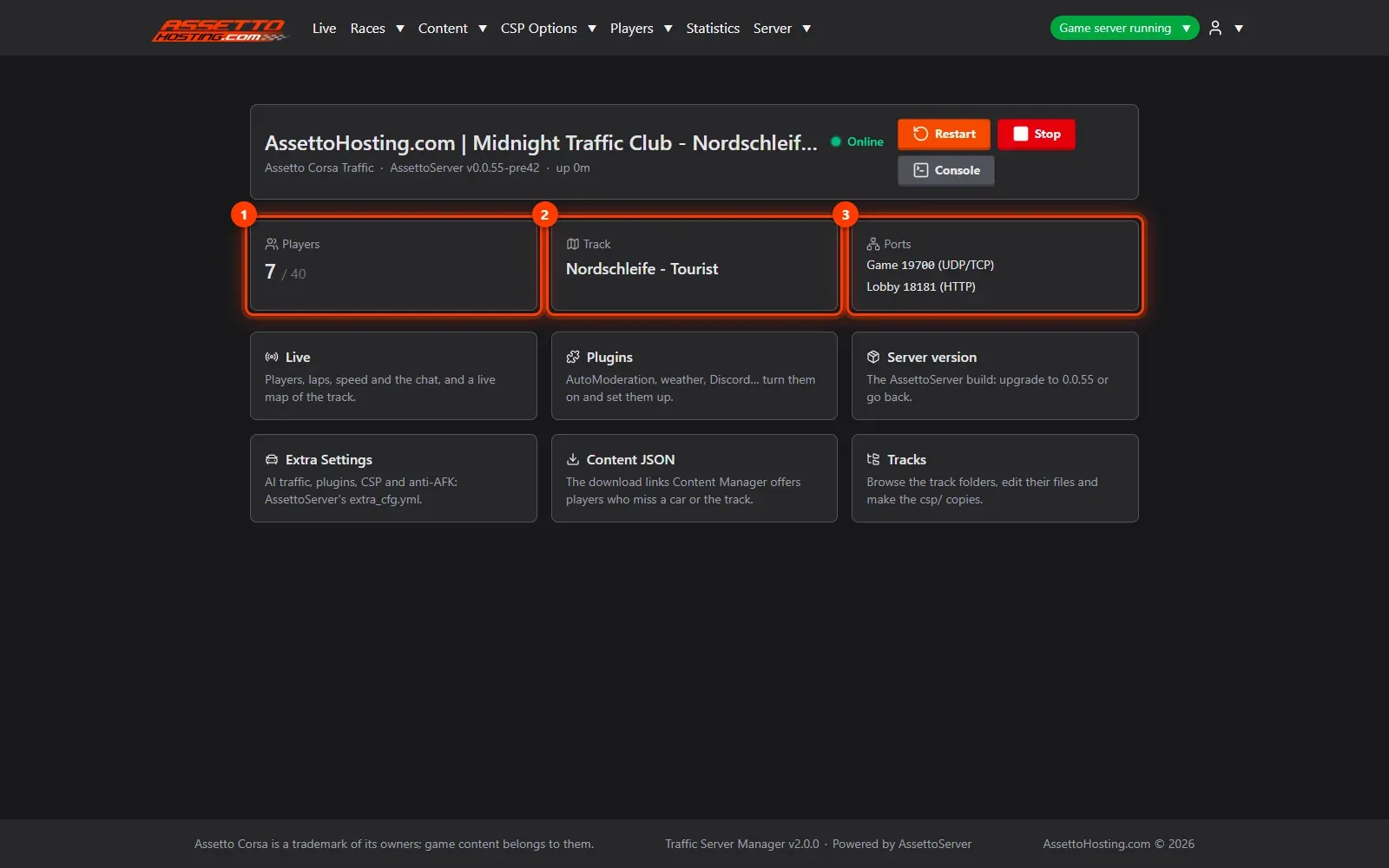
- Players, track and ports. Below, the dashboard shows how many players are on and your plan's slots, the track running and the server's ports, which come from your hosting plan.
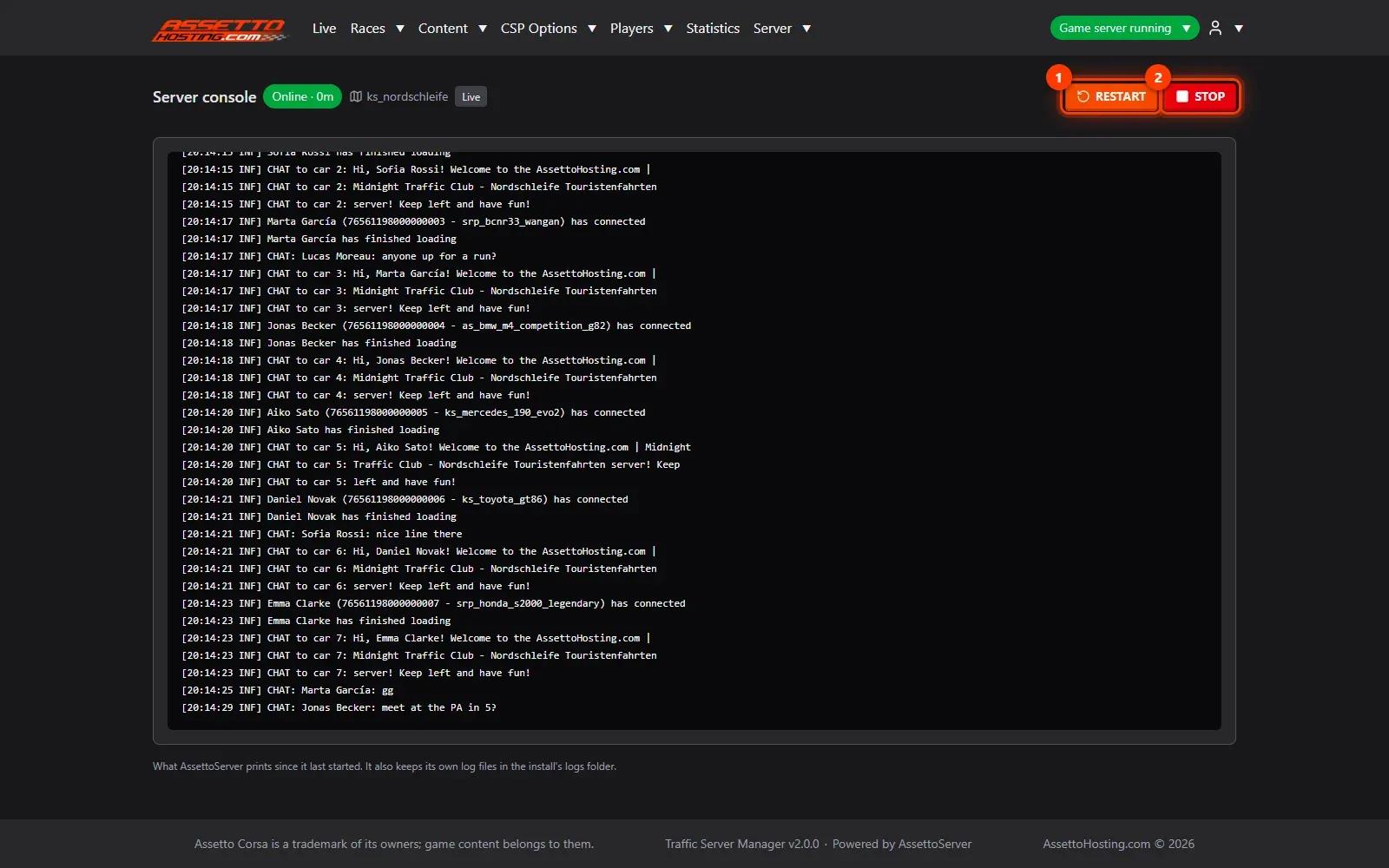
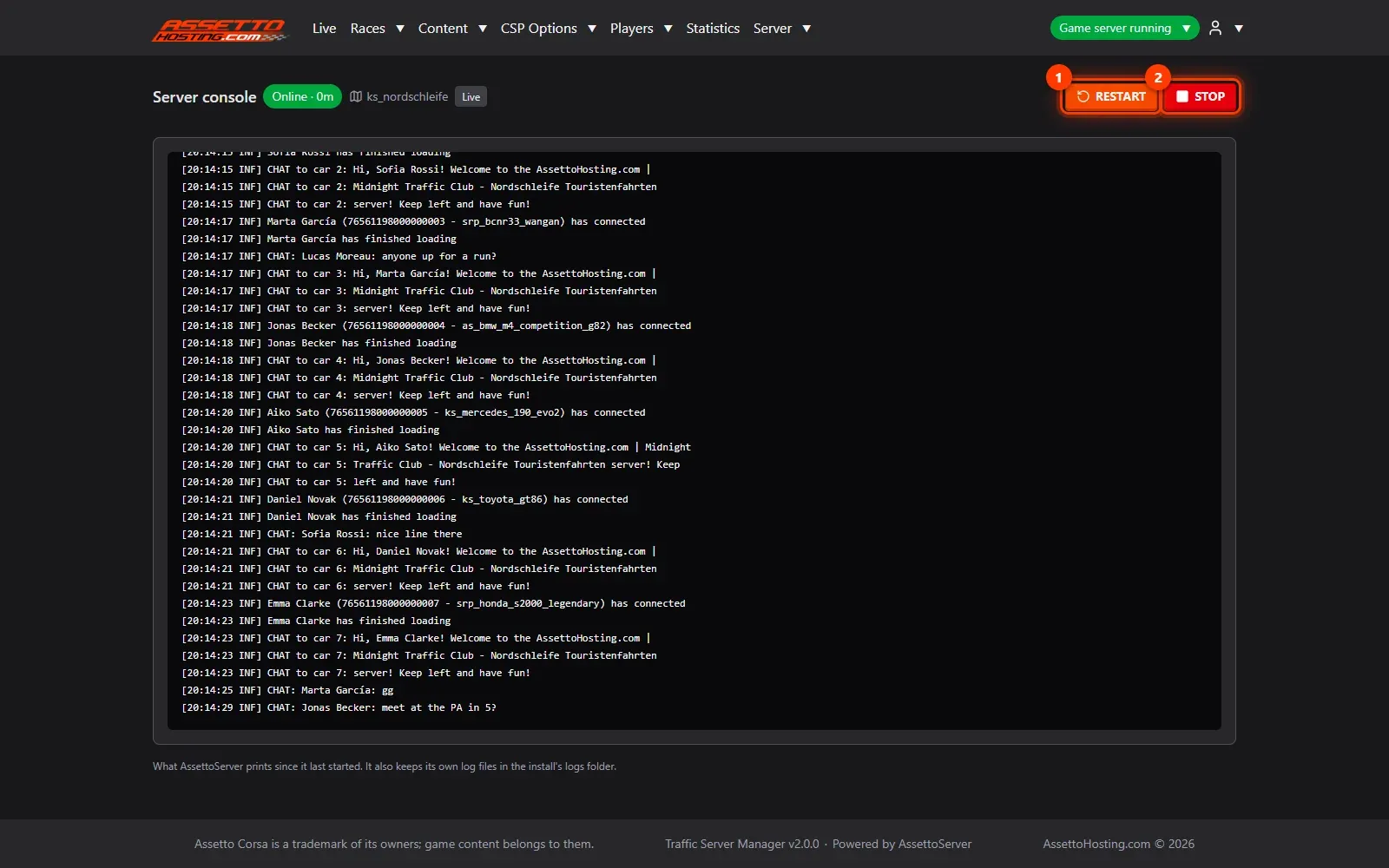
- The live console. Server › Logs shows what the server prints as it happens, with RESTART and STOP at the top.
What you need
- Your panel's address and login (sent by AssettoHosting.com with your server).
- An Assetto Corsa Traffic server with Traffic Server Manager: every AssettoHosting.com Traffic server comes with it.
Step by step
- Log in to your panel
Open your panel's address (AssettoHosting.com sends it with your server) and log in with the username and password you were given. "Forgot password?" below the form gets you a new one.
- The dashboard: your server at a glance
After logging in you land on the dashboard. Its first card shows your server's name, whether it runs (a coloured dot: Online, Starting…, Stopping…, Stopped) and the AssettoServer version it runs. The page refreshes by itself.
- Start, stop and restart the server
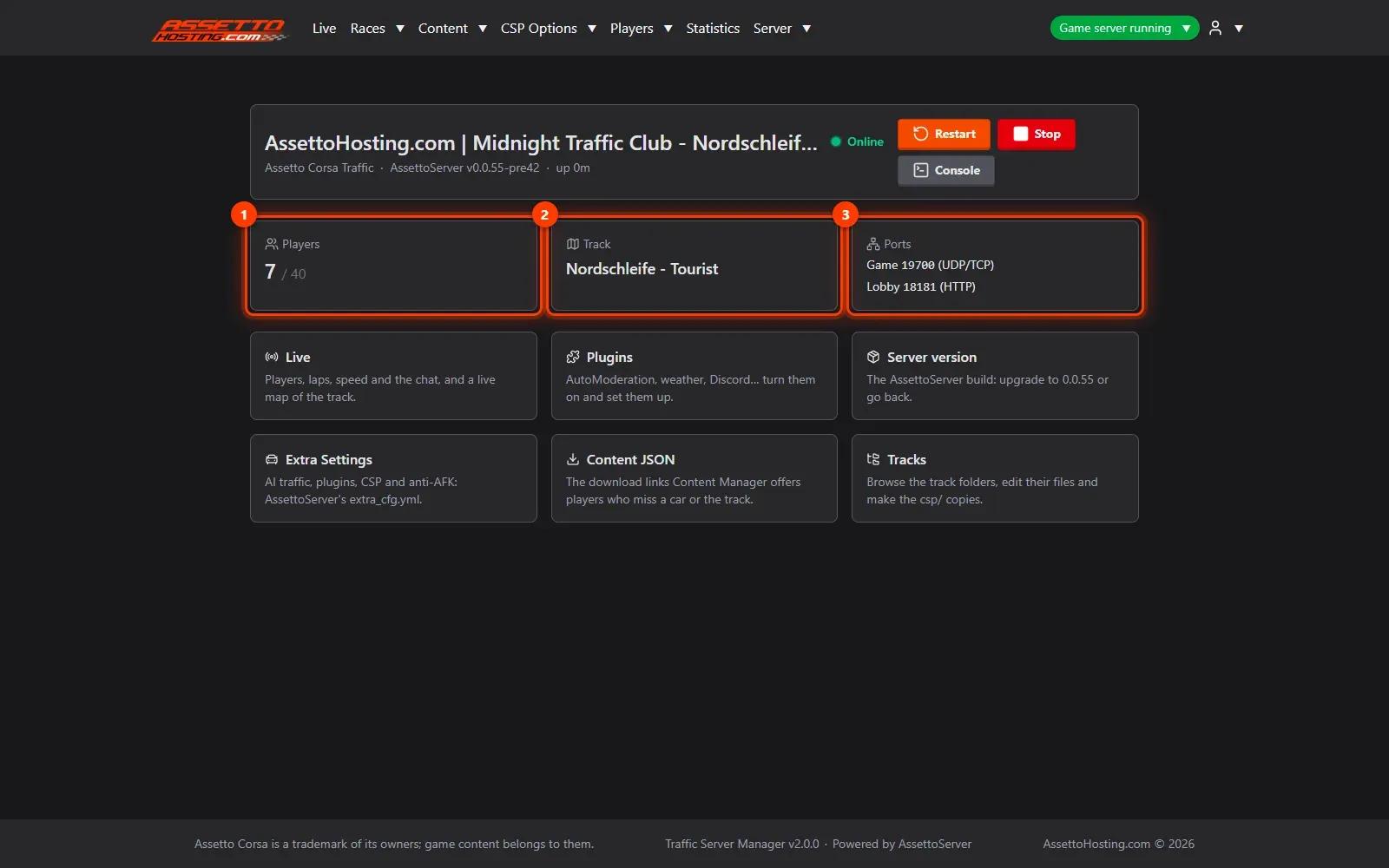
Use Start (when it's stopped), Restart (1) and Stop (2): one click each. Console (3) opens the server's console, live. The panel remembers whether the server should run: if it crashes, the panel starts it again by itself.
- Players, track and ports
Below, the dashboard shows how many players are on and your plan's slots (1), the track running (2) and the server's ports (3), which come from your hosting plan. Shortcut cards lead to the pages you'll use most: Live, Plugins, Server version, Extra Settings, Content JSON and Tracks.
- The live console
Server › Logs shows what the server prints as it happens, with RESTART (1) and STOP (2) at the top. It's the first place to look when something doesn't work: the server says what it's doing there.
On AssettoHosting.com
Every Traffic server comes with this panel
Traffic Server Manager is the control panel of every Assetto Corsa Traffic server at AssettoHosting.com. It runs AssettoServer, the community server that adds AI traffic, and every setting has a form: start the server, add your cars and tracks and build races from your browser, without editing files.
- AssettoServer with AI traffic
- Every setting as a form, files when you want them
- Immediate deployment, cancel anytime
Good to know
- Leave the panel open on the dashboard while you work: it refreshes by itself.
- The menu is always in the same order: Live · Races · Content · CSP Options · Players · Statistics · Server.
Traffic Server Manager
Frequently asked questions
No. Every setting has a form; advanced users still have a YAML view and the raw server files.
The panel starts it again by itself (up to 5 times in 30 minutes, so a broken setting can't loop forever) and tells you why it stopped.
Keep reading: Set your traffic server's name, password and admin password · Create a custom race with AI traffic · Assetto Corsa traffic server not starting? Find the cause and fix it · All 18 Traffic Server Manager tutorials