
Reserved slots and VIP cars on your traffic server
Keep cars or places for VIPs, staff or one driver on your Assetto Corsa traffic server, live and without restarting.
Reserve places in your cars for the drivers you choose — paying supporters, staff, a team — and change them without restarting.
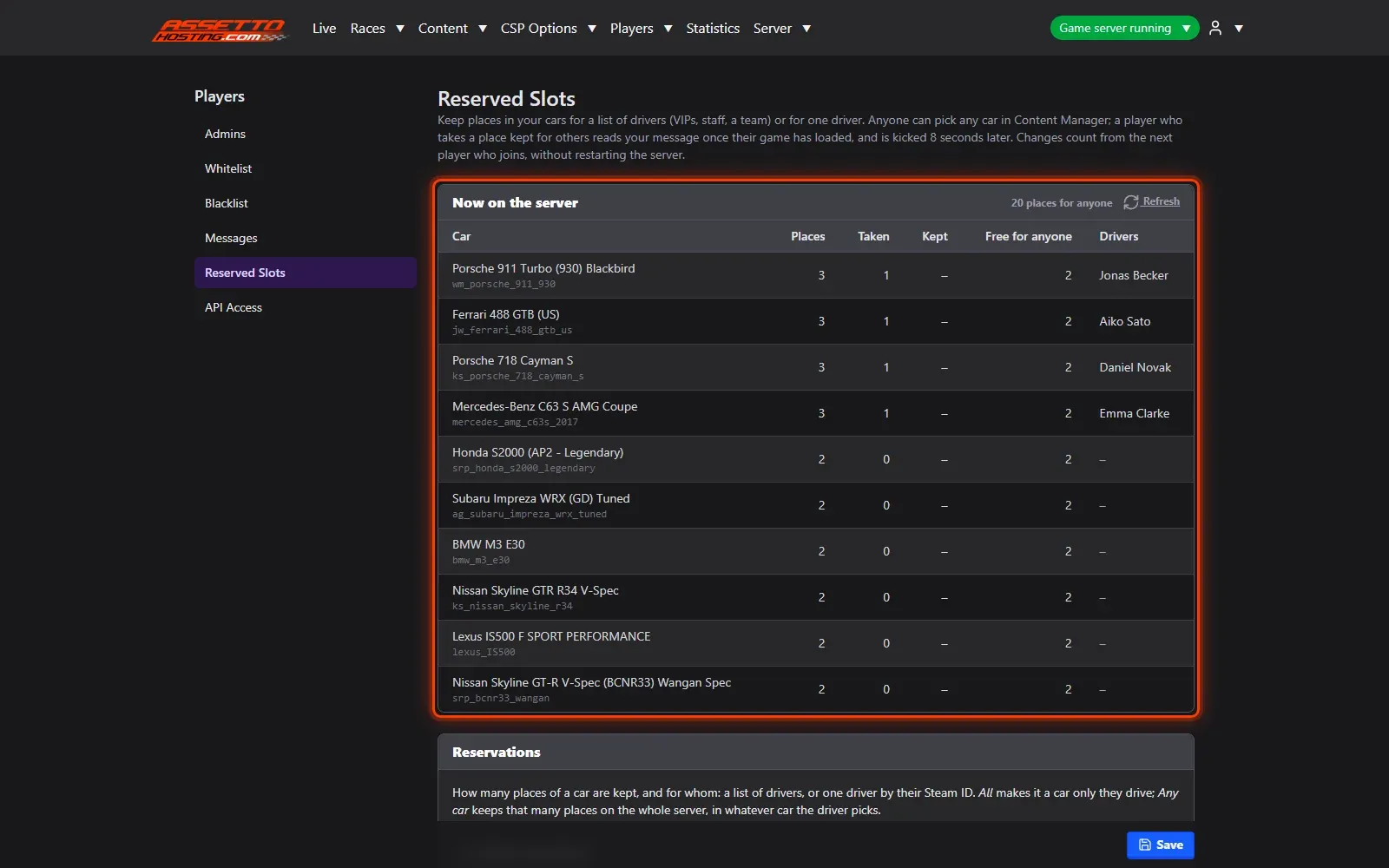
- Open Players › Reserved Slots. Reserved Slots keep places in your cars for the drivers you choose — VIPs, staff, a team — or for one driver.
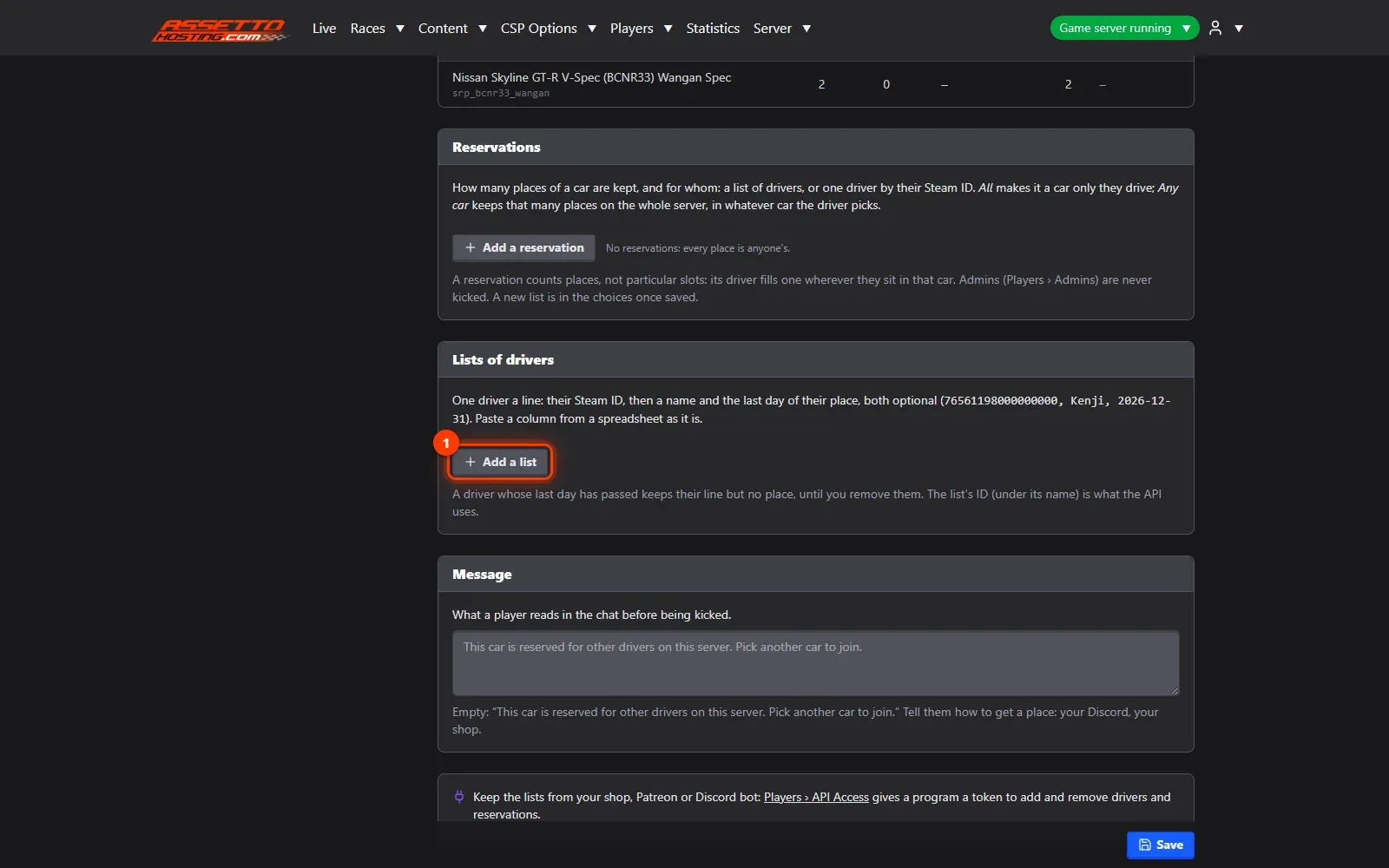
- Make a list of drivers. Add a list: name it (VIP, Staff…) and paste its drivers' Steam IDs, one a line, with an optional name and the last day of their place, for paid memberships.
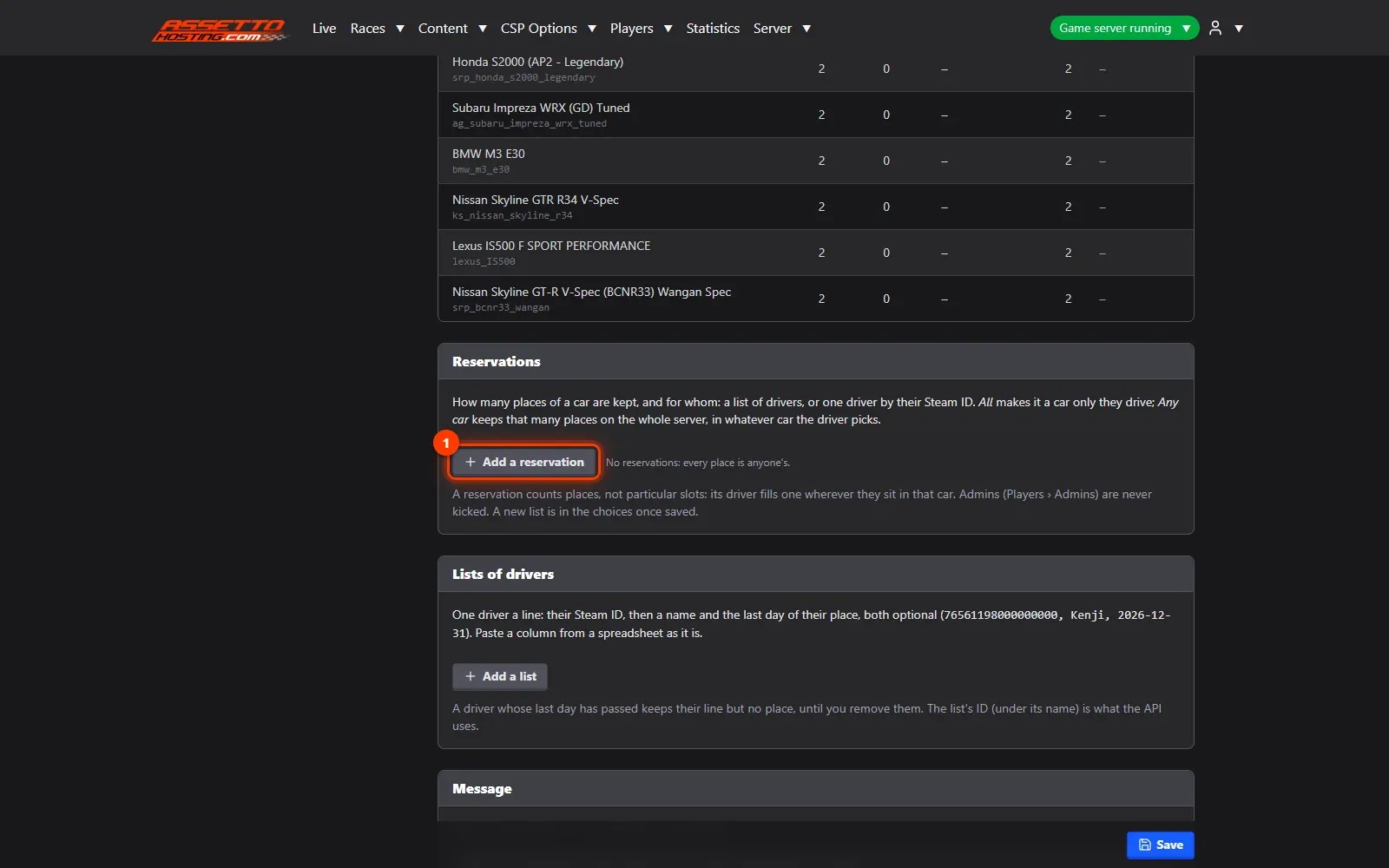
- Keep places for them. Add a reservation: how many places of a car are kept, and for whom — a list ("2 of the RWB 911 for VIP") or one driver ("the R34 for Kenji").
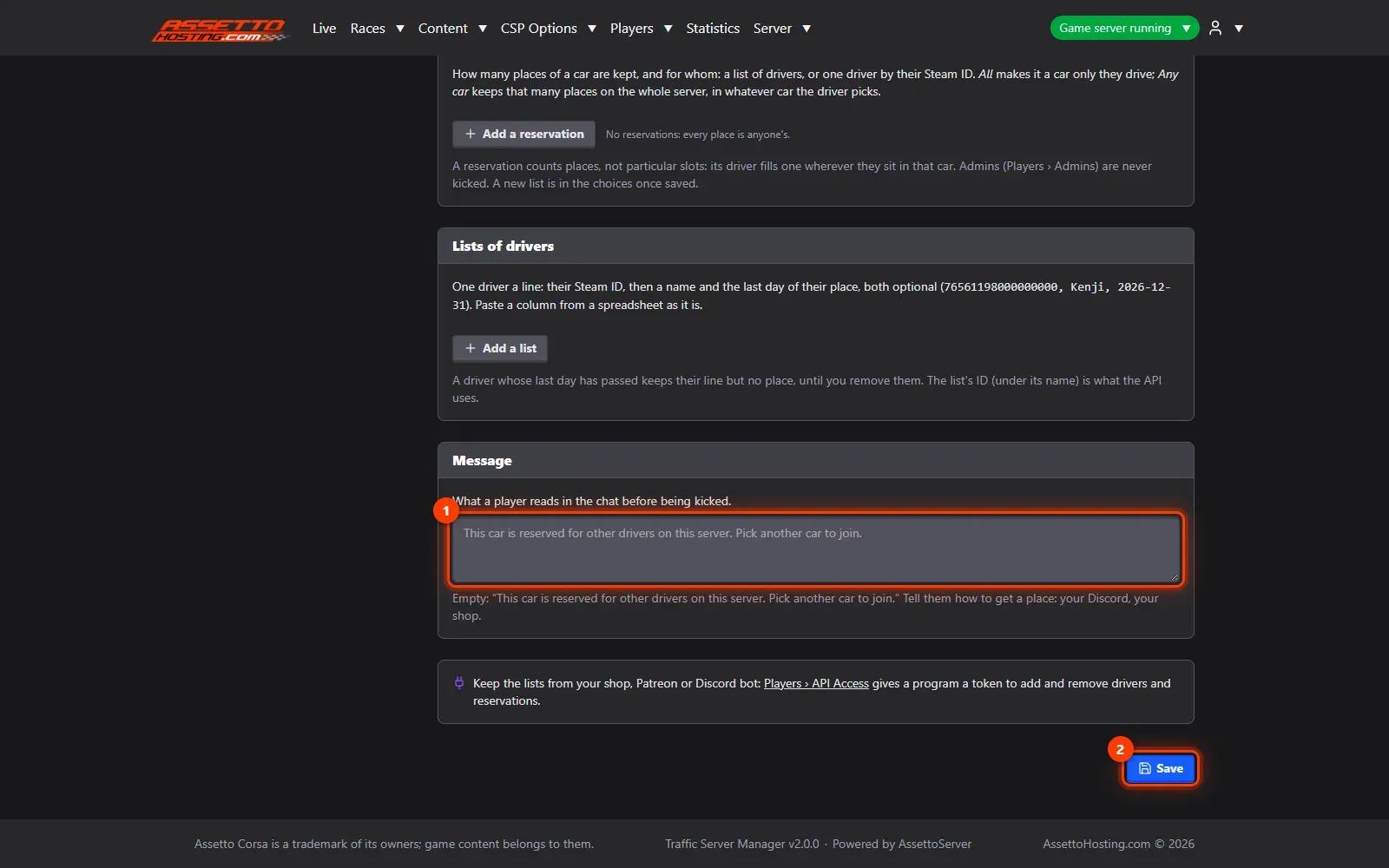
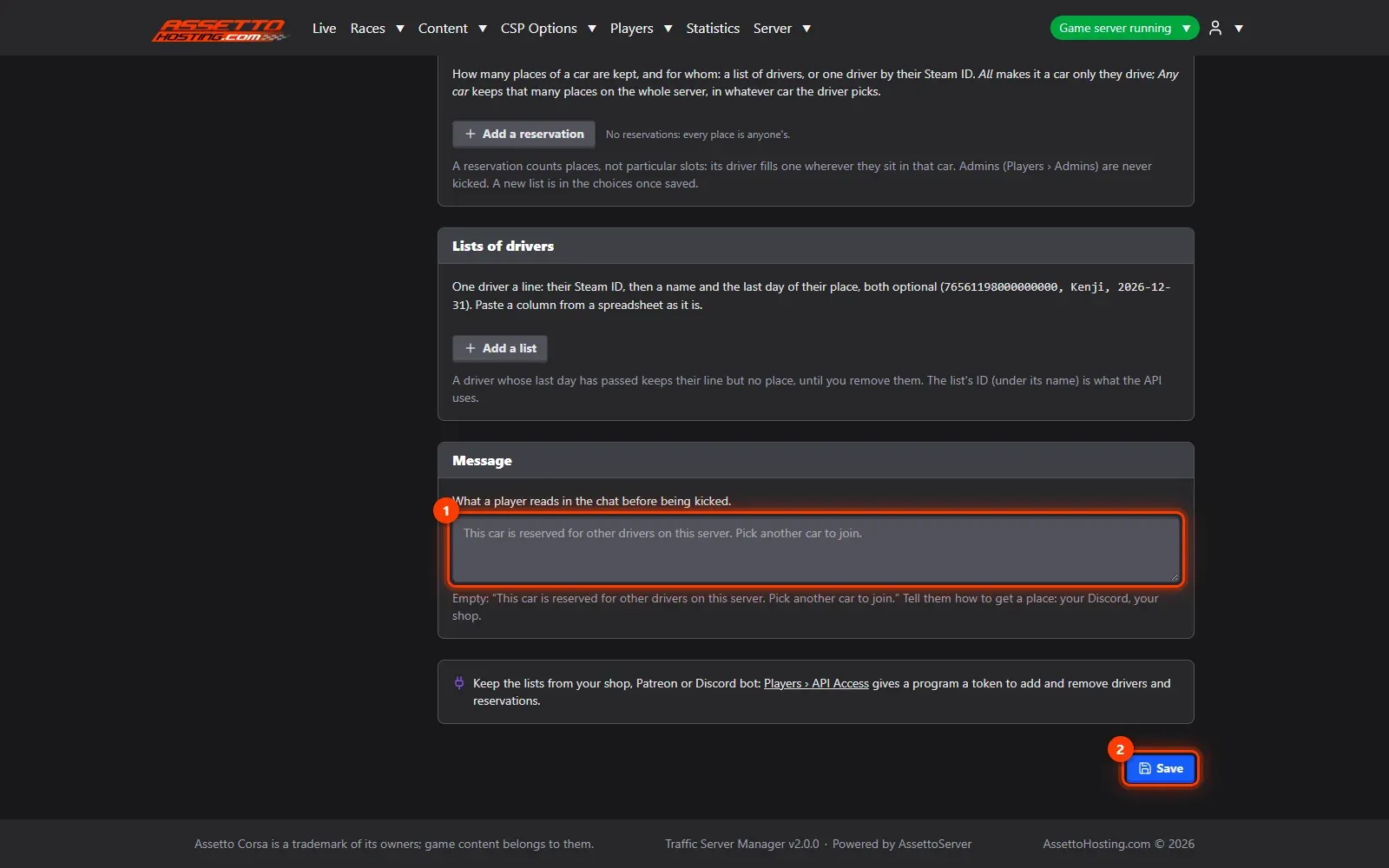
- The message, and how it works. A player who takes a place kept for others reads your message in the chat — your Discord, your shop — and is kicked 8 seconds later.
What you need
- Your drivers' Steam IDs.
- Steam authentication on (Extra Settings › Use Steam Auth): the page warns when it's off.
- An Assetto Corsa Traffic server with Traffic Server Manager: every AssettoHosting.com Traffic server comes with it.
Step by step
- Open Players › Reserved Slots
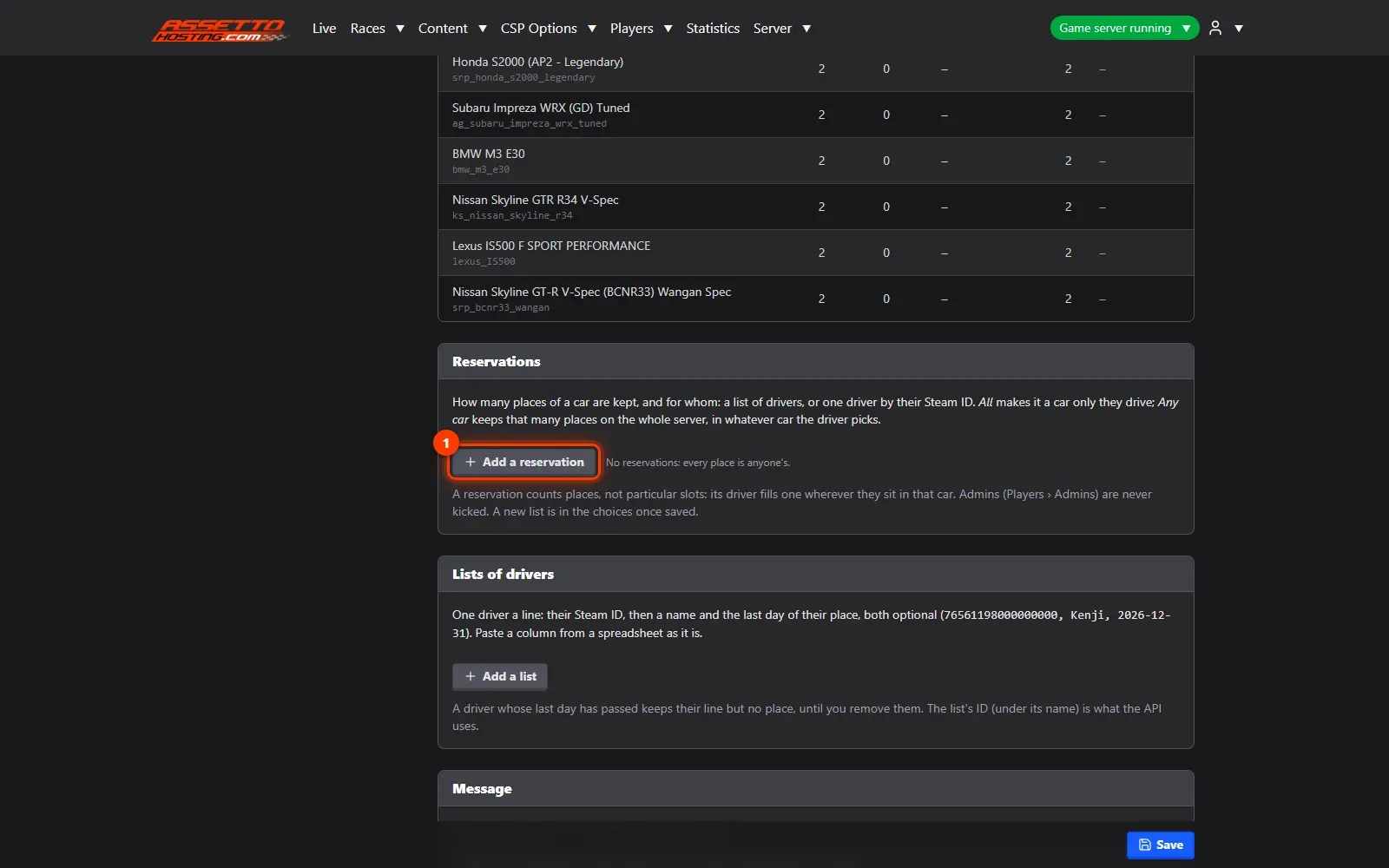
Reserved Slots keep places in your cars for the drivers you choose — VIPs, staff, a team — or for one driver. Now on the server shows each car with its places, how many are taken, kept and free, and who drives it.
- Make a list of drivers
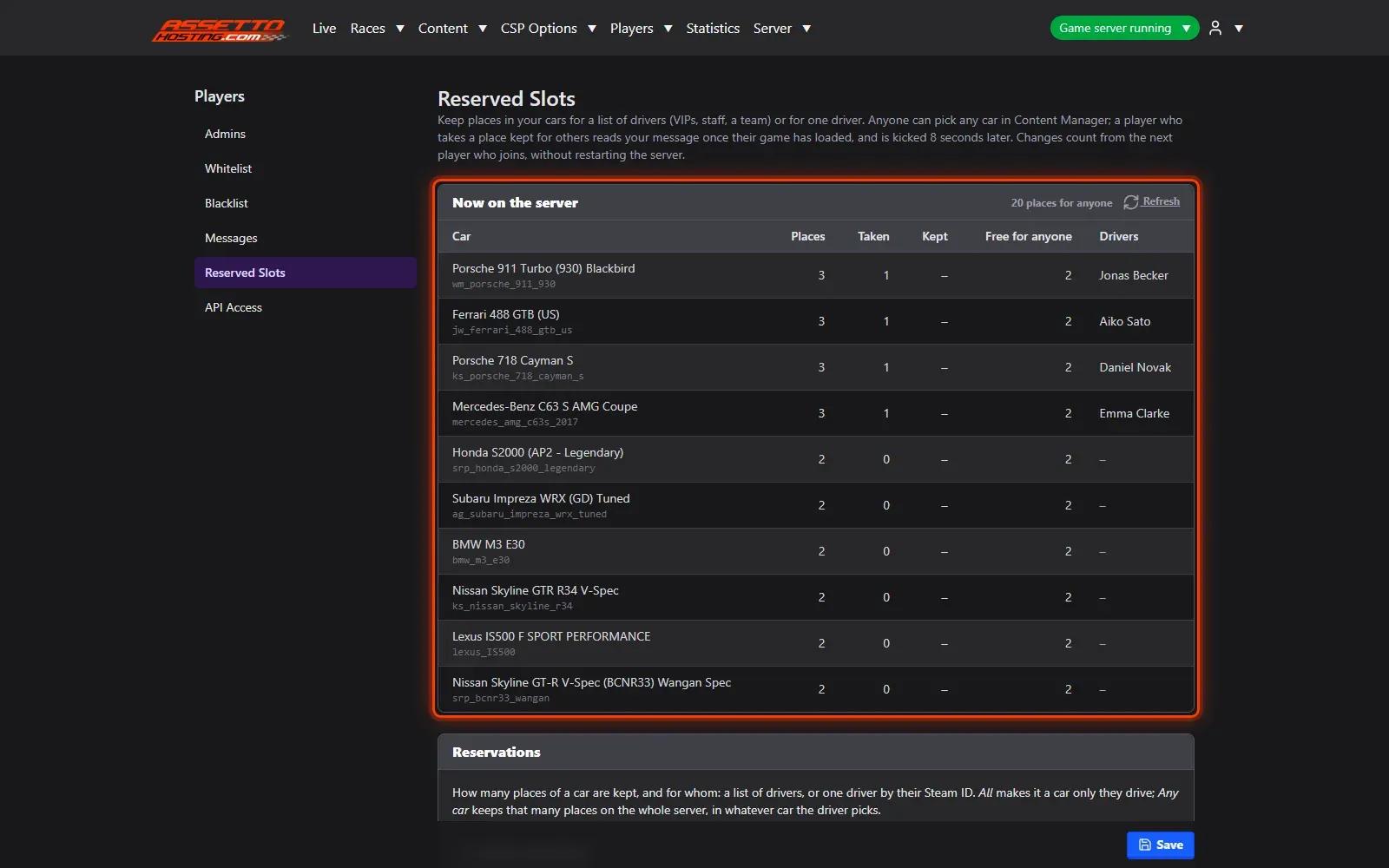
Add a list (1): name it (VIP, Staff…) and paste its drivers' Steam IDs, one a line, with an optional name and the last day of their place, for paid memberships.
- Keep places for them
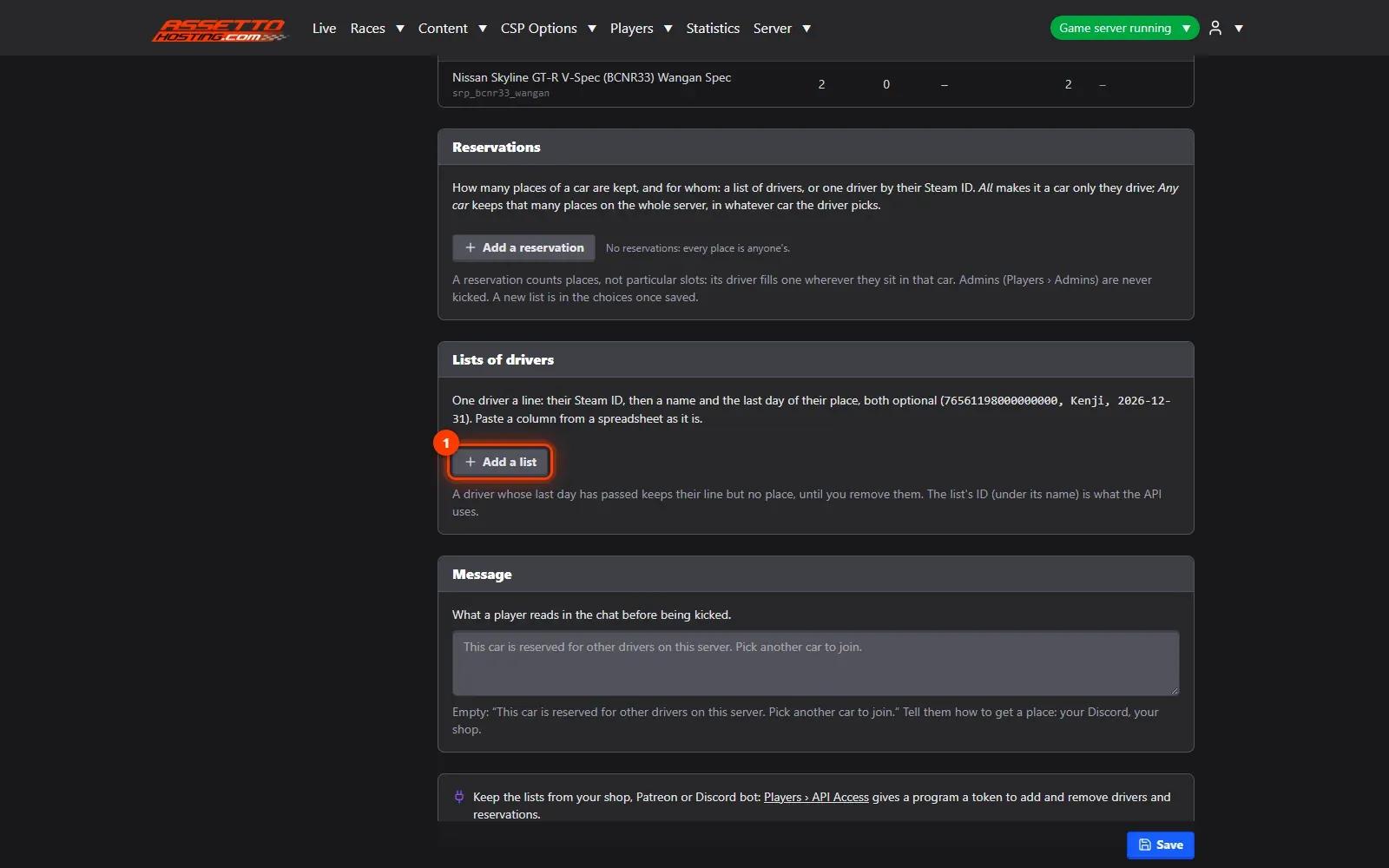
Add a reservation (1): how many places of a car are kept, and for whom — a list ("2 of the RWB 911 for VIP") or one driver ("the R34 for Kenji"). Keep all of a car's places to make it theirs alone, or a number of places on the whole server, in any car, so they always find room when it's full.
- The message, and how it works
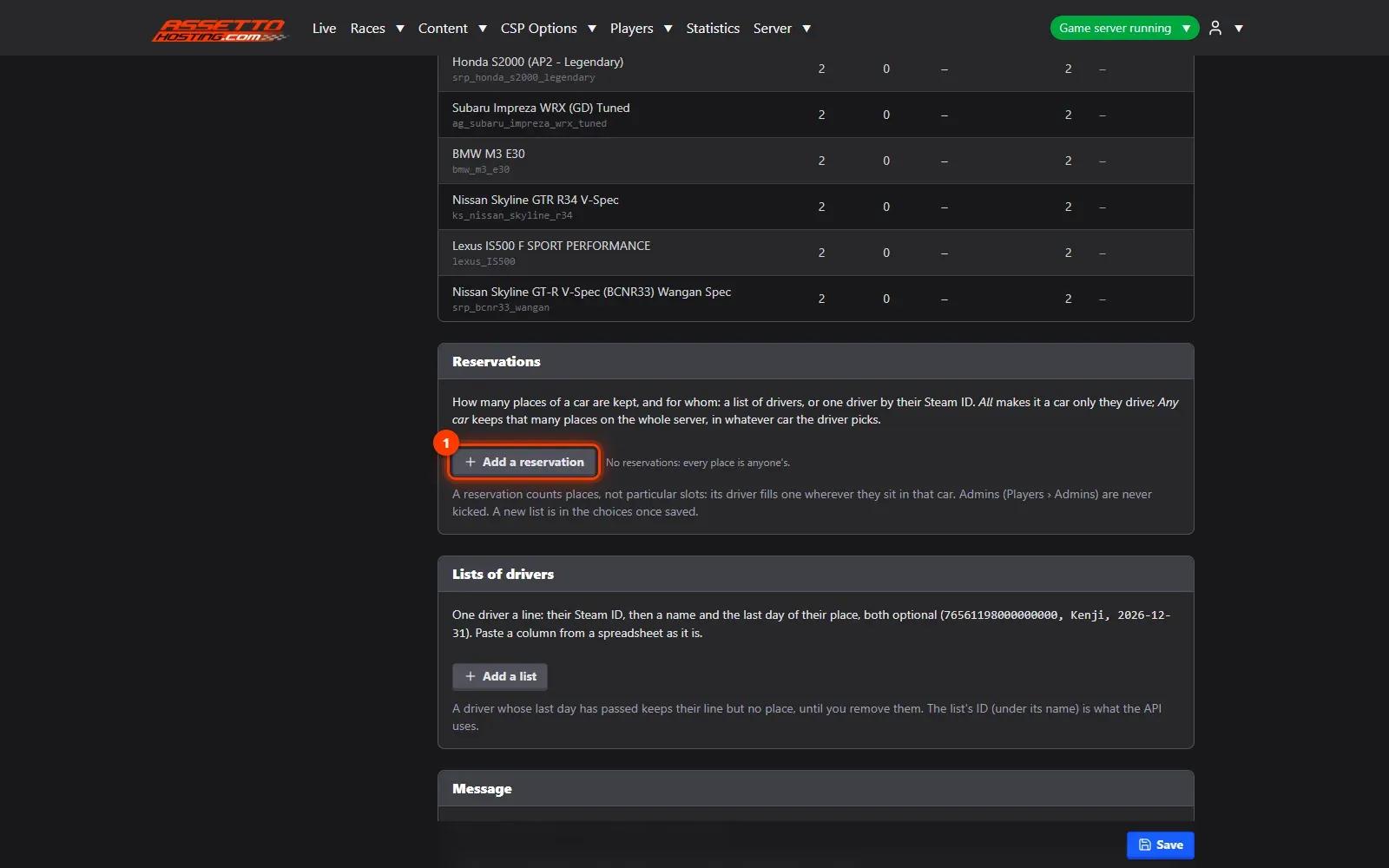
A player who takes a place kept for others reads your message (1) in the chat — your Discord, your shop — and is kicked 8 seconds later. Admins are never kicked, and nobody already driving is kicked by a change. Save (2): changes count from the next player who joins, no restart.
On AssettoHosting.com
Run your community from the browser
Watch your players on the live map, chat with them, kick or ban, keep cars for your VIPs and share a public Live page: Traffic Server Manager comes with every Assetto Corsa Traffic server at AssettoHosting.com, on your PC or your phone.
- Live map, chat, kick and ban
- Reserved slots and VIP cars, live
- Public Live page for your community
Good to know
- Give list members a last day for paid memberships: their place ends by itself.
- A shop or Discord bot can add and remove VIPs through Players › API Access.
Traffic Server Manager
Frequently asked questions
They read your message in the chat and are kicked 8 seconds later. Admins are never kicked.
No: changes count from the next player who joins.
Keep reading: Traffic server admins, whitelist and blacklist (ban players) · Show your server live on stream, Discord or your website (General API) · All 18 Traffic Server Manager tutorials