
Add AI traffic lanes (fast_lane.ai) to a track
No AI traffic on your Assetto Corsa server? Upload the track's fast_lane.ai lanes to the track or a layout, and see which tracks are ready for traffic.
AssettoServer's AI traffic drives along the track's AI lanes. A track without them runs no traffic. This tutorial shows how to see which tracks have lanes and how to add them.
- See which tracks have AI lanes. AI traffic drives along the track's AI lanes: files called
fast_lane.ai(orfast_lane.aip, and morefast_lane*.aifor extra lanes) in the track'saifolder. - Open the track's AI lanes.
- Choose the lane files. Choose the
fast_lane.aiyou got with the track or from its author. - The track is ready for traffic. The lanes are listed with their size and date, and the track now shows AI lanes.
What you need
- The track uploaded to your server.
- Its
fast_lane.ai(orfast_lane.aip) — it comes with traffic-ready tracks, or from the track's author or community. - An Assetto Corsa Traffic server with Traffic Server Manager: every AssettoHosting.com Traffic server comes with it.
Step by step
- See which tracks have AI lanes
AI traffic drives along the track's AI lanes: files called
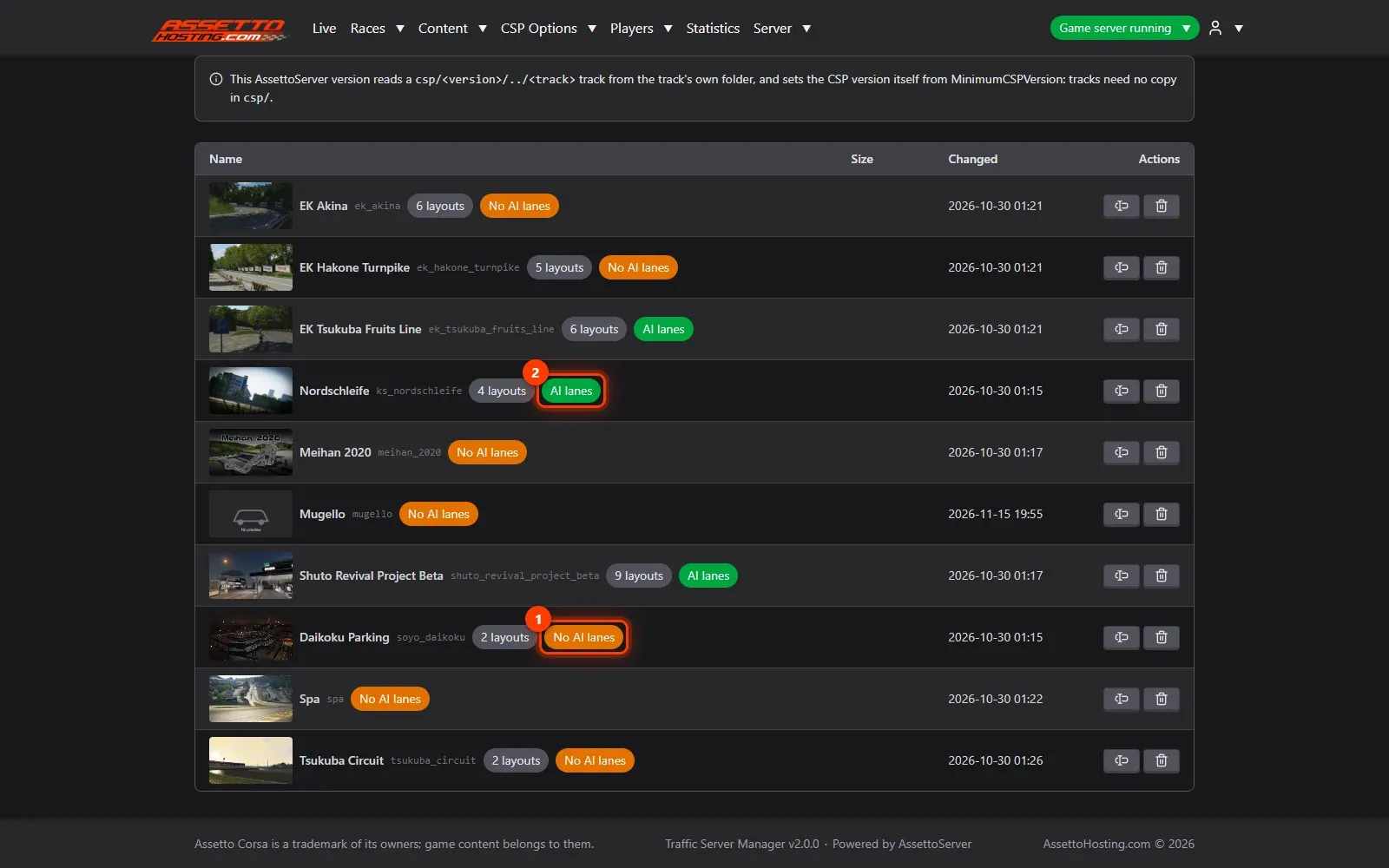
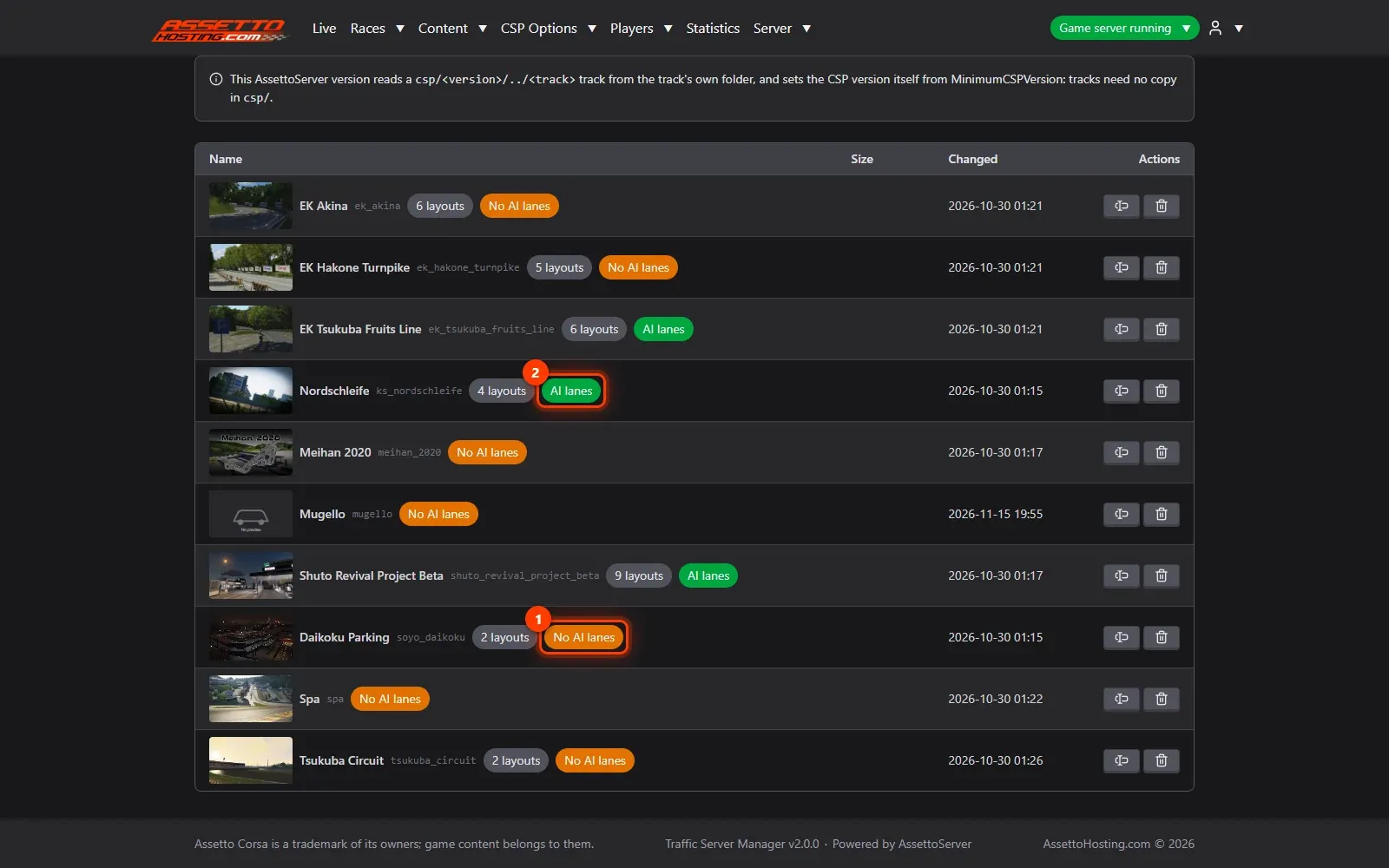
fast_lane.ai(orfast_lane.aip, and morefast_lane*.aifor extra lanes) in the track'saifolder. In Content › Tracks, each track says whether it has them: No AI lanes (1) or AI lanes (2).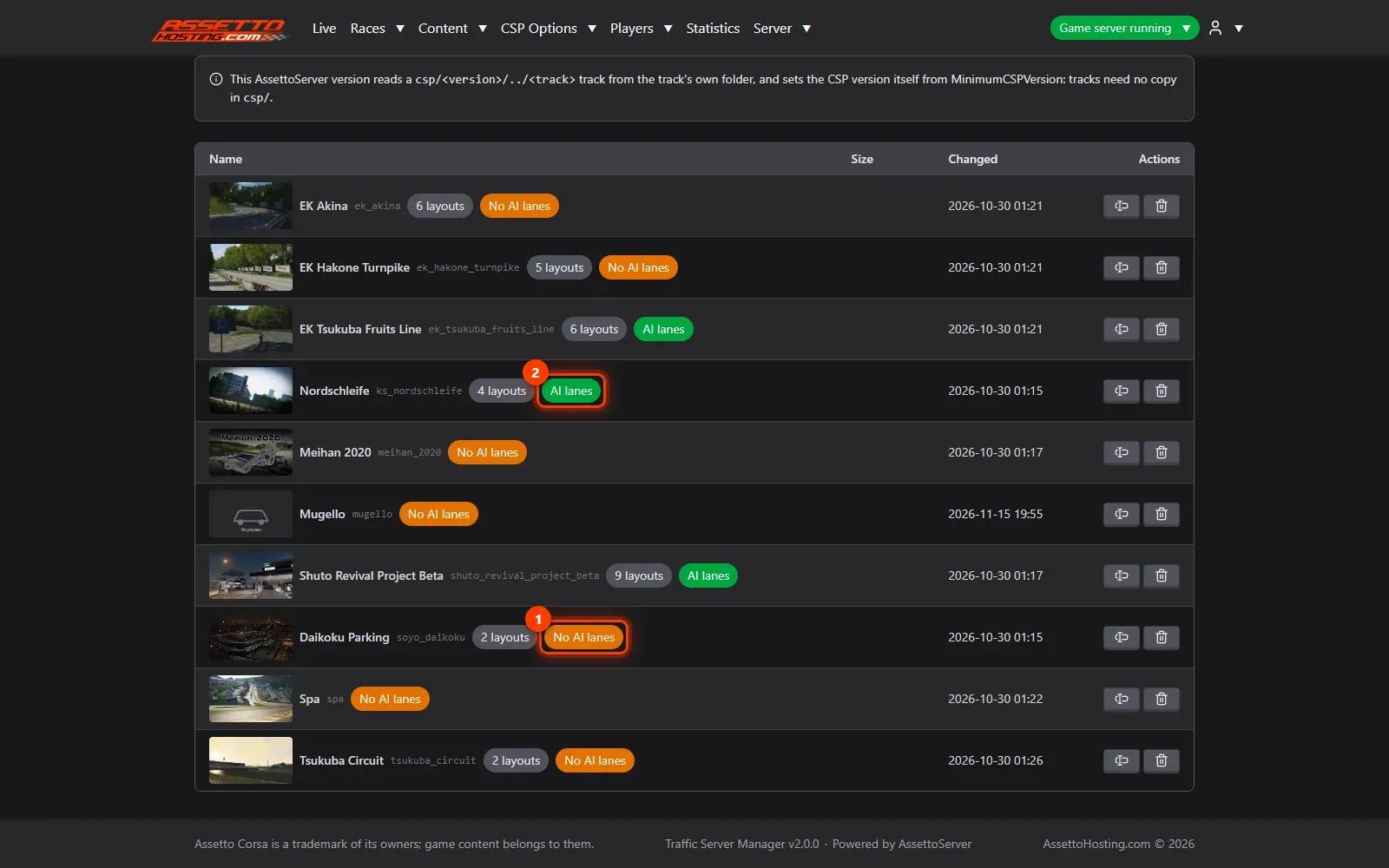
- Open the track's AI lanes
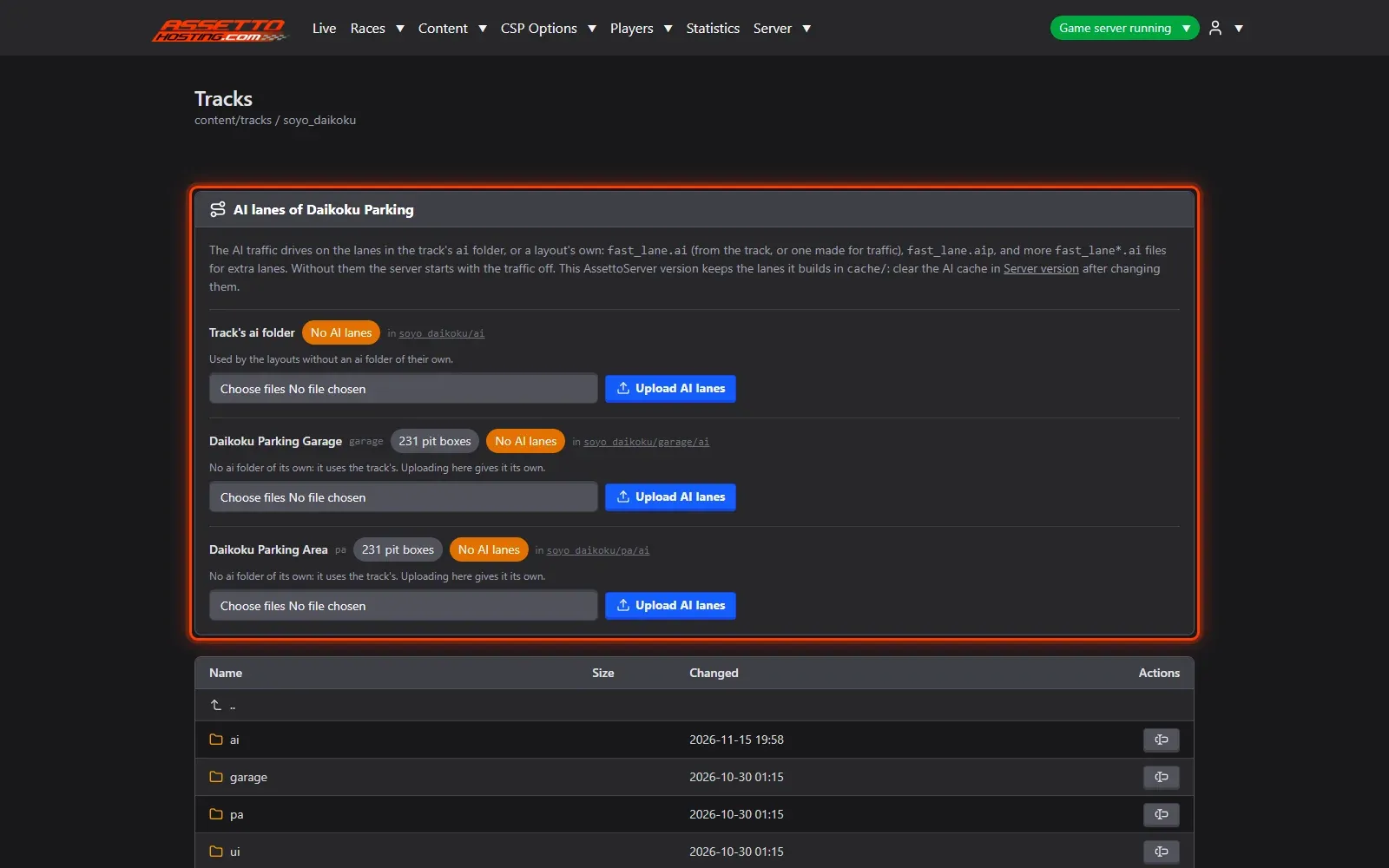
Click the track (or its AI lanes badge) to open its AI lanes: one box per layout, plus the track's own
aifolder, which every layout uses unless it has lanes of its own.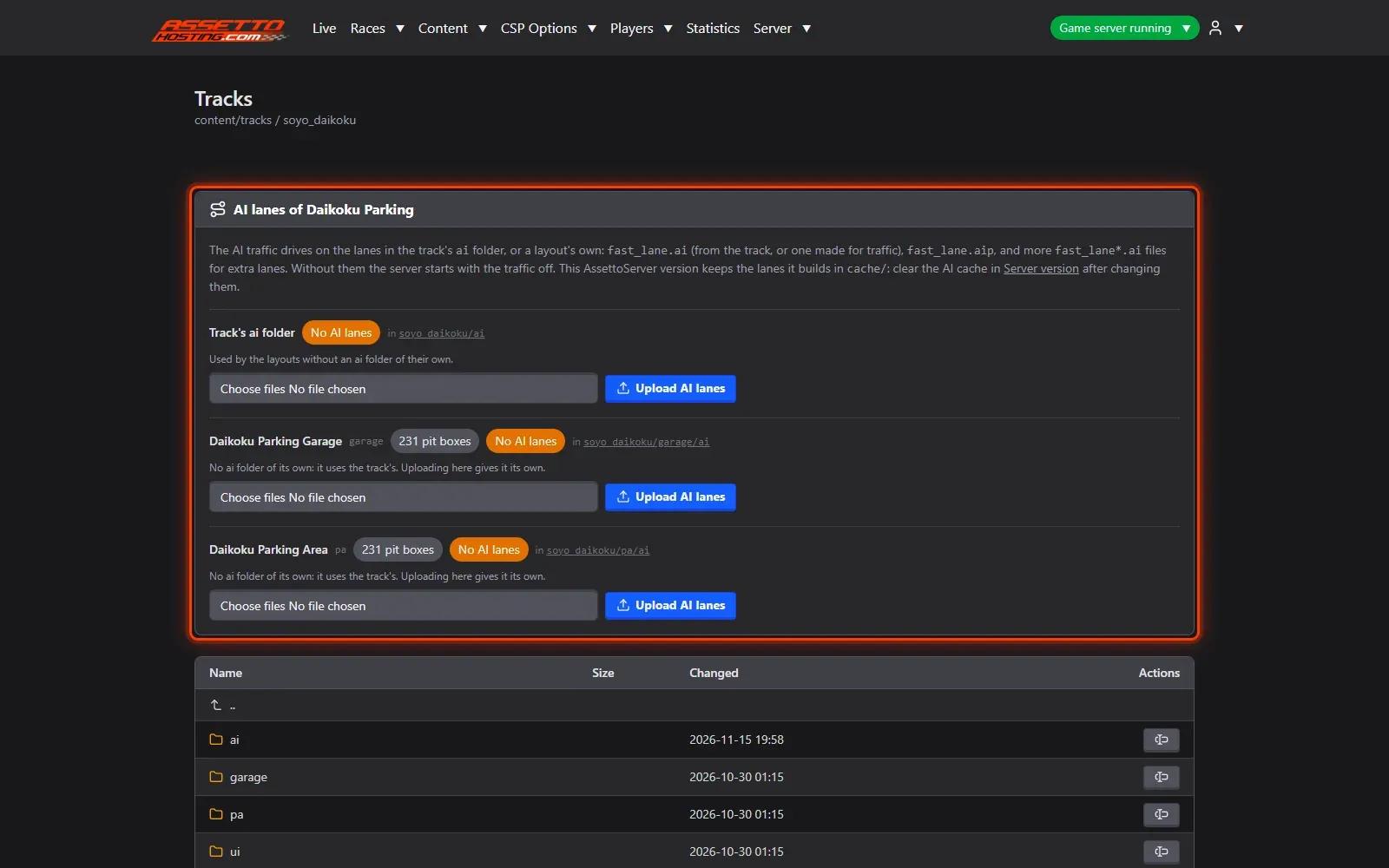
- Choose the lane files
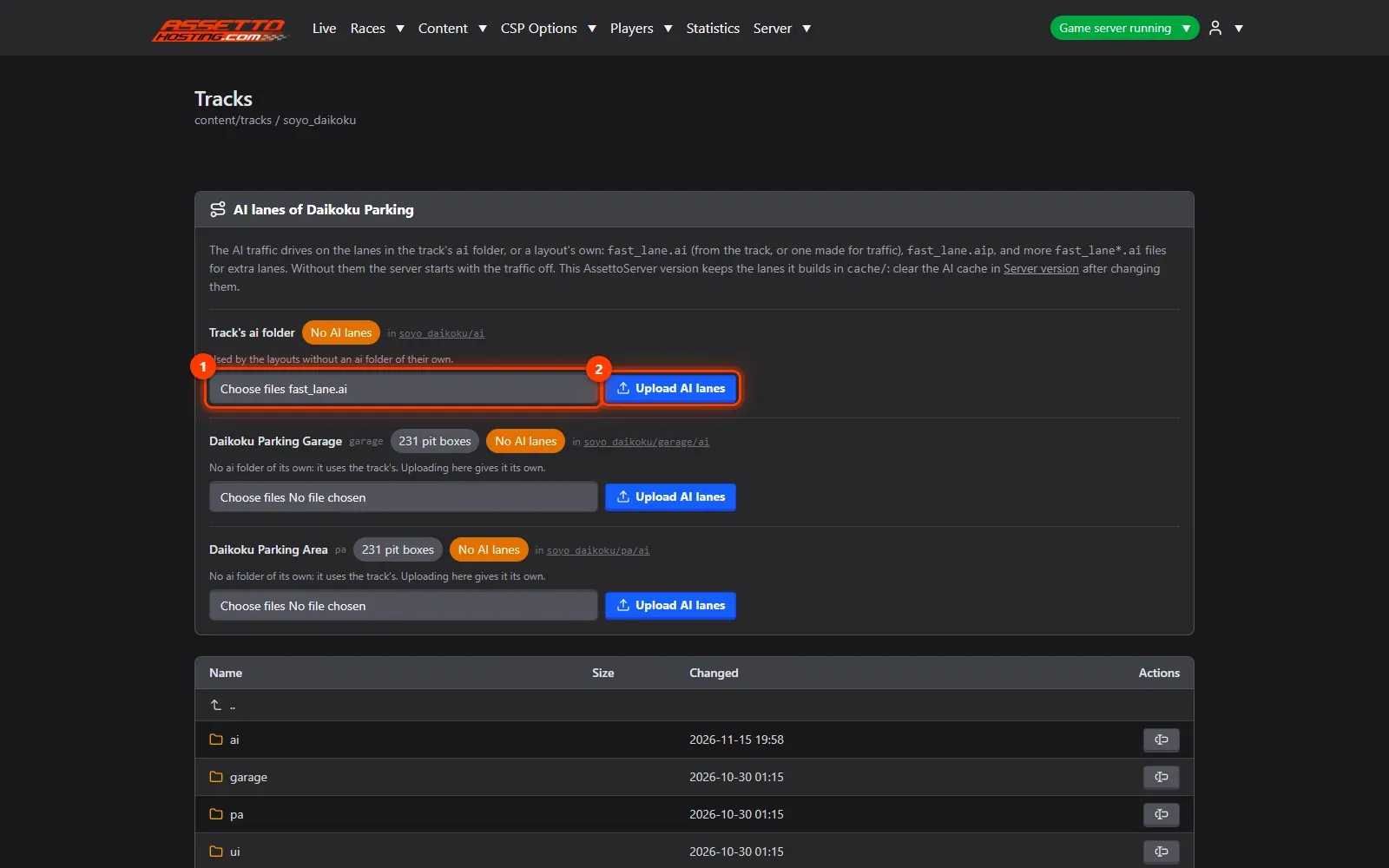
Choose the
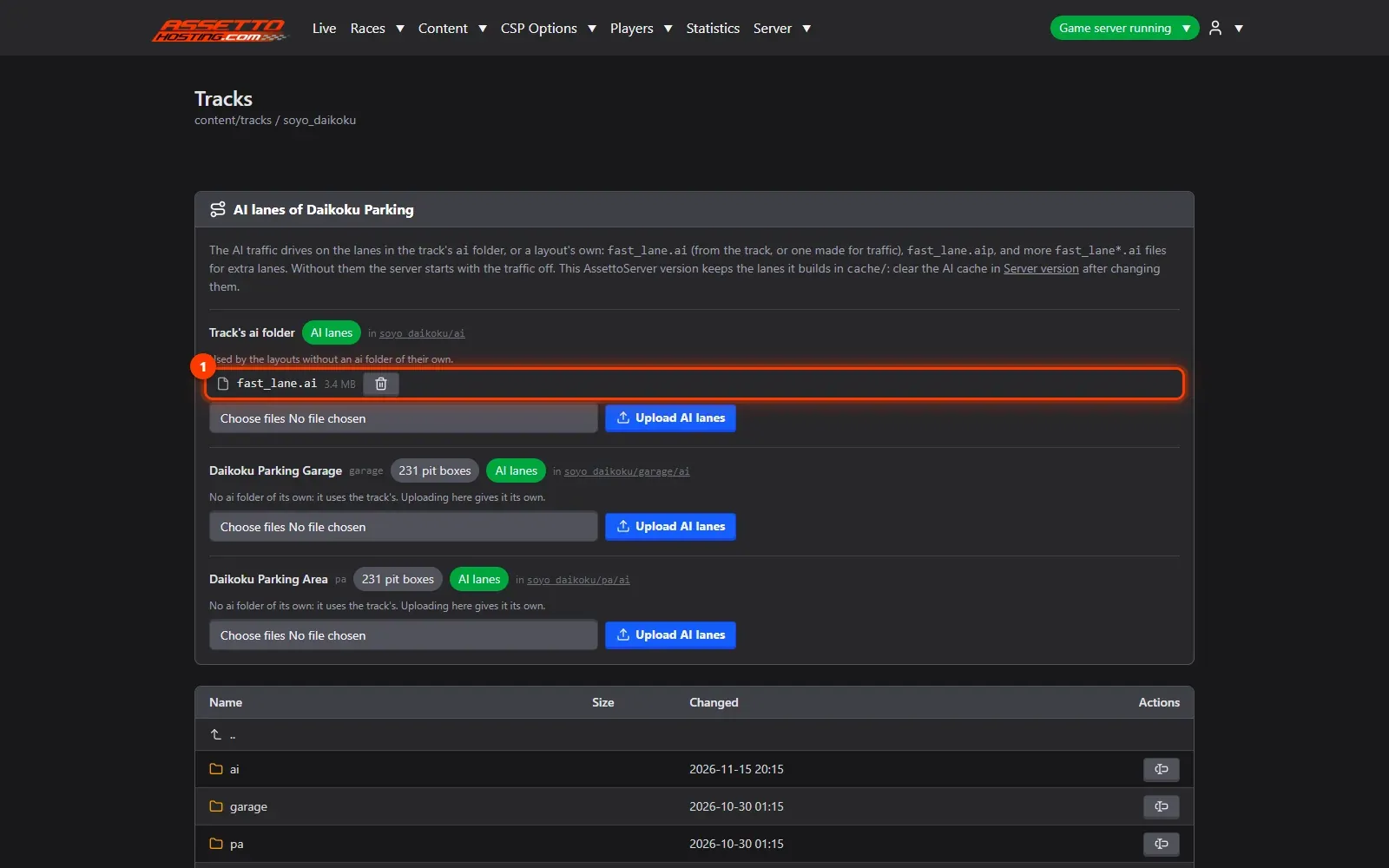
fast_lane.aiyou got with the track or from its author (1). You can pick several files at once. Then press Upload AI lanes (2).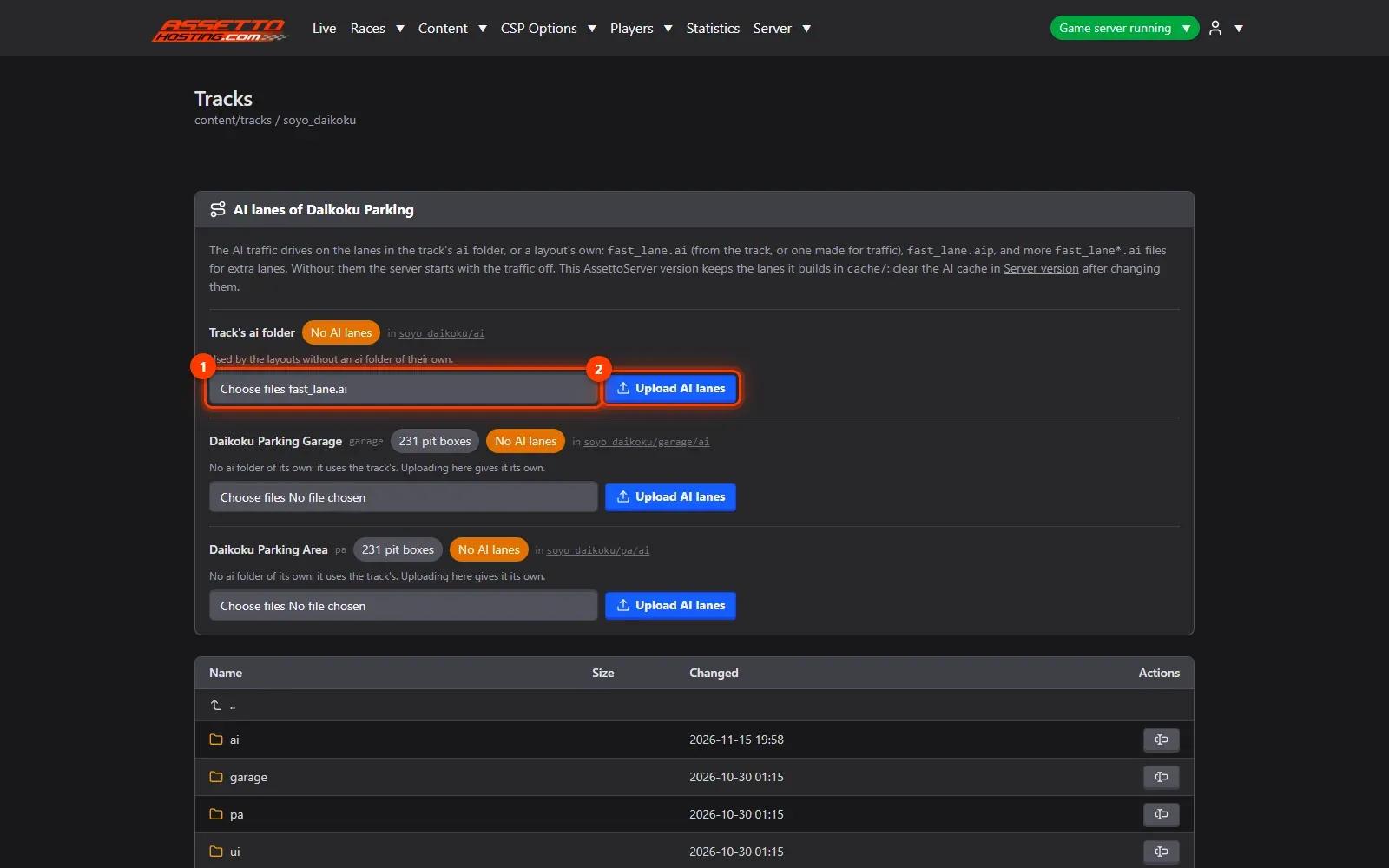
- The track is ready for traffic
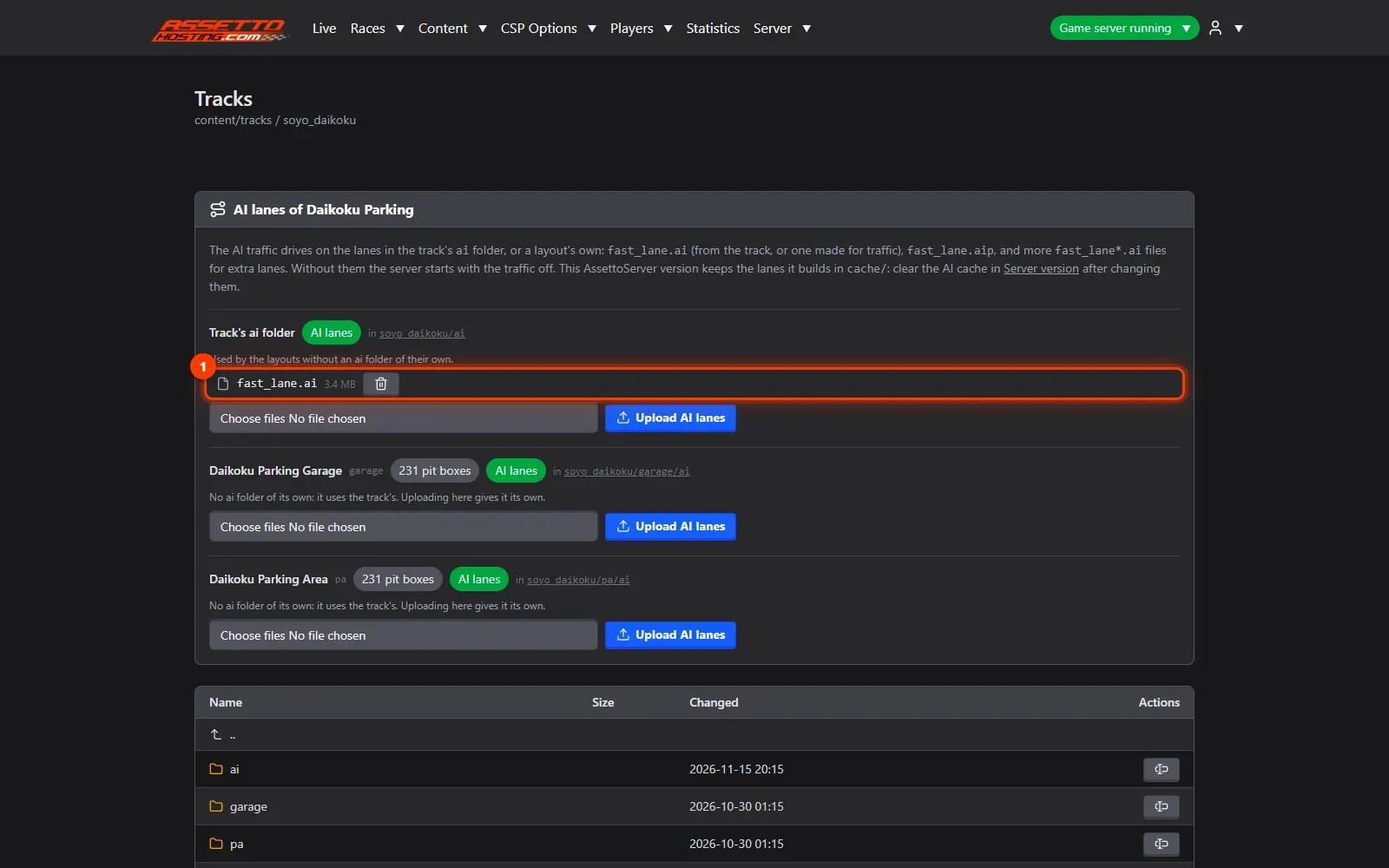
The lanes are listed (1) with their size and date, and the track now shows AI lanes. Start a race on it and the traffic appears. Without lanes, the server still starts: the panel turns the AI traffic off for that start and tells you why.
On AssettoHosting.com
AI traffic, set up from your browser
On an AssettoHosting.com Traffic server, AI lanes, races, schedules and every AssettoServer traffic setting are in Traffic Server Manager. It checks every value before it saves, so a typo can’t stop your server from starting.
- AI lanes per track and layout
- Custom races and weekly schedules
- Every value checked before it is saved
Good to know
- A layout can have lanes of its own; otherwise it uses the track's.
- After changing a track's lanes, Server › Server version › Clear the cache makes AssettoServer rebuild its AI cache.
Traffic Server Manager
Frequently asked questions
Most often the track has no AI lanes. The panel shows "No AI lanes" on it, and turns the traffic off for that start, saying why.
Traffic-ready tracks include it in their ai folder; otherwise ask the track's author or community.
Keep reading: Upload cars and tracks to your Assetto Corsa traffic server · Tune the AI traffic and AssettoServer's settings (extra_cfg.yml) · Create a custom race with AI traffic · AI lanes for AssettoServer: where to get traffic splines · All 18 Traffic Server Manager tutorials