
Tune the AI traffic and AssettoServer's settings (extra_cfg.yml)
Turn AI traffic on and tune it — speed, two-way traffic — and every AssettoServer setting from a form, with each setting's description.
AssettoServer keeps its own settings, the AI traffic's included, in extra_cfg.yml. Traffic Server Manager shows them as a form with AssettoServer's own descriptions, checks every value, and keeps the hosting's settings safe.
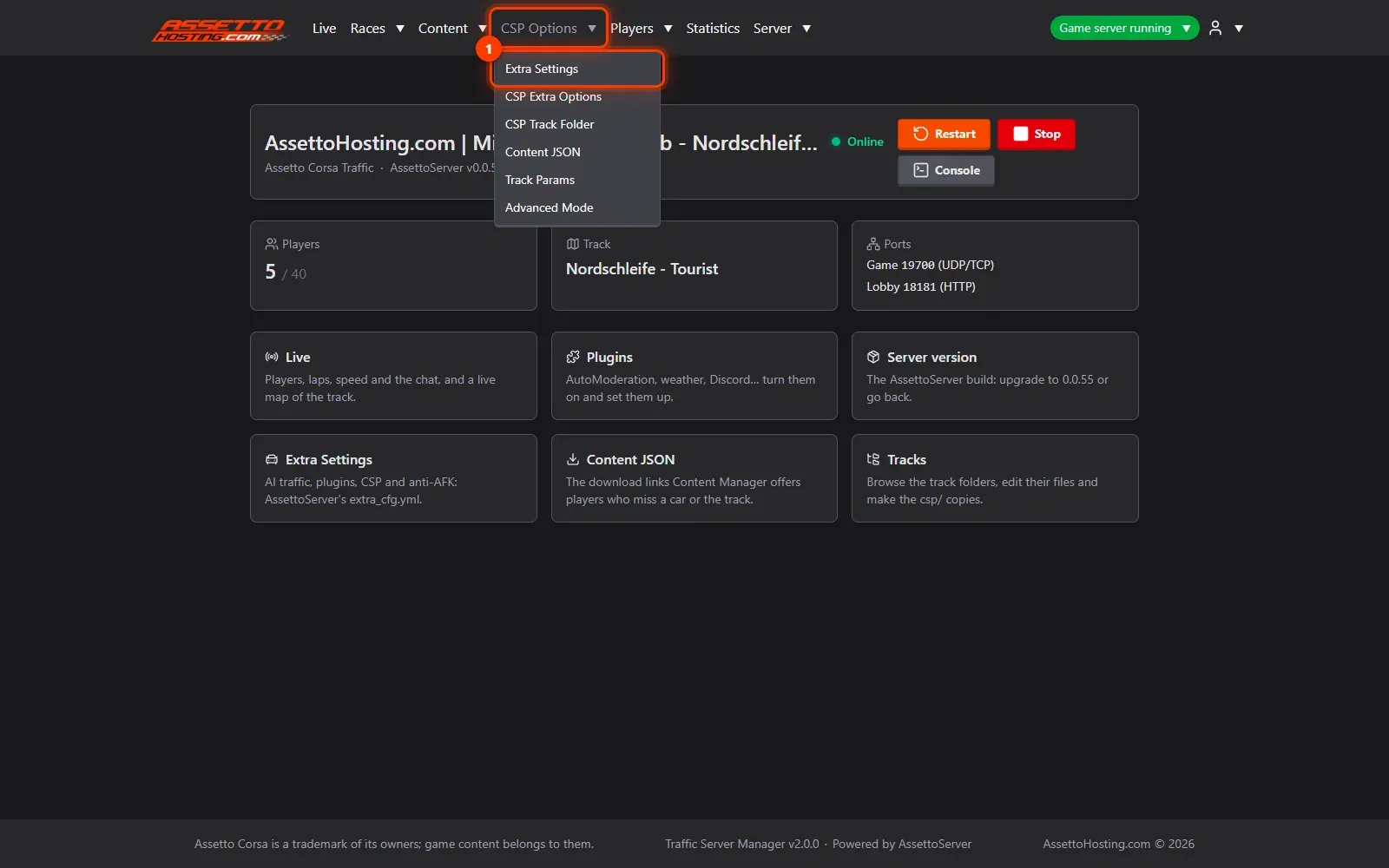
- Open CSP Options › Extra Settings. AssettoServer's own settings, the AI traffic's included, live in its
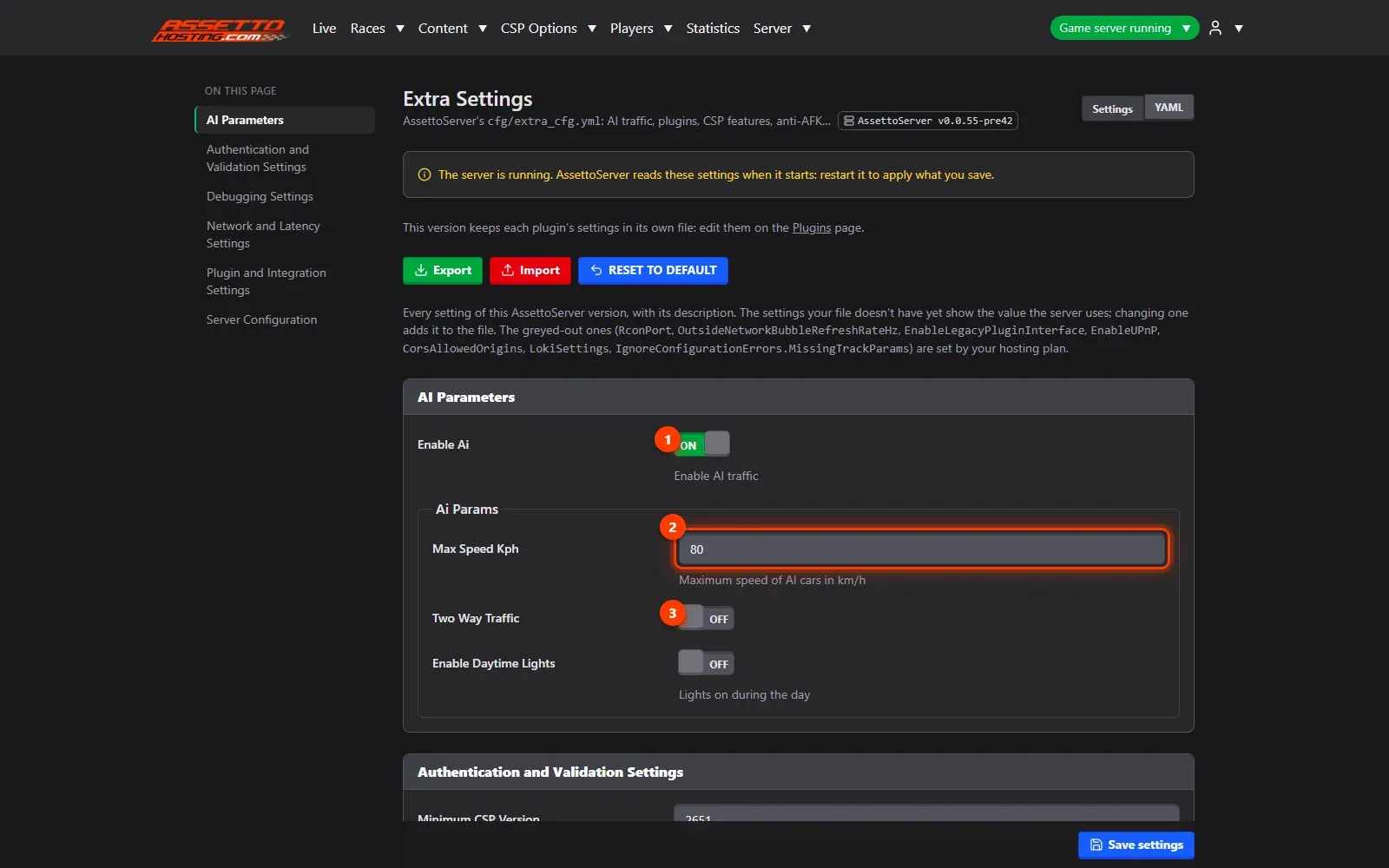
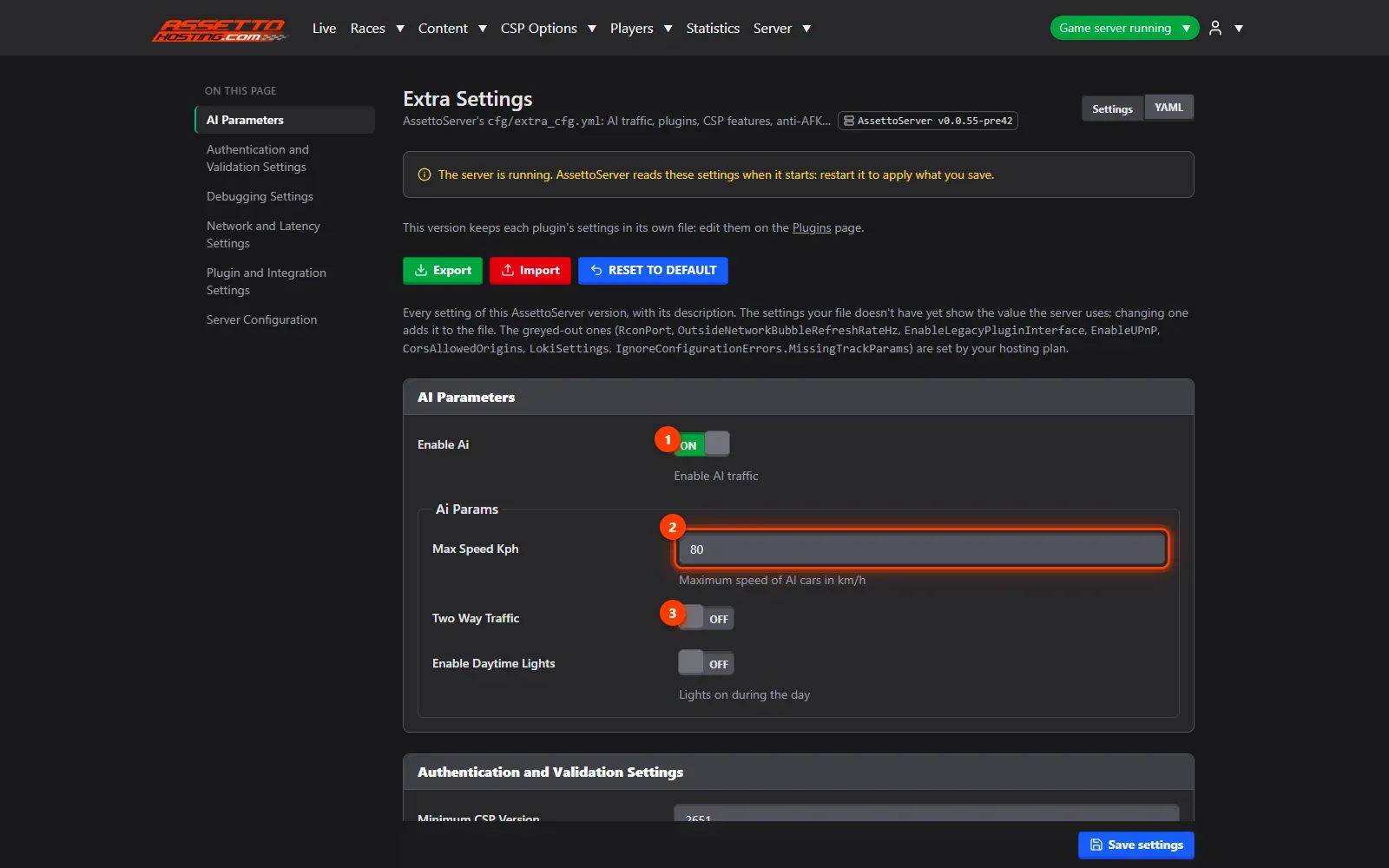
extra_cfg.yml. - Turn the traffic on and tune it. In AI Parameters: Enable Ai turns the traffic on; Max Speed Kph is how fast the traffic drives; Two Way Traffic sends traffic both ways on two-way roads.
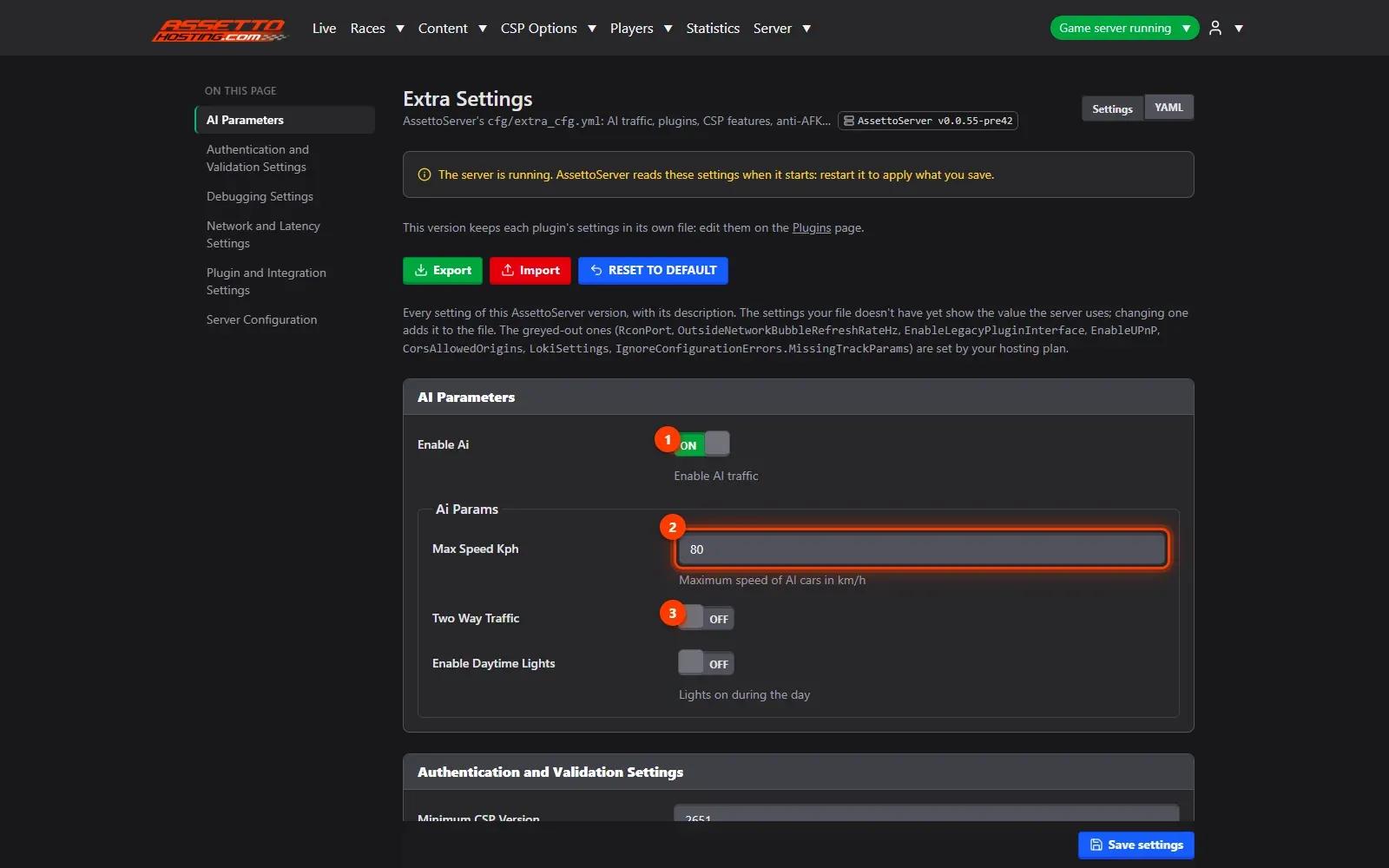
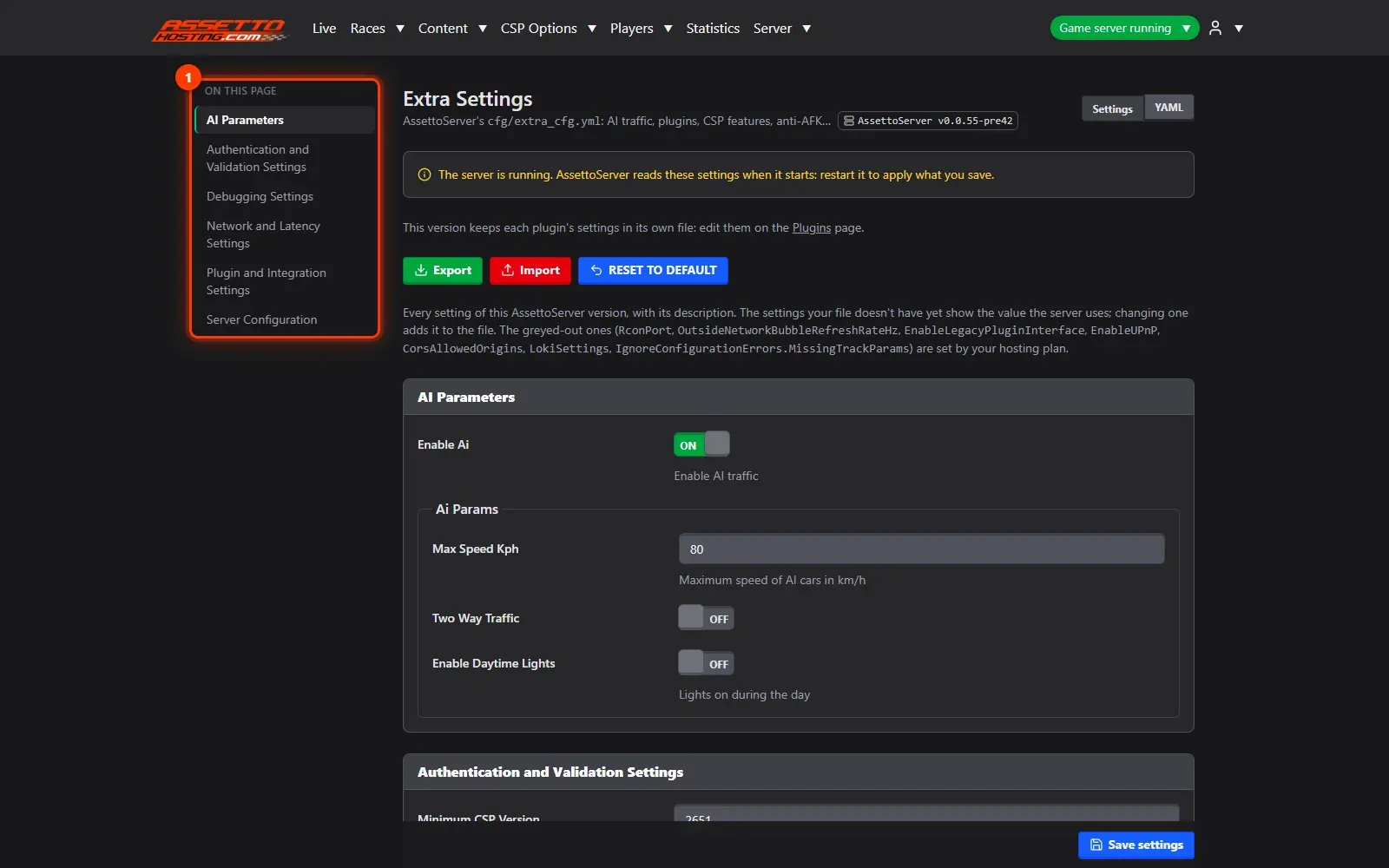
- Find any setting from the side index. The side index follows the page and jumps to a section: AI Parameters, Authentication and Validation, Network and Latency, Server Configuration…
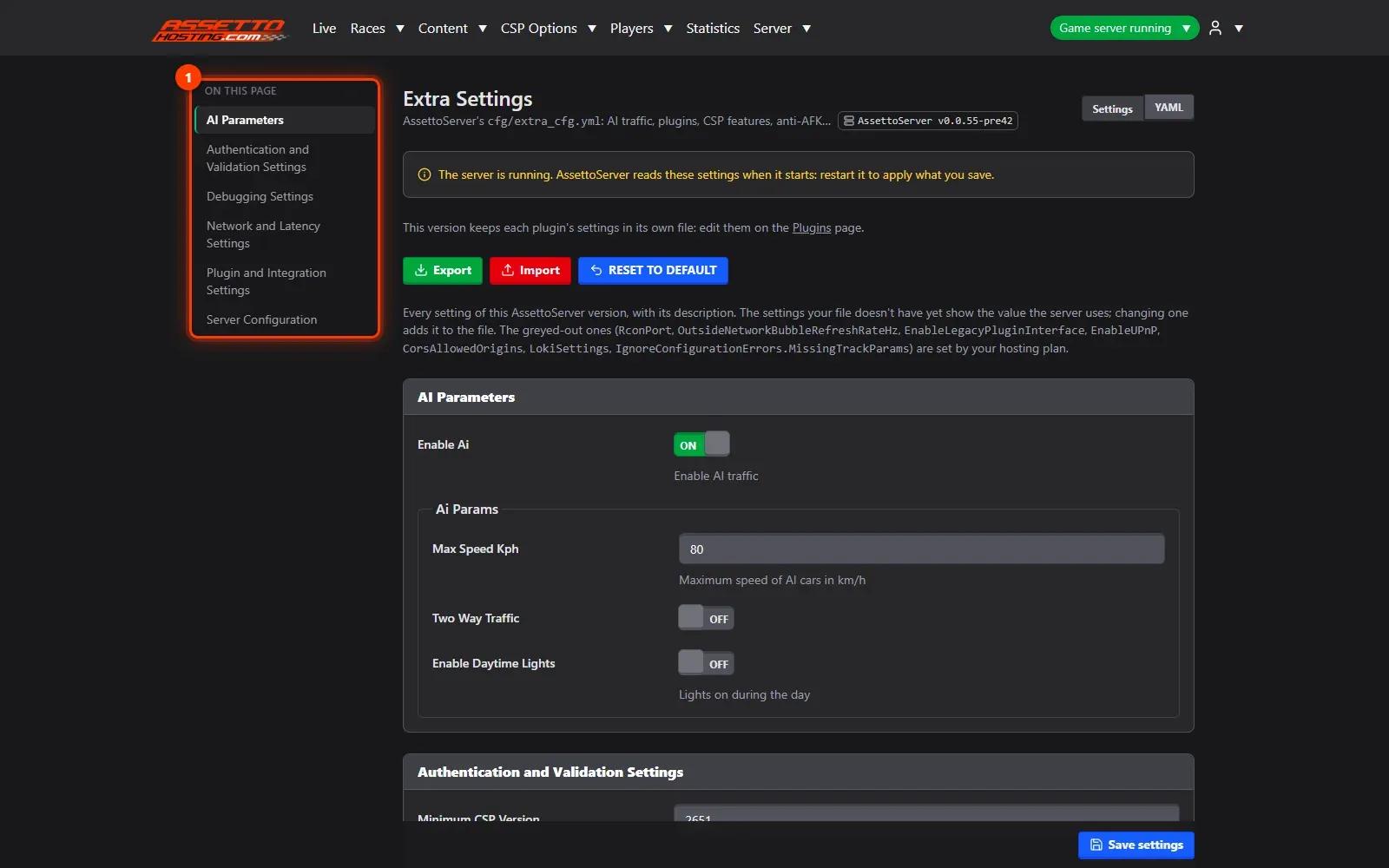
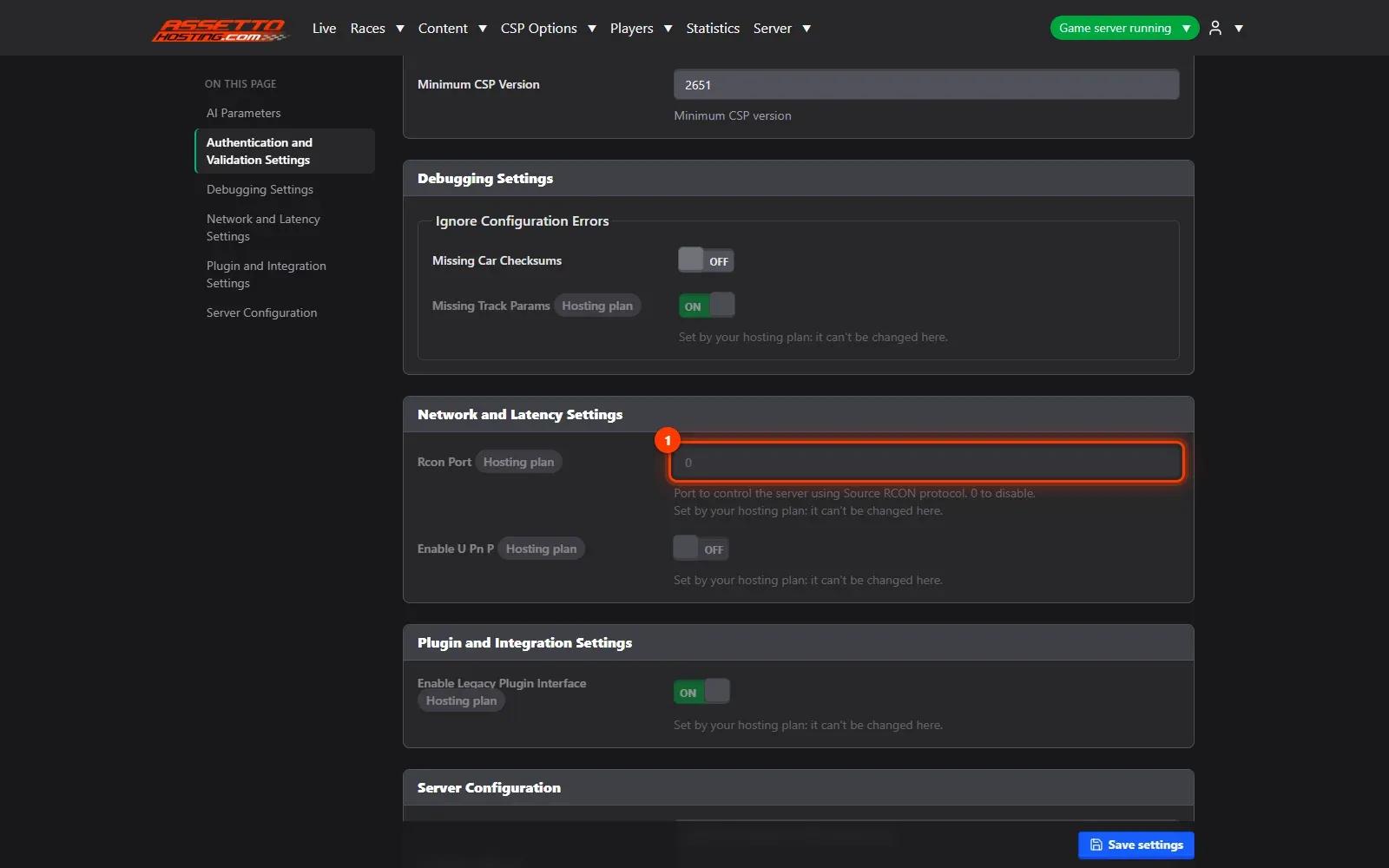
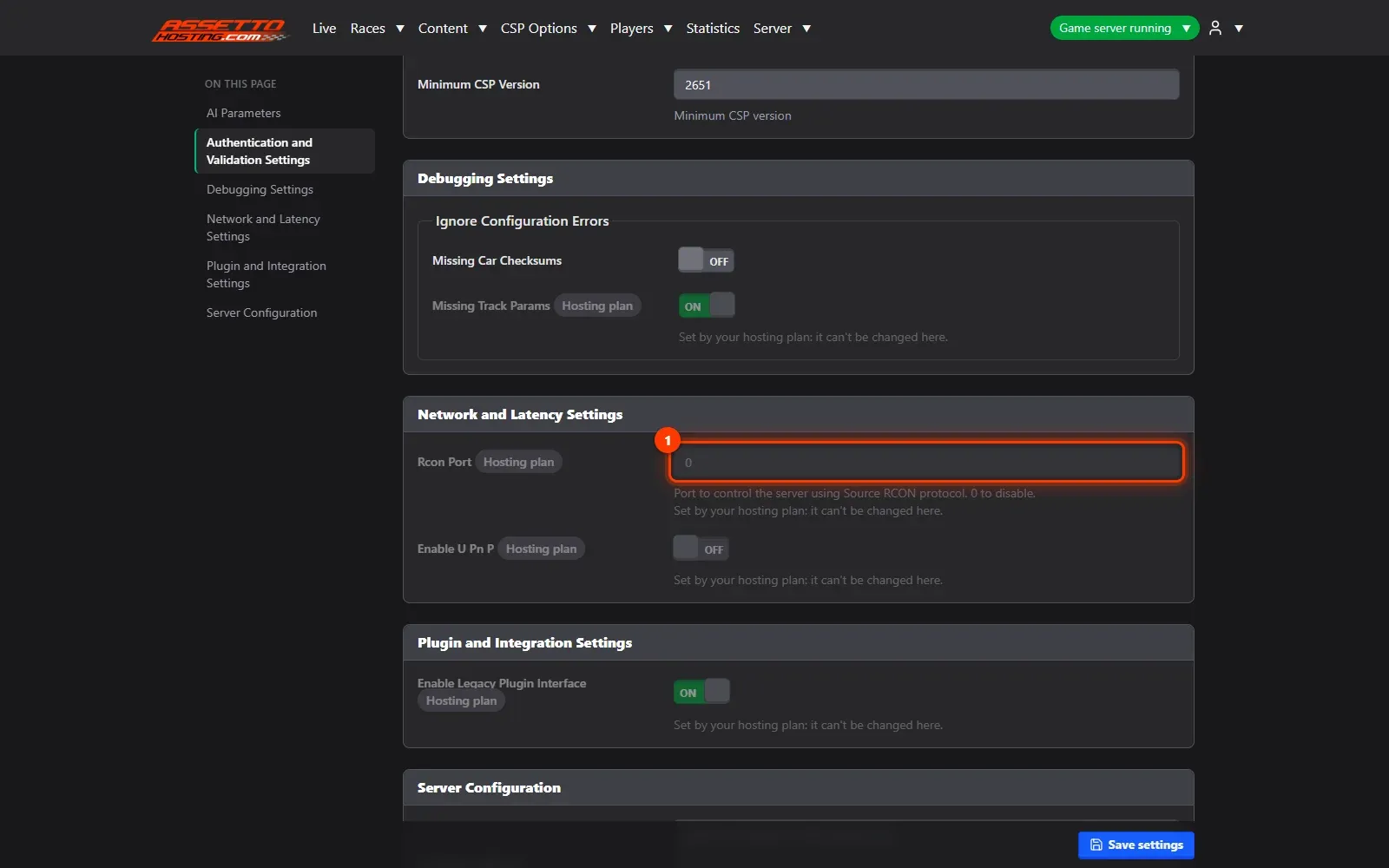
- Greyed-out settings are your plan's. Settings marked Hosting plan — the RCON port, UPnP, the legacy plugin interface… — belong to the hosting: they're shown, never changed.
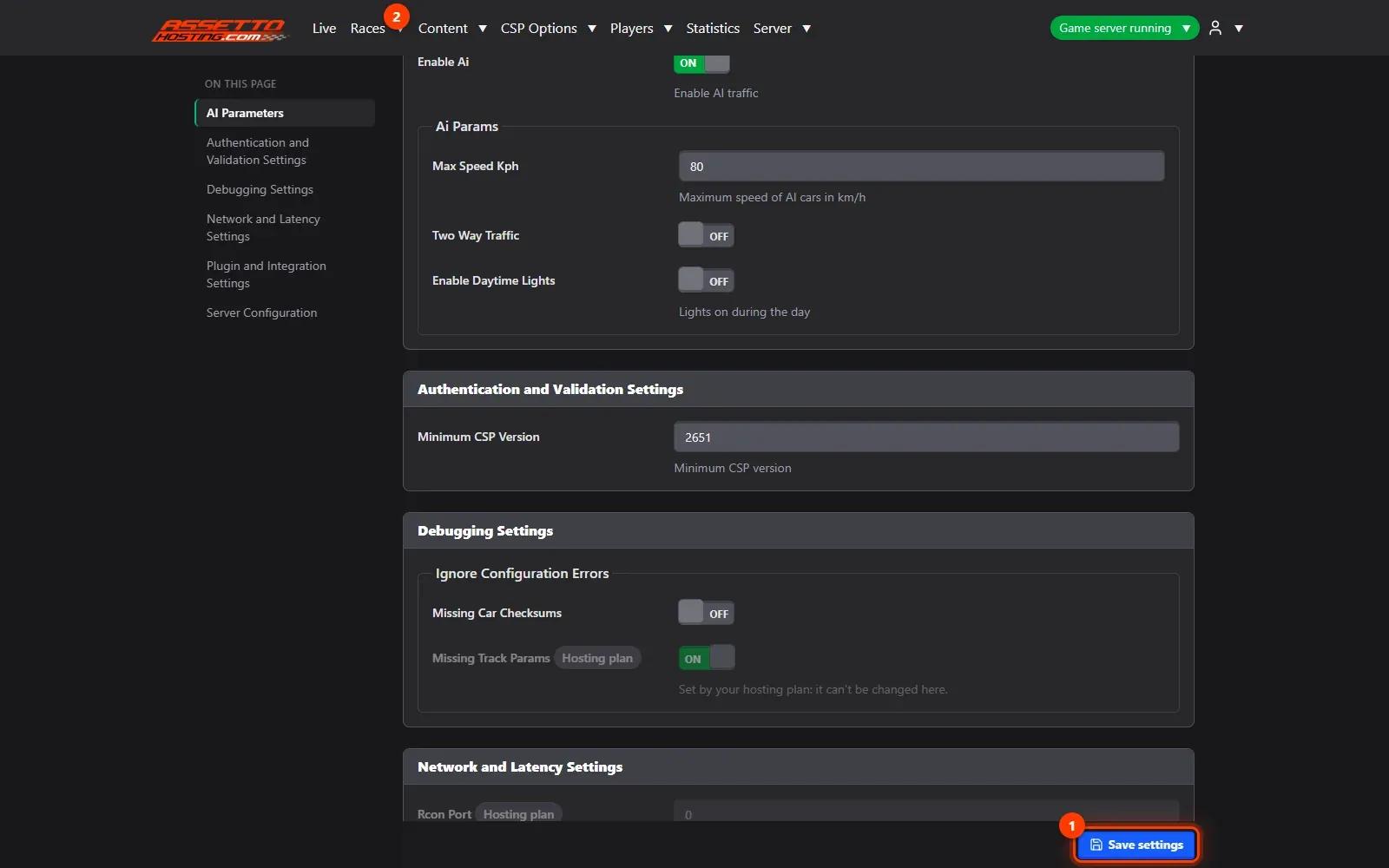
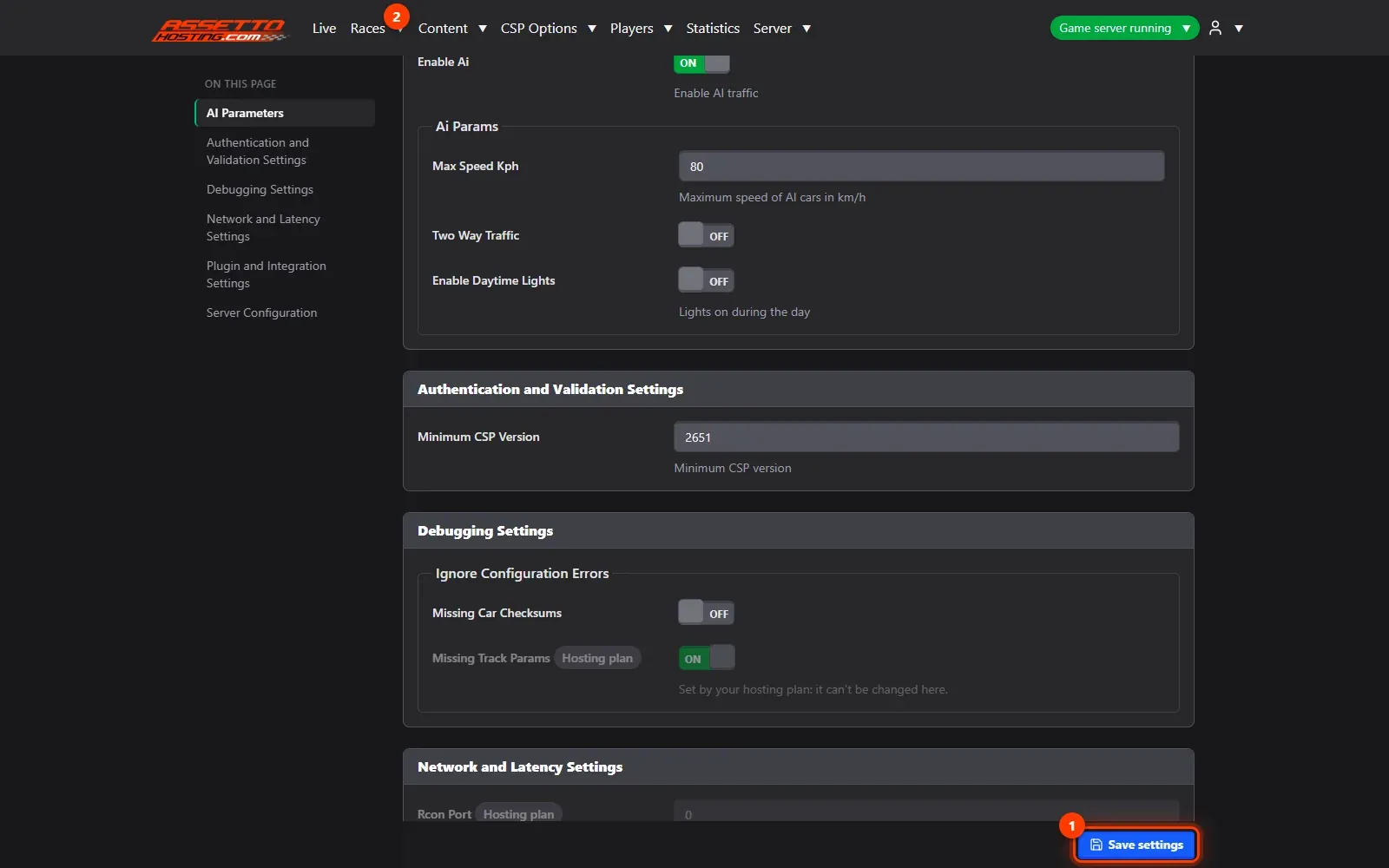
- Save, export or reset. Press Save settings.
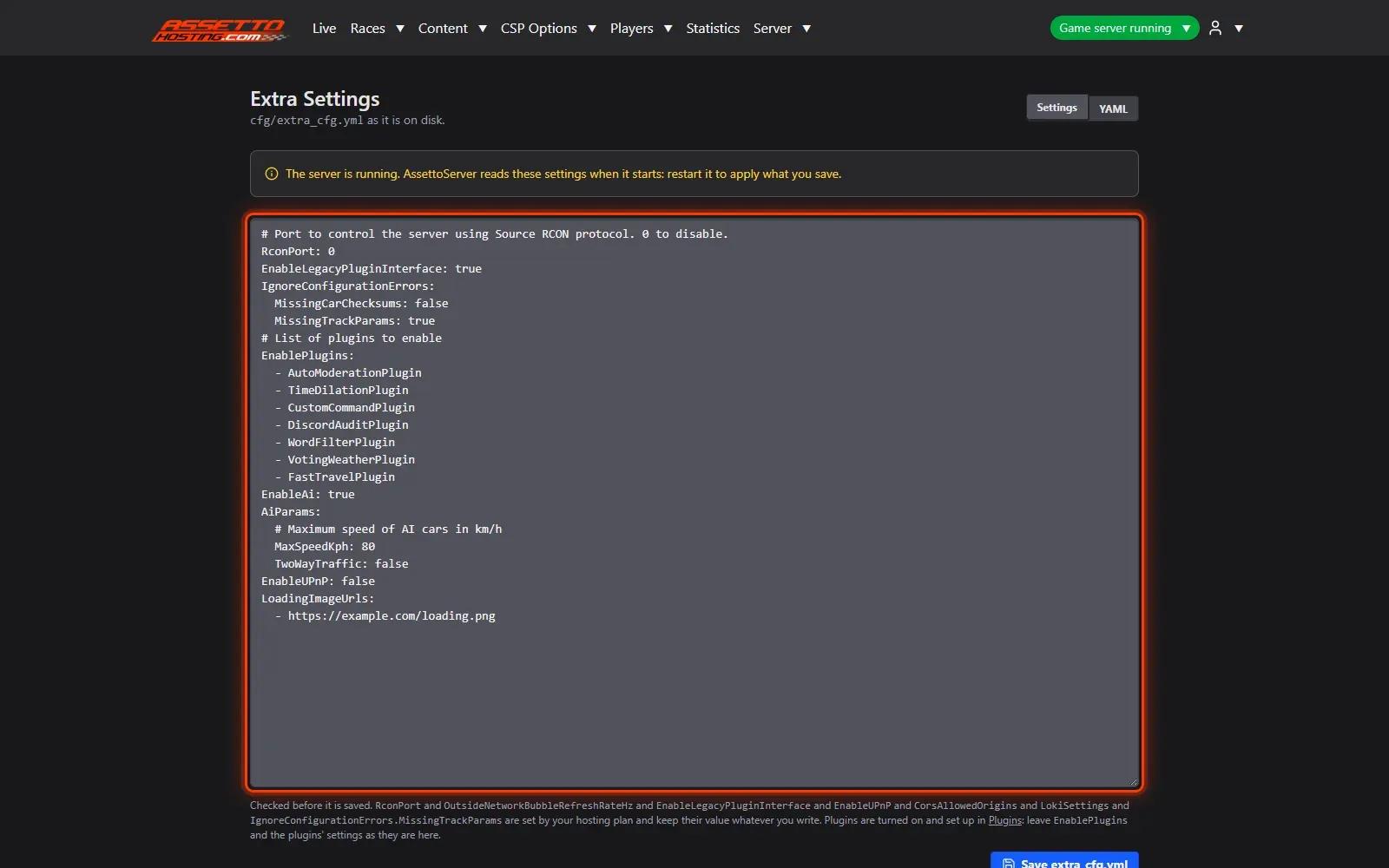
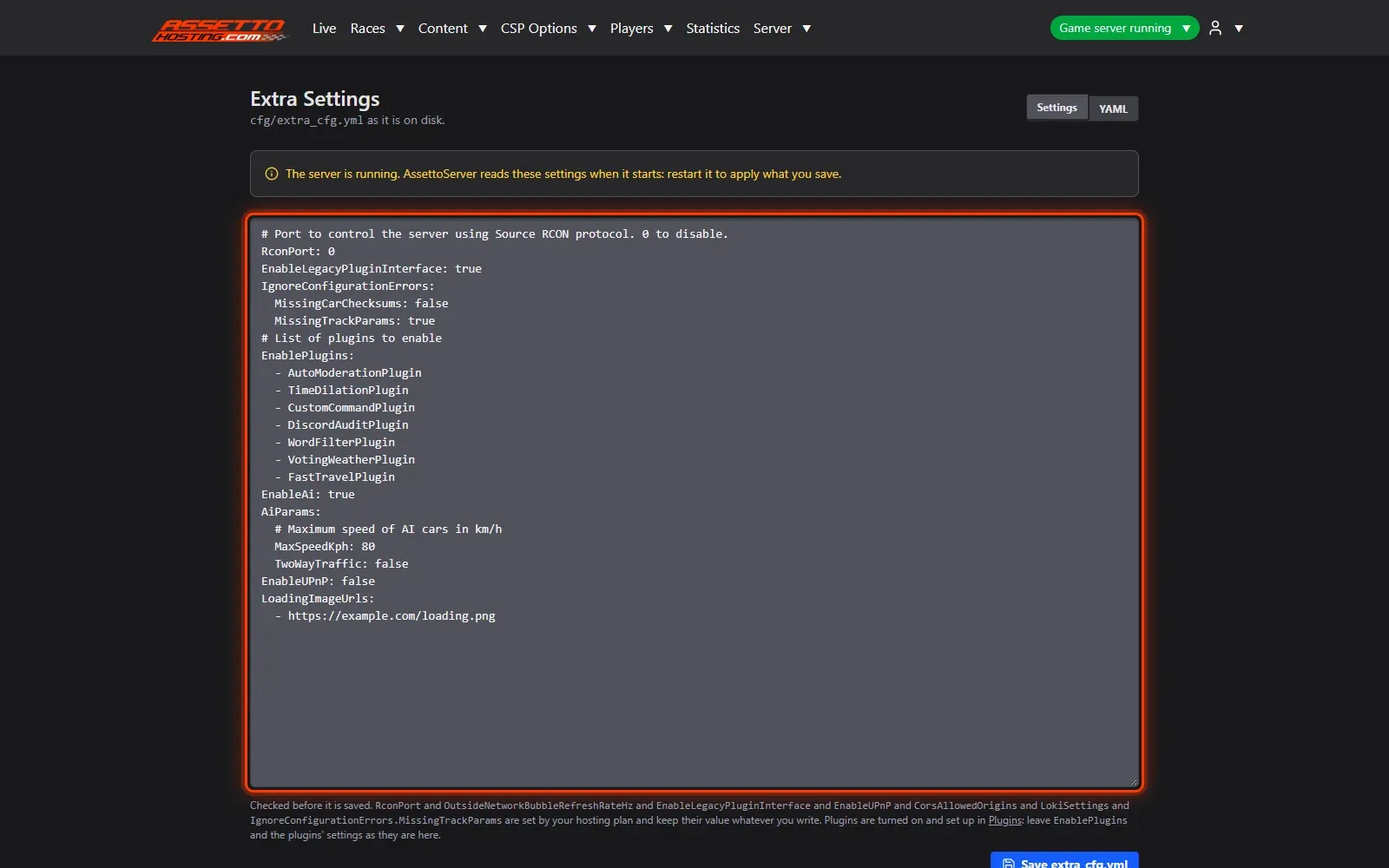
- Prefer YAML? Edit the file as text. The YAML view shows the whole file as text, AssettoServer's comments and order kept.
What you need
- A write or admin account on the panel.
- An Assetto Corsa Traffic server with Traffic Server Manager: every AssettoHosting.com Traffic server comes with it.
Step by step
- Open CSP Options › Extra Settings
AssettoServer's own settings, the AI traffic's included, live in its
extra_cfg.yml. In the panel they're a form: open CSP Options and pick Extra Settings.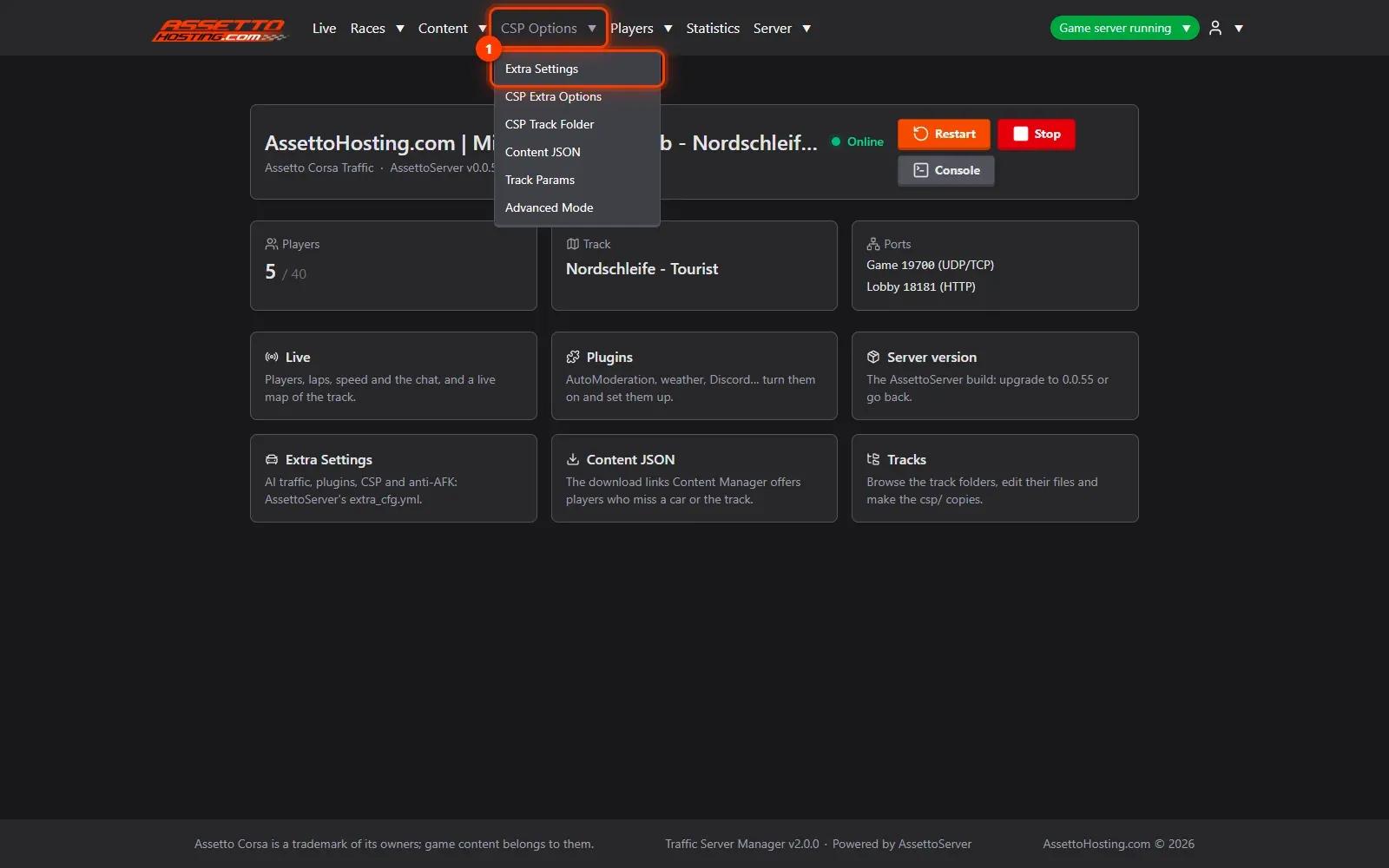
- Turn the traffic on and tune it
In AI Parameters: Enable Ai (1) turns the traffic on; Max Speed Kph (2) is how fast the traffic drives; Two Way Traffic (3) sends traffic both ways on two-way roads. Every setting has AssettoServer's own description under it, and the settings your file doesn't have yet show their default.
- Find any setting from the side index
The side index (1) follows the page and jumps to a section: AI Parameters, Authentication and Validation, Network and Latency, Server Configuration…
- Greyed-out settings are your plan's
Settings marked Hosting plan (1) — the RCON port, UPnP, the legacy plugin interface… — belong to the hosting: they're shown, never changed.
- Save, export or reset
Press Save settings (1). Every value is checked before it's written, so a typo can't stop the server from starting. Export (2) downloads the file; Import and Reset to default are next to it. Changes apply from the next start.
- Prefer YAML? Edit the file as text
The YAML view shows the whole file as text, AssettoServer's comments and order kept. It's checked before it's saved too.
On AssettoHosting.com
AI traffic, set up from your browser
On an AssettoHosting.com Traffic server, AI lanes, races, schedules and every AssettoServer traffic setting are in Traffic Server Manager. It checks every value before it saves, so a typo can’t stop your server from starting.
- AI lanes per track and layout
- Custom races and weekly schedules
- Every value checked before it is saved
Good to know
- Not sure about a setting? Its description is right under it, from AssettoServer's own code.
- Settings apply when the server starts next: restart it from the dashboard.
Traffic Server Manager
Frequently asked questions
The panel checks every value before saving and before each start, and names the setting if AssettoServer couldn't use it.
Those marked Hosting plan belong to the hosting (ports, RCON, UPnP…).
Keep reading: Add AI traffic lanes (fast_lane.ai) to a track · Turn on and set up AssettoServer plugins · Assetto Corsa traffic server not starting? Find the cause and fix it · Drift server: turn the AI traffic off · All 18 Traffic Server Manager tutorials