
How to Add Mods to a BeamMP Server
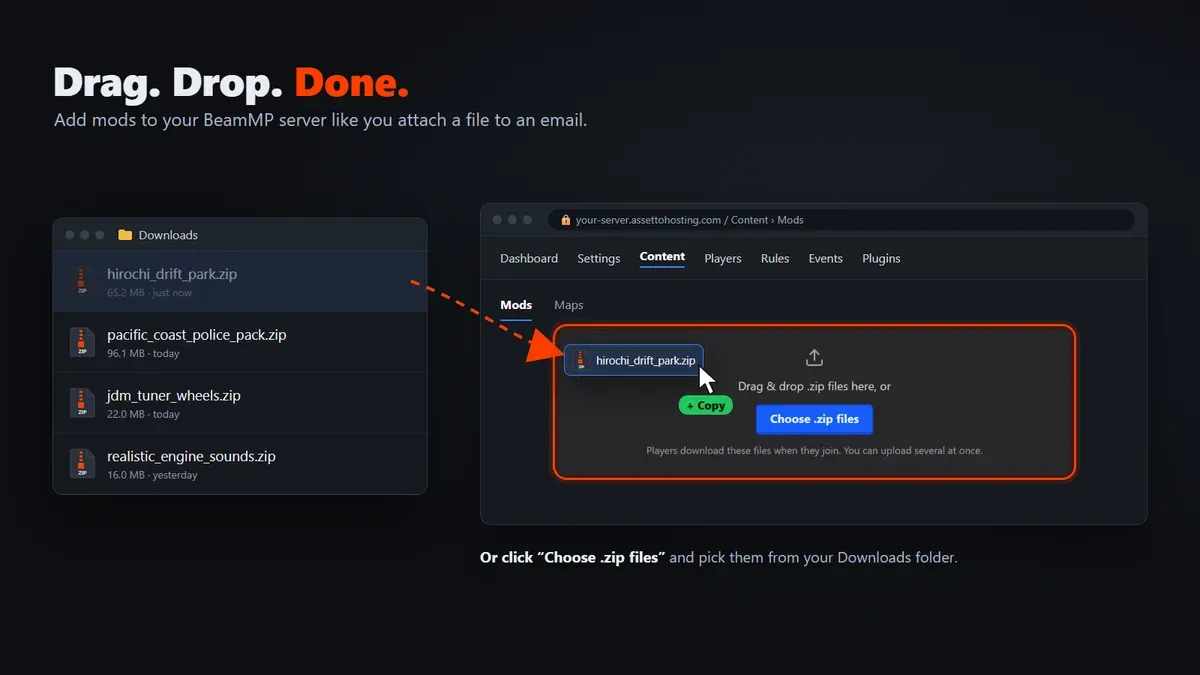
Download the mod, drag the .zip onto your control panel, done. As easy as attaching a file to an email: no FTP, no config files, and map paths set themselves.
- Download the mod as a
.zip(don't unzip it). - In your BeamMP panel, open Content › Mods.
- Drag the .zip from your Downloads folder onto the page, or click Choose .zip files.
- Map mod? Click Use as server map: the
/levels/…/info.jsonpath is generated for you. - Restart the server. Players download the mods automatically when they join.
What you need
- A BeamMP server. On AssettoHosting it's online in about a minute and comes with the BeamMP Server Manager, our control panel.
- The mod as a
.zipfile: cars, maps, skins and liveries, sounds, props… BeamMP uses normal BeamNG.drive mods. - A browser on your PC or your phone. Nothing to install: no FTP client, no text editor.
Step by step: add mods to your BeamMP server
- Download the mod (keep it as a .zip)
Get the mod from the official BeamNG.drive repository or from its author. Your browser saves it in your Downloads folder as a
.zip.Don't unzip it. BeamMP sends players the original
.zip, and an unzipped folder is ignored.Already have the mod in your game? In the BeamNG.drive launcher choose Manage User Folder › Open in Explorer and open the
modsfolder. The.zipfiles there upload as they are. Since version 0.37 it is, by default, AppData › Local › BeamNG › BeamNG.drive › current › mods (type%LOCALAPPDATA%in the Explorer address bar to jump to AppData › Local).TipDownload all the mods you want first: you can upload them together in step 3.
- Open Content › Mods in your panel
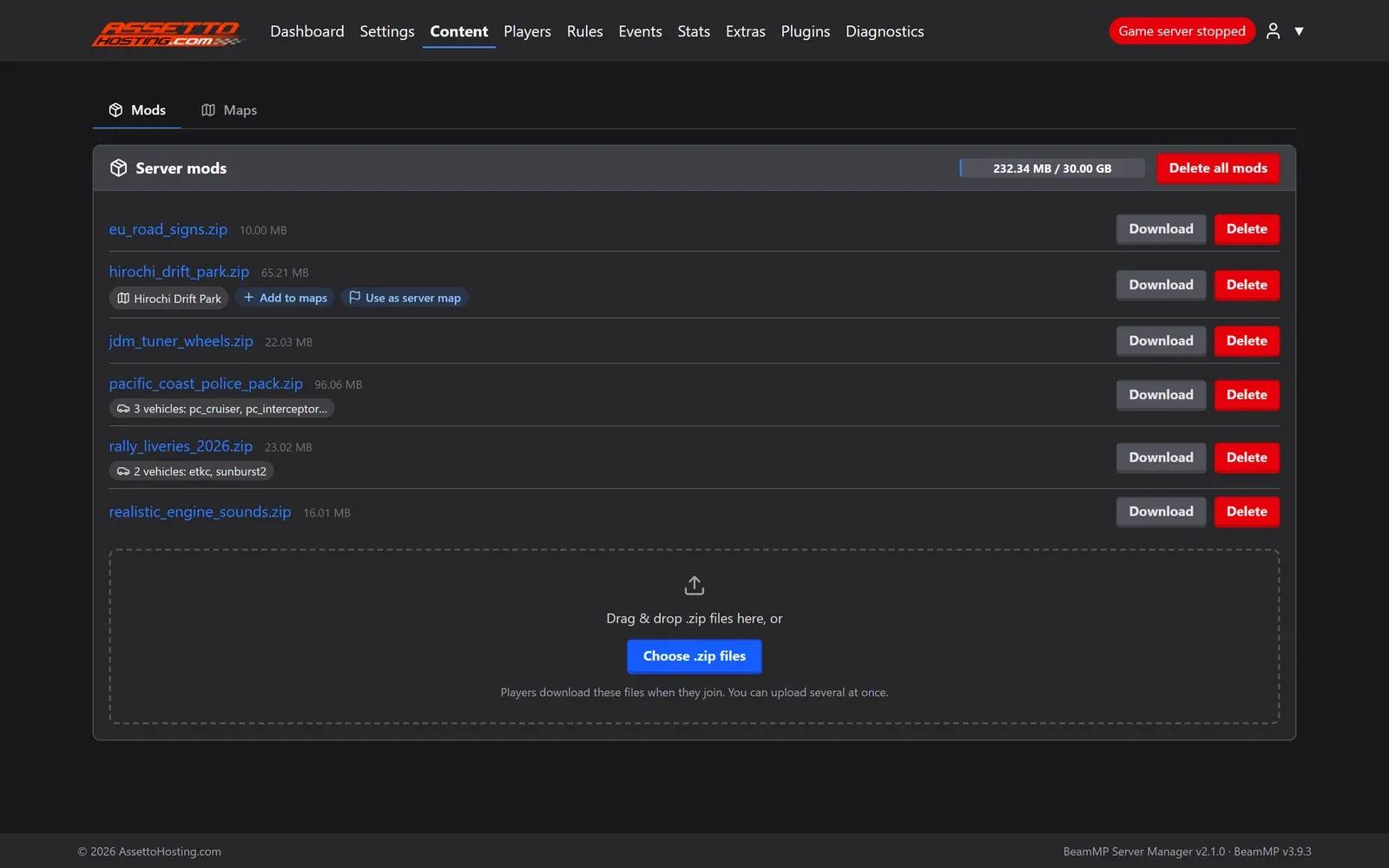
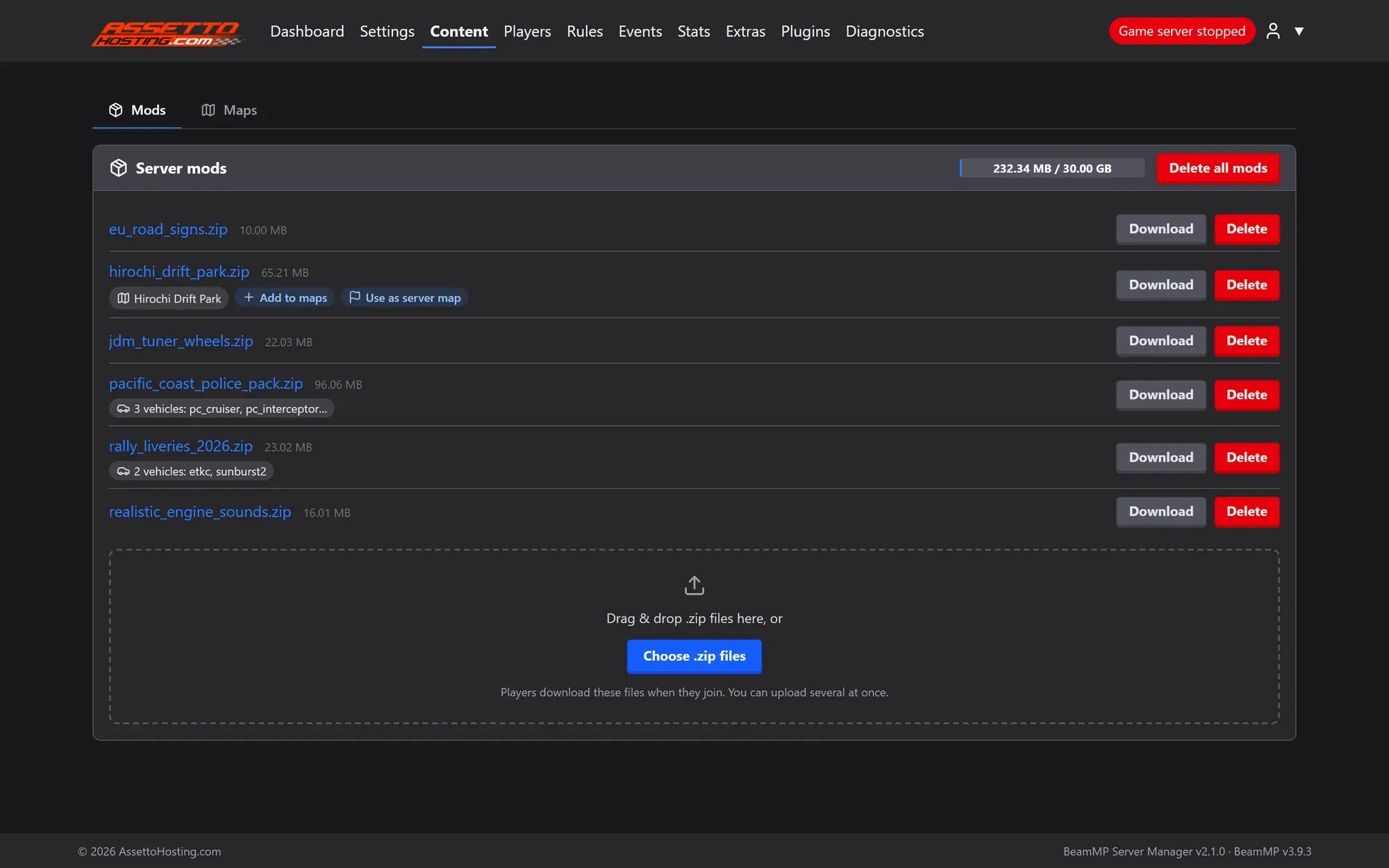
Log in to your BeamMP Server Manager, click Content in the top menu and stay on the Mods tab. You see the mods already on the server, what each one holds and the space used of your plan.
- Drag the .zip onto the page, or choose it
Open your Downloads folder next to the browser and drag the .zip onto the dotted box that says Drag & drop .zip files here. That's all: it uploads like a file you attach to an email.
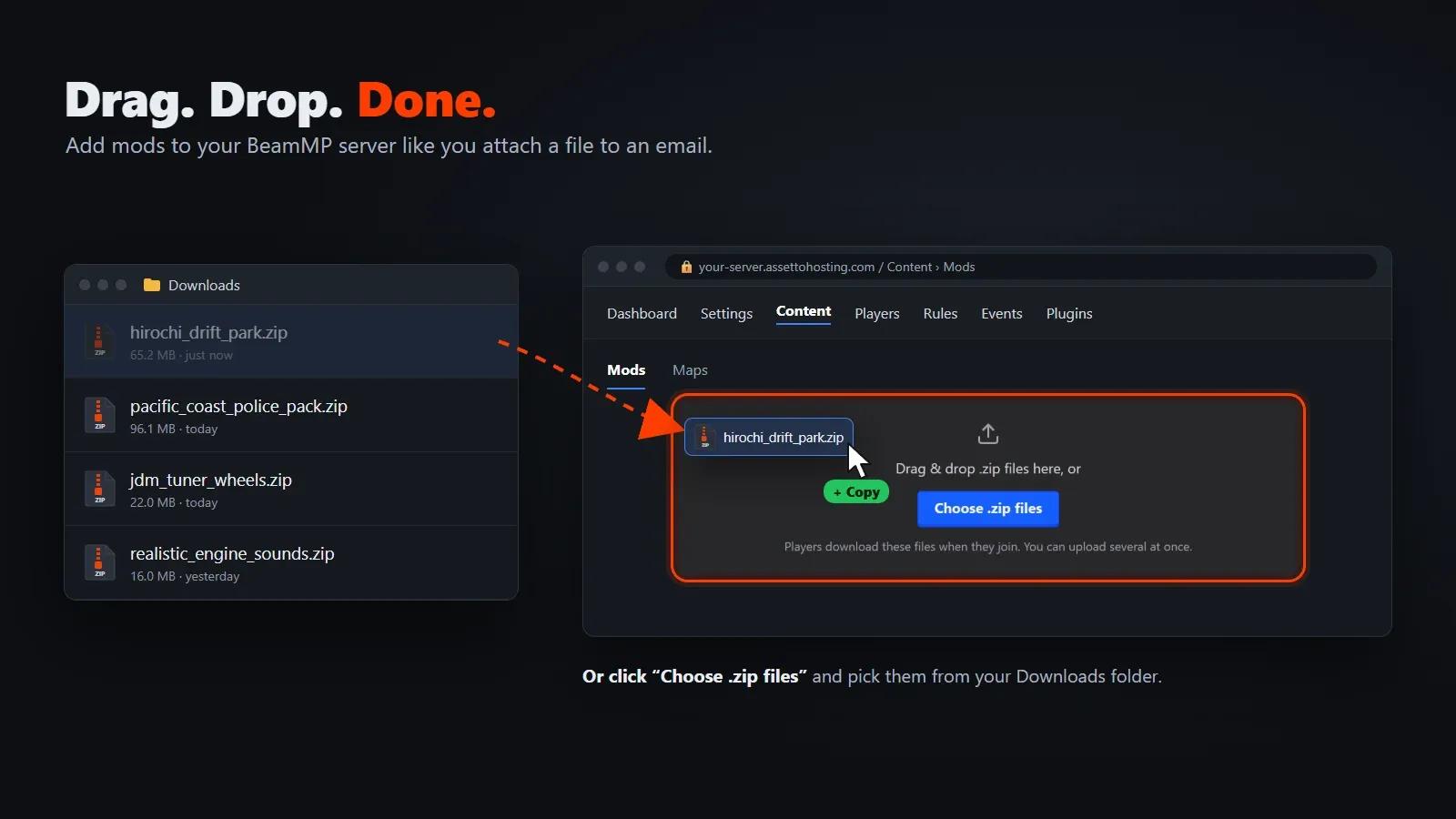
Prefer clicking? Press Choose .zip files, open Downloads and pick one mod or several at once. Big mods upload in parts from the browser, so even large map packs don't need FTP.
- Check what each zip holds
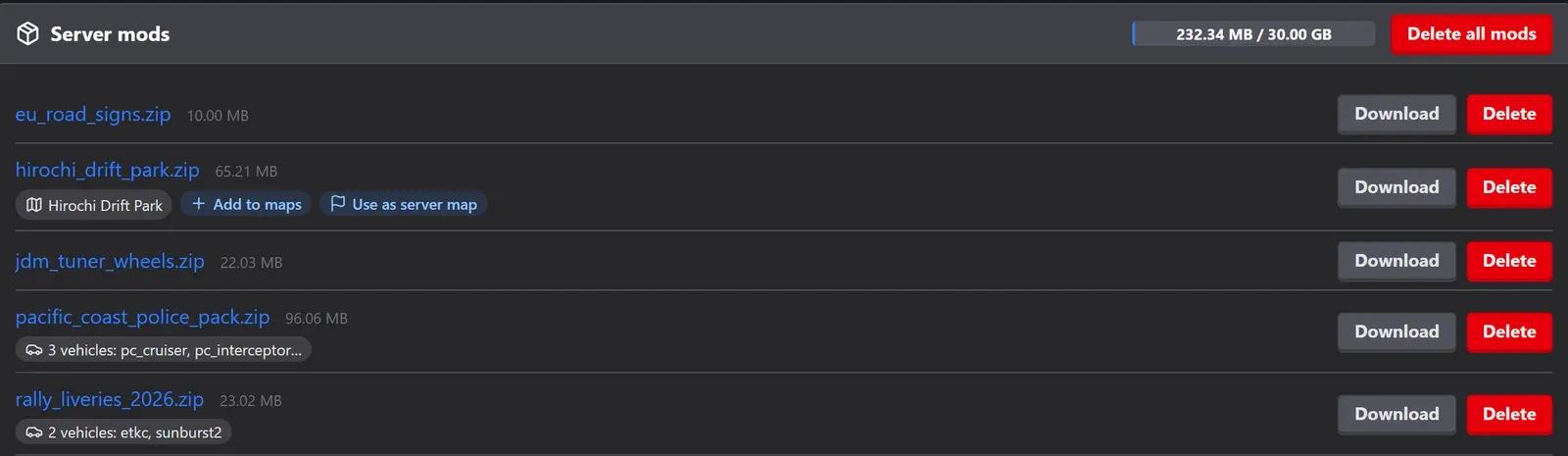
Every uploaded zip shows what's inside: the vehicles it adds (for example 3 vehicles: pc_cruiser, pc_interceptor…) or the map it contains. The bar at the top shows the space used of your plan, and Download and Delete manage each file.
- Map mod? The path is generated for you
With plain BeamMP you would open the zip, find the folder inside
levelsand type/levels/folder_name/info.jsonintoServerConfig.toml. Here the panel reads the zip and generates the map path automatically.Click Use as server map on the mod (or Add on Content › Maps) and the map is ready. A wrong path is caught before your players ever see Map not found.

- Restart and play
If the server was running, Restart it from the Dashboard so it serves the new mods.
Your players don't install anything: when they join, BeamMP downloads the server's mods into their game automatically. On the dashboard you can even see who is still downloading the mods.
On AssettoHosting
Mods by drag and drop, maps without paths
Every AssettoHosting BeamMP plan comes with our BeamMP Server Manager, which does the fiddly part for you: upload mods from the browser, see what each zip holds and repair broken zips in one click. Map mods are added with the right path, so “Map not found” never reaches your players.
- Drag and drop uploads, big files in parts
- Map paths generated automatically
- On every BeamMP plan
Mod not working? Quick fixes
- The zip shows nothing inside, or players can't load it. BeamNG can't read zips made the wrong way: a map zipped without its
levelsfolder, a mod inside an extra folder, or a zip of zips. The panel spots them and repairs them in one click. - You uploaded a folder instead of a zip. BeamMP ignores unzipped folders. The panel detects them: Make a .zip packs it properly, or Delete removes it.
- "Map not found" when players join. The map path doesn't match the folder inside the zip's
levelsfolder. On Content › Maps every map says whether players can load it, and a wrong path is fixed in one click. - Players stay on "downloading mods" for a long time. The first time they join they download every mod on the server, and big map packs take a while. Keep only the mods you actually use.
- The game stops loading after adding a mod. Two mods may clash. Delete the last one you added, restart and try again.
Doing it by hand: Resources/Client and ServerConfig.toml
Hosting BeamMP on your own PC, or with a host that has no BeamMP panel? Then mods are files in the server's folders:
- Vehicle, map and skin mods (client mods) go as
.zipfiles inResources/Client. Players download them when they join. - Server plugins (Lua) go in
Resources/Server, each in its own folder. They run on the server and players never download them. On AssettoHosting the Plugin Manager installs community plugins in one click. - A mod map also needs its path in
ServerConfig.toml:Map = "/levels/folder_name/info.json", wherefolder_nameis the folder inside the zip'slevelsfolder. Our list of BeamNG map names and paths has the paths of the base game and 80+ popular mod maps. - Upload the files with FTP or SFTP (large files usually have to go that way) and restart the server.
By hand vs. the BeamMP Server Manager
| Task | By hand (FTP + config) | BeamMP Server Manager |
|---|---|---|
| Upload a mod | FTP/SFTP to Resources/Client | Drag and drop in the browser |
| Large files | SFTP client | Uploaded in parts from the browser |
| Mod map path | Typed in ServerConfig.toml | Generated automatically |
| Badly zipped mods | Find and rezip them yourself | Detected and repaired in one click |
| What's in a zip | Open it on your PC | Shown next to each file |
| From your phone | Hard | Every page works on mobile |
BeamMP mods
Frequently asked questions
No. When a player joins, BeamMP downloads the server’s mods into their game automatically. They only need BeamNG.drive and the BeamMP launcher.
Client mods (cars, maps, skins) go as .zip files in the server’s Resources/Client folder, and server plugins in Resources/Server. On AssettoHosting you don’t touch folders: drag the .zip onto Content › Mods.
No. Upload the .zip as it is: BeamMP ignores unzipped folders. If you uploaded a folder, the panel detects it and packs it into a .zip for you.
Yes. Drag several .zip files together onto the page, or select them all in Choose .zip files.
Upload the map’s .zip and click Use as server map. The panel writes the /levels/…/info.json path for you, so there is nothing to type.
Yes. BeamMP uses normal BeamNG.drive mods. Download the .zip from the repository, or take it from your game’s mods folder, and upload it.
The server’s map path doesn’t match the folder inside the zip’s levels folder. Upload the map’s zip and the panel sets the right path; a wrong path is fixed in one click on Content › Maps.
It depends on your plan. The bar on Content › Mods shows the space used, and the BeamMP plans list the storage of each one.
Keep reading: Top 10 car and map mods for BeamNG · BeamNG map names for BeamMP servers · How to use custom maps on BeamMP · How to make a BeamMP server